
Encrypted Cloud Backup Explained Simply
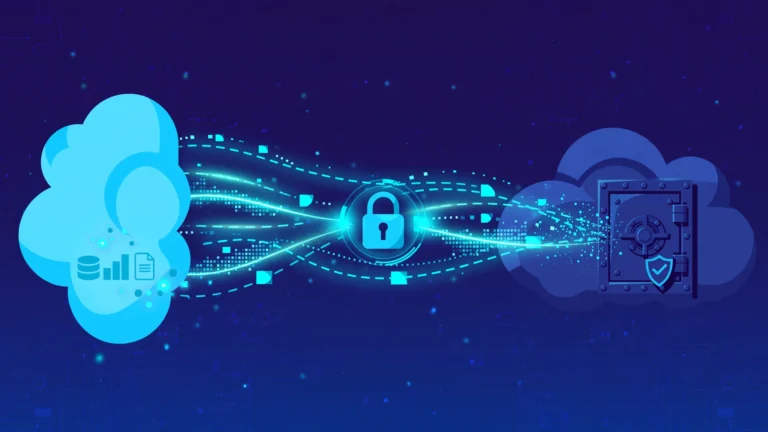
Encrypted cloud backup is a copy of your files stored on remote servers in scrambled form, with the scrambling done on your own device before upload. Encrypted cloud backup protects files with a key that you control, so the backup company stores ciphertext that it cannot read, and you restore files by decrypting that ciphertext with your key. This guide explains how encrypted cloud backup works, where it helps, where it falls short, and how to set up and test a backup you can trust.
Encrypted cloud backup covers the definition, the workflow, the types, the benefits, the limits, the provider checks, the setup steps, the priority order, and the restore test. It suits personal files, family photos, work documents, and small business records that must survive device loss, theft, ransomware, and accidental deletion. It works best as one part of a wider plan, with a local copy for fast restores and an off-site copy for disasters.
Key Takeaways
- Encrypted cloud backup scrambles files on your device before upload, so the provider stores ciphertext, not readable files.
- Zero-knowledge backup means the provider holds no usable key, which also means the provider cannot reset your key for you.
- Cloud storage that syncs files is not a backup, because synced deletions and ransomware changes can spread to the cloud copy.
- Keep three copies, on two storage types, with one copy off-site, and test a restore before you trust the backup.
- Price the full restore cost, not only the monthly storage price, and check version history before you pay.
Table of Contents
- What Is Encrypted Cloud Backup?
- How Does Encrypted Cloud Backup Work?
- What Is the Difference Between Encrypted Cloud Backup and Cloud Storage?
- What Types of Encrypted Cloud Backup Exist?
- What Are the Benefits of Encrypted Cloud Backup?
- What Are the Limits and Risks of Encrypted Cloud Backup?
- How Do You Choose an Encrypted Cloud Backup Service?
- How Do You Set Up Encrypted Cloud Backup?
- What Should You Back Up First?
- How Do You Test That an Encrypted Cloud Backup Works?
- Frequently Asked Questions
- Conclusion
What Is Encrypted Cloud Backup?
Encrypted cloud backup is a scheduled copy of selected files that is scrambled with an encryption key before it leaves your device, stored on remote servers in scrambled form, and restored only with that key. It protects the copy at three points: on your device before upload, during transfer, and while stored on provider servers. A data backup, in the sense used here, is a copy made so the original can be restored after a data loss event, and encryption is the scrambling step that keeps that copy unreadable without the key.
The scrambled form is called ciphertext. Plaintext is the readable file. The key is the secret value that turns plaintext into ciphertext and back again. In a well built service, the key is created on your device, the file is scrambled on your device, and only ciphertext travels over the internet. That order matters. If a provider scrambles files only after they arrive on its servers, the provider held a readable copy during upload and can read stored files later. A folder password often controls access only, while encryption changes the file data itself, so ciphertext stays unreadable even when a stored copy leaks, as long as the key stays secret.
CPN Tech covers cloud backup in depth, and readers who run a business should also read the related guide on cloud backup services for business.
How Does Encrypted Cloud Backup Work?
Encrypted cloud backup works in five steps: the software selects files, scrambles them on your device with your key, sends only ciphertext over a secure connection, stores ciphertext with version history, and restores files by unscrambling ciphertext with your key on a device you control. Each step has a job, and a weak step weakens the whole backup.
- Select files. You pick folders, drives, or whole devices, plus a schedule and a retention rule for how long old versions stay available.
- Scramble files on your device. The software encrypts each file, and in many services also encrypts file names, before anything leaves the device.
- Transfer ciphertext. The scrambled data travels over Transport Layer Security (TLS), the protocol that protects data in transit, adding a second layer over file encryption.
- Store ciphertext with versions. The provider stores scrambled copies, keeps earlier versions for a set period, and in some services keeps copies in more than one data center.
- Restore with your key. You pick a file or a version, the software downloads ciphertext, and your device unscrambles it with your key. No key means no restore.
Most consumer services use the Advanced Encryption Standard with a 256-bit key, written as AES-256. The Advanced Encryption Standard is a specification for the encryption of electronic data established by the US National Institute of Standards and Technology (NIST). A 256-bit key gives a key space so large that guessing the key by trying every value is not a practical attack with current technology. Key length alone does not prove a service is safe, because password strength, key storage, and software quality matter just as much.
Key creation takes two common forms. A password derived key is made from a password you choose, run through a key derivation function such as Argon2id or PBKDF2, which slows guessing attacks. A randomly generated key is made by the software and shown to you as a recovery key, which you must store safely. Password derived keys are easier to remember and easier to guess when the password is weak. Random keys are harder to guess and harder to keep safe, because losing the stored copy loses the backup.

What Is the Difference Between Encrypted Cloud Backup and Cloud Storage?
Encrypted cloud backup differs from cloud storage because a backup keeps separate versioned copies on a schedule, while cloud storage syncs the current state of files, so a backup lets you roll back to an earlier version after deletion, overwriting, or ransomware. Cloud storage is built for access and sharing. A backup is built for recovery.
| Feature | Encrypted cloud backup | Cloud storage with sync |
|---|---|---|
| Main job | Restore files after loss | Access and share current files |
| Copies kept | Separate versions on a schedule | Current state, mirrored across devices |
| After accidental deletion | Restore an earlier version | Deletion can sync to all devices |
| After ransomware | Restore a clean earlier version | Encrypted files can sync to the cloud copy |
| Schedule | Automatic, often hourly or daily | Continuous sync on every change |
Sync services can add version history, and that helps, but version history inside a sync account still lives inside the same account. If an attacker gains the account, or a sync error spreads, the safety net sits inside the same system that failed. A backup service keeps the backup copy separate from live files, with its own schedule, retention rules, and access controls. Check the version and restore behavior before you rely on any service as your only backup, because the label alone does not prove it works as a backup.
What Types of Encrypted Cloud Backup Exist?
Encrypted cloud backup comes in three types: provider-managed encryption, private key encryption, and self-hosted or client-side tool backup, and the types differ mainly in who holds the key and who runs the storage.
| Type | Who holds the key | Who runs storage | Best fit |
|---|---|---|---|
| Provider-managed encryption | Provider | Provider | Simple setup, password reset available |
| Private key encryption | You | Provider | Sensitive files, no provider access wanted |
| Self-hosted or client-side tools | You | You, or storage you rent | Full control, technical setup accepted |
Provider-managed encryption scrambles files at rest on provider servers, and the provider holds the key. The provider can reset your password and restore access, which is convenient. The provider can also read files when required by law or when its systems are breached, because the provider holds the key. This type suits files where convenience matters more than keeping the provider out, and teams that need account recovery for staff.
Private key encryption, often called zero-knowledge encryption, keeps the key on your devices only. The provider stores ciphertext and cannot read files, cannot reset the key, and cannot restore files when the key is lost. This type suits tax records, health records, legal files, client files under confidentiality duties, and personal photos you want kept private from the provider. The cost of that privacy is full key responsibility, covered in the setup section below.
Self-hosted backup uses software you run, with storage on your own server or rented object storage. You control the key, schedule, and retention rules, and you carry the maintenance work: updates, monitoring, failed backup alerts, and restore testing. A hybrid setup is common: a private key service for the off-site copy, plus a local external drive for fast restores.
What Are the Benefits of Encrypted Cloud Backup?
Encrypted cloud backup gives five benefits: off-site protection, privacy from the provider in private key services, versioned recovery, automatic schedules, and access from any device during a restore. Off-site protection covers fire, flood, theft, and burglary, because a remote copy survives when the home or office does not. Privacy from the provider covers account breaches and data requests, because ciphertext without the key reveals no file contents. Versioned recovery covers the most common losses: a file deleted by mistake, a document overwritten with the wrong version, and a folder encrypted by ransomware.
A scheduled backup covers forgetfulness, because the copy updates without a manual step each day. Access from any device covers travel and device loss, because a restore can start on a replacement machine with the backup software and the key. Encrypted cloud backup also helps small teams meet client expectations, because a service with audit logs, retention rules, and access controls gives a record of what was backed up and when. A lost backup drive or a breached storage account then exposes ciphertext, not readable client files, which limits the harm from that incident.
What Are the Limits and Risks of Encrypted Cloud Backup?
Encrypted cloud backup has five limits: key loss ends recovery in private key services, large restores take time, internet access is required, costs rise with stored data, and encryption does not stop every attack. Key loss is the sharpest limit. In a private key service, no key means no restore, even when the provider wants to help. Store the key in two places you control, such as a password manager and a printed copy in a safe place, and test that a trusted person can find it when you cannot.
Restore speed is the second limit. Downloading a full device over a home connection can take hours or days, depending on data size and connection speed. A local copy restores faster, which is why the 3-2-1 plan below keeps a local copy alongside the cloud copy. Some providers offer a shipped drive for a large restore, for a fee, and that option is worth checking before you need it. Cost is the third limit: stored data, version history, and download charges all add up, and a service that looks cheap per month can cost more at restore time.
Encryption does not stop ransomware from encrypting live files, it only gives clean copies to restore. Encryption does not stop phishing, weak passwords, or a compromised device from leaking files before they are encrypted. A backup service still needs two-factor authentication, strong passwords, and device security, because encryption protects stored copies, not every path into your files.
How Do You Choose an Encrypted Cloud Backup Service?
Choose an encrypted cloud backup service by running five checks: key custody, encryption scope, password reset behavior, independent audit, and jurisdiction, then score the service on restore speed, version history, and total cost. The five checks separate real zero-knowledge services from services that use the word encrypted for at-rest storage only. Run the checks on provider help pages and terms, not on the sales page alone.
- Key custody check. Ask who holds the decryption key. A zero-knowledge service states that only you hold the key and that the provider cannot read files.
- Encryption scope check. Ask whether every file is encrypted on your device, or only files in a special folder or a paid add-on.
- Password reset check. Ask what happens when you forget the password. A true private key service cannot restore files after a password loss, because it holds no key.
- Independent audit check. Ask for a published audit by a named auditor, plus open source clients or a bug bounty program, which give outside experts a way to check claims.
- Jurisdiction check. Ask where the company is based and where servers sit, because local law sets what data requests the company must answer.
After the five checks, score the practical points. Check version history length: 30 days suits most home users, while longer retention suits work files that change slowly. Check restore options: single file, folder, and full device restore should all work from the same account. Check the first backup time for your data size, and whether the service sends only changed parts of files, which keeps daily backups fast. Check total cost over two years, including storage, extra devices, and restore charges.
For readers who already use cloud storage for work files, the related guide on cloud-based storage solutions explains storage types and limits in more detail.

How Do You Set Up Encrypted Cloud Backup?
Set up encrypted cloud backup in seven steps: inventory files, pick a private key or provider-managed service, create a strong password, store the recovery key in two places, install the software, run the first backup, and confirm the first restore. Do the steps in order, because a key stored after the first backup is a key that may never get stored at all.
- Inventory files. List devices, folders, and file types, and mark files that must never leave your control without encryption, such as identity documents and client records.
- Pick the encryption type. Pick private key encryption for sensitive files, and provider-managed encryption when team password resets matter more.
- Create a strong password. Use a password manager to make a long, random, unique password, and turn on two-factor authentication on the backup account.
- Store the recovery key in two places. Save the recovery key in the password manager, and print a second copy for a safe place away from the main device.
- Install the software. Install the backup app on each device, sign in, and pick the folders from the inventory.
- Run the first backup. Start the first backup on a stable connection, and leave the device on until it completes, because the first backup is the largest.
- Confirm the first restore. Restore one file to a test folder, open it, and check that the contents match the original, before you rely on the backup.
Turn on backup failure alerts, because a backup that fails silently is no backup at all. Check the backup report after the first week, and again after any device change, software update, or password change. A password change in a private key service can change key access, so read the provider help page on password changes first, and re-test a restore after the change.
What Should You Back Up First?
Back up files in this priority order: identity and legal documents, work files that cannot be recreated, family photos and videos, financial records, and then app settings and downloads, because the order follows how hard each group is to replace. Start with identity and legal documents: passports, contracts, tax files, and property records. These files are small, hard to replace, and high risk when exposed, so private key encryption fits them best. Next, back up work files that cannot be recreated: project files, client work, research notes, and source code.
Next, back up family photos and videos, which carry personal value that no payment can replace, and which grow large over time, so schedule them after the smaller critical files. Next, back up financial records and statements, which need retention for tax and audit purposes. Last, back up app settings, downloads, and media that can be downloaded again, because these files cost storage and time without matching value.
Apply the 3-2-1 rule to the priority groups. Keep three copies of important data, on two different storage types, with one copy off-site. In practice, that means the live file on your device, a local copy on an external drive, and an encrypted cloud backup copy. Add one immutable copy for ransomware protection when the service offers it: an immutable copy cannot be deleted or changed before its retention period ends. Disconnect the local drive when it is not backing up, because a connected drive can be encrypted by the same ransomware that hits live files.

How Do You Test That an Encrypted Cloud Backup Works?
Test an encrypted cloud backup with a timed restore drill: restore one file, one folder, and one older version, open each restored file, and record the time each restore took, because a backup that has never been restored is an untested claim. Run the drill once after setup, and again every three months, plus after any password change or device change. A drill takes under an hour for most home users, and it finds the failures that matter: a missing key, a wrong folder, a version that expired, or a restore that needs a device you no longer own.
Follow this drill. First, restore a single file deleted from the live device, and check the contents open correctly. Second, restore a whole folder to a test location, and check file count and file sizes against the original folder. Third, restore an older version of a document you changed last week, and check that the older text appears. Fourth, time a larger restore, such as a photo folder, and compare the time against your recovery target, meaning how fast you must be back after a loss. Fifth, test key access from a second device where the service allows it, so a lost primary device does not block recovery.
Record the drill results in one place: date, files restored, versions used, time taken, and any failure found. Fix failures at once, because a failure found during a drill is cheap, while the same failure during a real loss is costly. If a restore fails, contact provider support with the drill details, and do not delete live files until a second successful restore confirms the backup works.
Readers who protect data already stored in cloud apps should also read the guide on cloud to cloud backup, which covers a separate backup copy for files that already live in Google Drive, Dropbox, or OneDrive.
Frequently Asked Questions
Is encrypted cloud backup safe?
Yes, encrypted cloud backup is safe when the key stays secret and the service encrypts files on your device before upload. Safety also needs a strong password, two-factor authentication, and a stored recovery key, because a leaked password or a lost key breaks the protection.
What happens if I lose my encrypted cloud backup password?
In a private key service, losing the password and the recovery key means the backup cannot be restored, because the provider holds no key. In a provider-managed service, a password reset can restore access, because the provider holds the key. Store the recovery key before you need it.
Is encrypted cloud backup the same as encrypted cloud storage?
No, encrypted cloud backup is not the same as encrypted cloud storage. A backup keeps separate scheduled versions for recovery, while storage syncs current files for access. A service can do both, but the restore and version behavior decides whether it works as a backup.
How much storage do I need for encrypted cloud backup?
You need storage equal to the total size of files you back up, plus room for version history. A 500 GB file set with 30 days of versions needs more than 500 GB when files change often. Start with the inventory total, then add 20 percent for versions, and check usage after the first month.
Does encrypted cloud backup protect against ransomware?
Yes, encrypted cloud backup protects against ransomware when it keeps clean earlier versions separate from live files. Restore a version from before the attack, and check restored files before reconnecting the device. A backup that syncs live changes offers no such protection.
Can the backup company read my files?
In a private key service, no, the company cannot read your files, because it holds only ciphertext and no usable key. In a provider-managed service, yes, the company can read files when required, because it holds the key. Check the key custody statement before you pay.
Conclusion
Encrypted cloud backup is a scheduled, scrambled copy of your files that you restore with a key you control, and its value comes from the combination of encryption, version history, and off-site storage. Encrypted cloud backup works best when you pick the right key type, store the recovery key in two places, keep a local copy for fast restores, and run a timed restore drill every three months. The service list matters less than the workflow: inventory, setup, first restore, and regular drills.
Start today with the priority order in this guide. Back up identity documents and irreplaceable work files first, then photos and financial records, and keep the 3-2-1 rule as the frame for every later choice. A backup you have tested is a plan. A backup you have never restored is a hope. Run the drill, record the result, and fix any failure while the original files are still safe.
For more beginner-friendly guides on protecting your files, browse CPN Tech. CPN Tech covers cloud backup, storage, and security in plain language, with guides that explain each topic step by step.