
What Is Cloud Data Storage? A Simple Guide
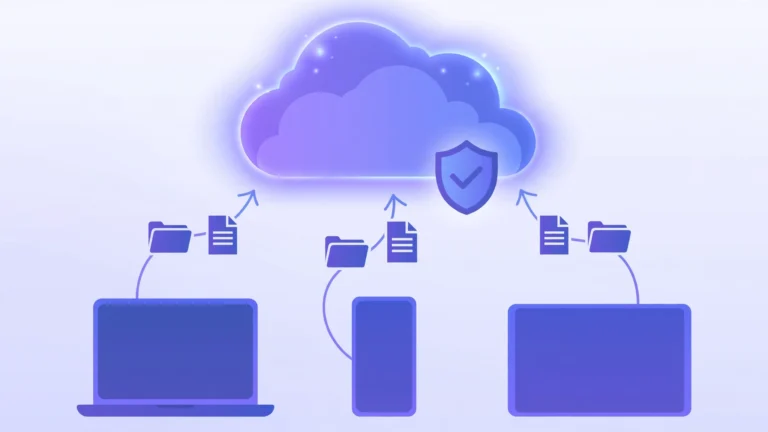
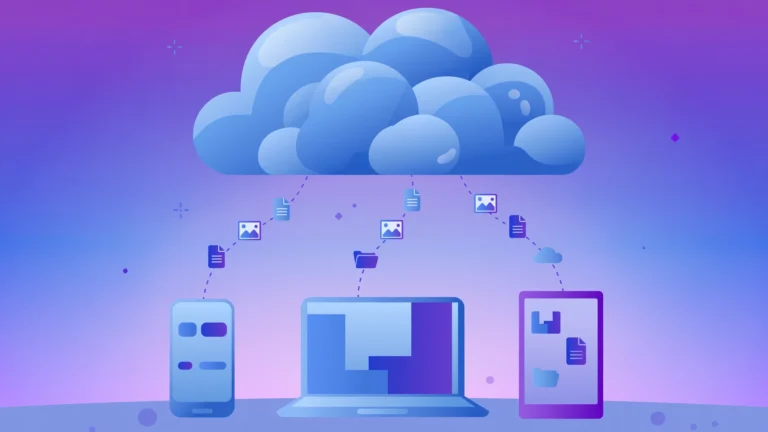
Every day, billions of photos, documents, and videos are saved to the cloud. But what actually happens when you press upload? Cloud data storage is a way of saving your files on remote servers owned by a provider, instead of on your own device. Your files travel over the internet to secure data centers, where they are stored, copied for safety, and made available to you anytime, on any device.
In this guide from CPN Tech, you will learn how cloud storage works, where your data physically lives, the main types of cloud storage, the most popular cloud storage services, how pricing works, and how to keep your files secure. No jargon, no assumptions: just clear answers.
Key Takeaways
- Cloud data storage saves your files on remote servers instead of your own device, and you can reach them from anywhere with an internet connection.
- Providers automatically replicate your data across multiple servers and locations, so one hardware failure almost never loses your files.
- The three data structures are object, block, and file storage; the three deployment models are public, private, and hybrid cloud.
- Pricing usually starts free and scales per gigabyte, but watch for transfer and retrieval fees behind the headline rate.
- Encryption and professional security teams protect your data, but you own the front door: strong passwords, two-factor authentication, and careful sharing are your job.
- What Is Cloud Data Storage, Exactly?
- How Does Cloud Data Storage Work?
- What Are the Main Types of Cloud Storage?
- What Are the Most Popular Cloud Storage Services?
- What Are the Benefits of Cloud Data Storage?
- What Are the Risks and Limitations of Cloud Storage?
- How Does Cloud Storage Pricing Work?
- Is Cloud Data Storage Secure?
- Cloud Storage vs Local Storage: Which Should You Choose?
- Cloud Storage vs Memory (RAM): Are They Different?
- Where Is Cloud Data Storage Used in Real Life?
- Frequently Asked Questions
- Conclusion
What Is Cloud Data Storage, Exactly?
Cloud data storage means keeping your digital files on servers that live on the internet rather than on hardware you own. Instead of saving a photo to your phone or a document to your laptop, you save it to a remote system run by a company like Google, Microsoft, Dropbox, or Amazon.
The word “cloud” is just a metaphor. The cloud storage model stores data in logical pools spread across many physical servers, managed by a provider who keeps it available, secure, and backed up. You rent space in that pool and reach your files over the internet.
Think of it like a safety deposit box at a bank: not in your house, but guarded around the clock and open to you anytime. Your files live elsewhere, protected by professionals, and you access them from anywhere.
How Does Cloud Data Storage Work?
When you save a file to the cloud, your device sends it over the internet to the provider’s infrastructure. Software there decides where the file should live, writes it to physical drives, and immediately protects it with copies and encryption. All of it happens in seconds.
The journey of a file, step by step
- You upload a file. You drag a photo into Google Drive or save a document to OneDrive. Your device secures the connection with TLS, the same technology that protects online banking.
- The file travels to a data center. Large files may be split into chunks that travel separately and reassemble on arrival.
- The provider’s software assigns the file to physical servers, balancing the load across the facility.
- The file is written to hard drives or SSDs, and metadata (name, size, owner, timestamps) is recorded for instant lookup.
- Copies are made automatically on other servers, often in different buildings or cities. This replication protects you from hardware failure.
- You access it from anywhere. The system finds the nearest healthy copy, decrypts it, and sends it to your device. Sync apps keep your devices matching automatically.
Why replication matters
Replication is why cloud storage is so reliable. Providers keep at least three copies of your data, sometimes in different regions. Amazon designs S3 object storage for 99.999999999% (eleven nines) of yearly durability, per AWS documentation. Losing a file to hardware failure is extraordinarily unlikely.
Where your data physically lives
Your files live in data centers: huge buildings full of servers, cooling, and backup power. Providers like AWS, Google Cloud, and Microsoft Azure group them into regions (such as “US East”) and availability zones (separate facilities with independent power). Your copies span multiple zones, so one building’s outage cannot take you offline, and your requests route to the nearest copy for speed.

What Are the Main Types of Cloud Storage?
Cloud storage has two classifications that beginners often mix up: where it lives (the deployment model) and how data is organized (the storage type).
By deployment: public, private, and hybrid
- Public cloud storage: shared provider infrastructure, as with Google Drive and Dropbox. Cheapest, easiest, and nearly limitless in scale.
- Private cloud storage: infrastructure dedicated to one organization, in its own data center or hosted. Banks and hospitals choose it for control and compliance, at higher cost.
- Hybrid cloud storage: a mix of both. Sensitive records stay private while everyday files use the public cloud.
By data structure: object, block, and file storage
- Object storage: data saved as “objects” (data plus a unique ID and metadata) in a flat pool, with no folders. Ideal for photos, videos, backups, and archives. Examples: Amazon S3, Google Cloud Storage.
- Block storage: data split into fixed-size blocks with individual addresses and no metadata. It behaves like a raw hard drive: very fast, so databases and virtual machines use it.
- File storage: the familiar folders-and-files system over a network. Easy to use (shared office drives, NAS devices) but scales less gracefully than object storage.
| Type | How data is organized | Best for | Example services |
|---|---|---|---|
| Object storage | Flat pool of objects with metadata | Photos, videos, backups, archives | AWS S3, Google Cloud Storage |
| Block storage | Fixed-size blocks, no metadata | Databases, virtual machines | AWS EBS, Azure Disk Storage |
| File storage | Hierarchical folders and files | Shared documents, team drives | Dropbox, OneDrive, NAS devices |
Read provider marketing with clear eyes: object storage means optimized for massive unstructured files, while block storage means built for speed-hungry applications.

What Are the Most Popular Cloud Storage Services?
Most beginners meet cloud data storage through consumer apps:
- Google Drive: 15 GB free with every Google account (shared with Gmail and Photos); strong with Docs and Android.
- Dropbox: the file-syncing pioneer, known for reliability; 2 GB free.
- Microsoft OneDrive: built into Windows and Microsoft 365; 5 GB free; deep Word, Excel, and Teams integration.
- Apple iCloud: the default on iPhone, iPad, and Mac, with automatic backups; 5 GB free.
- Amazon S3: not a consumer app, but the storage backbone of countless websites and apps, used by developers through APIs. For a broader look at how these services and models fit together, see our guide to cloud-based storage.
Each service has a different strength. Google Drive and OneDrive shine inside their office ecosystems, Dropbox wins on pure syncing reliability, iCloud is effortless for Apple users, and S3 powers the infrastructure behind the apps you use daily.
What Are the Benefits of Cloud Data Storage?
Why has cloud storage become the default?
- Access from anywhere: your files follow you across phone, laptop, and tablet.
- Automatic backup: a stolen laptop no longer means lost memories.
- Easy sharing: send a link instead of a bulky attachment, with view or edit permissions.
- Scalability: upgrade your plan in minutes instead of installing a new hard drive.
- Lower upfront cost: start free and pay only for what you use.
- Collaboration: multiple people edit the same document in real time.
- Disaster recovery: copies in different locations survive floods, fires, and hardware failures.
What Are the Risks and Limitations of Cloud Storage?
Honest guides mention the trade-offs:
- Internet dependence: no connection, no access.
- Privacy: you trust a third party; weak passwords and careless sharing links cause most personal exposures.
- Ongoing costs: subscriptions add up over the years if you never review them.
- Vendor lock-in: moving terabytes between providers is slow and can incur transfer (egress) fees.
- Compliance: some industries and countries restrict where data may physically live.
- Account risk: lose your account with no recovery options, and your files are effectively gone.
How Does Cloud Storage Pricing Work?
The first slice is usually free; you pay for what you use beyond that.
Consumer plans: Google Drive gives 15 GB free, iCloud and OneDrive give 5 GB free, and Dropbox gives 2 GB free. Paid tiers (100 GB to 2 TB) cost a few dollars per month; Google One, iCloud+, and Microsoft 365 bundle storage with other perks.
Business pricing: AWS S3 and Azure Blob Storage charge per gigabyte per month with tiers. “Hot” tiers cost more but give instant access; “cool” and “archive” tiers cost far less but charge for retrieval or make you wait.
Hidden costs: data transfer out of the cloud (egress fees), API requests at massive scale, and early-deletion fees on archive tiers. Check these three line items, not just the headline per-GB rate.
Is Cloud Data Storage Secure?
For most people, reputable cloud storage beats a laptop or USB drive, but security is shared.
What the provider handles: encryption in transit and at rest (typically AES-256), guarded data centers, regular audits, and compliance with standards like ISO 27001 and SOC 2.
What you handle: your account is the front door. Enable two-factor authentication (2FA), use a strong unique password in a password manager, and review sharing links regularly.
On public Wi-Fi, a VPN encrypts your connection against nearby snoopers. For extremely sensitive files, client-side encryption tools encrypt data on your device before upload, so even the provider cannot read it.
Cloud Storage vs Local Storage: Which Should You Choose?
Neither wins everywhere.
| Factor | Cloud storage | Local storage |
|---|---|---|
| Access | Anywhere with internet | Only on that device (or your network) |
| Upfront cost | Free to start, subscription later | Buy the drive once |
| Backup | Automatic copies in data centers | You must back it up yourself |
| Speed | Limited by internet speed | As fast as the drive |
| Privacy control | Provider holds your data | You hold your data |
| Capacity growth | Upgrade in minutes | Buy new hardware |
A practical approach: cloud for files you need everywhere and cannot afford to lose (photos, documents, work); local for huge files you access rarely or want fully under your control (video archives, system backups). Many people use both.
Cloud Storage vs Memory (RAM): Are They Different?
Both are measured in gigabytes, but they do different jobs. Storage (including cloud storage) keeps files long-term, even with the power off. RAM is your device’s short-term workspace: it holds only what the processor is actively using and forgets everything at shutdown. Learn the other half in our explainer on what RAM is and how it works.
The analogy: storage is the filing cabinet, RAM is the desk. More cloud storage never makes your computer faster; that is RAM’s job.
Where Is Cloud Data Storage Used in Real Life?
You probably use it without noticing:
- Phone photo backups: Google Photos and iCloud save every picture, so a lost phone does not mean lost memories.
- Team collaboration: colleagues edit the same Google Doc or share Dropbox assets with instant updates.
- App backends: profile pictures you upload usually land in object storage like AWS S3.
- Game saves: Steam Cloud syncs your progress across computers.
- Disaster recovery: companies replicate databases to another region to recover within hours of an attack or disaster.

Frequently Asked Questions
Is cloud data storage free?
Most providers offer a free tier: Google Drive includes 15 GB, iCloud and OneDrive include 5 GB, and Dropbox includes 2 GB. Paid plans cost a few dollars monthly for 100 GB to 2 TB. For most people, the free tier or cheapest paid plan is plenty.
What happens to my files if a cloud provider’s server fails?
Nothing, in almost all cases. Providers keep multiple copies of your data on separate servers, often in different locations, so one failure is invisible to you. Amazon designs S3 for eleven nines of durability per year. Your files are far more likely to be lost to accidental deletion than to hardware failure.
Can I access cloud storage without the internet?
Only files marked for offline access. Google Drive, Dropbox, and OneDrive let you download specific files or folders to your device in advance. Anything not downloaded stays in the cloud and needs a connection. If you travel often, sync important files before you leave.
What is the difference between cloud storage and cloud backup?
Cloud storage keeps your current files synced and accessible across devices; changes update everywhere. Cloud backup takes scheduled snapshots of your files or system for restoring after data loss. Many people use both: storage for daily work, backup as a safety net.
Who can see my files in cloud storage?
By default, only you. Providers do not browse personal files, but systems scan for illegal content and malware, and employees could access data under strict legal processes. For maximum privacy, enable two-factor authentication, limit sharing links, and use client-side encryption for sensitive files.
How much cloud storage do I need?
It depends on your files. Documents need very little: a few gigabytes hold years of them. Photos add up faster: daily phone photos may use 30 to 50 GB per year. Video is hungriest: one hour of 4K footage can exceed 20 GB. Start with a free tier and upgrade when you pass 80 percent of it.
Conclusion
Cloud data storage has quietly become the backbone of modern digital life. Your files live in professionally guarded data centers, copied across servers and regions, ready on any device. You now know how it works, the main types, what it costs, and how to keep it secure.
The next step: pick the provider that fits the devices you already use, turn on two-factor authentication, and move your most important files into the free tier today. Once syncing feels effortless, you will wonder how you ever managed with USB drives alone.