
Cloud Storage Explained: A Simple Beginner’s Guide
Cloud Storage Explained: A Simple Beginner’s Guide
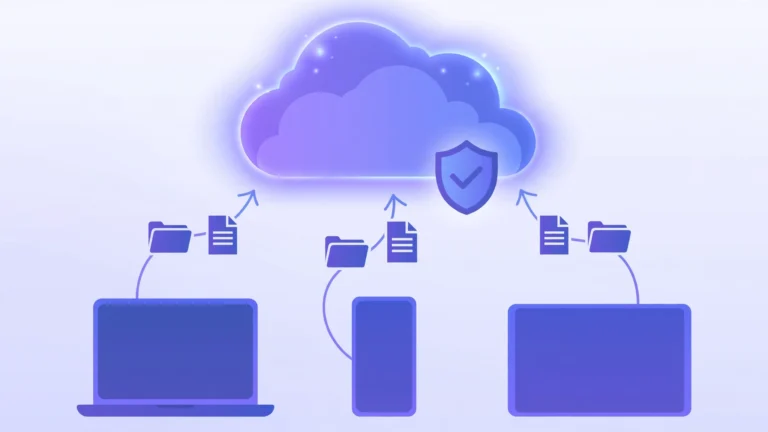
If your phone keeps warning you that storage is almost full, or you have ever lost important files when a laptop died, you have already felt the problem cloud storage solves. Instead of keeping every photo, document, and video on one fragile device, you keep a copy on secure servers on the internet and reach it from anywhere. At CPN Tech, we explain tech simply, so here is the plain version: cloud storage is a service that saves your files on a company’s remote servers instead of only on your own device. You upload files through the internet, the provider stores multiple protected copies in large data centers, and you can open, edit, share, or download those files from your phone, laptop, or any browser whenever you are online.
Key Takeaways
- Cloud storage keeps your files on secure remote servers so they survive lost, broken, or stolen devices.
- You access files from any device with an internet connection, and changes sync automatically across them.
- Google Drive, iCloud, OneDrive, Dropbox, and pCloud all offer useful free tiers for beginners.
- Turn on two-factor authentication, check sharing links, and keep a second backup of anything irreplaceable.
- Paid plans usually cost a few dollars a month, but watch for price hikes, storage-full lockouts, and sync filling your hard drive.
- What Is Cloud Storage, Exactly?
- How Does Cloud Storage Work?
- What Are the Types of Cloud Storage?
- Which Cloud Storage Service Should You Choose?
- How Do You Start Using Cloud Storage?
- What Are the Benefits of Cloud Storage?
- How Much Does Cloud Storage Cost?
- What Are the Limitations of Cloud Storage?
- How Secure Is Your Data in the Cloud?
- Frequently Asked Questions
- Conclusion
What Is Cloud Storage, Exactly?
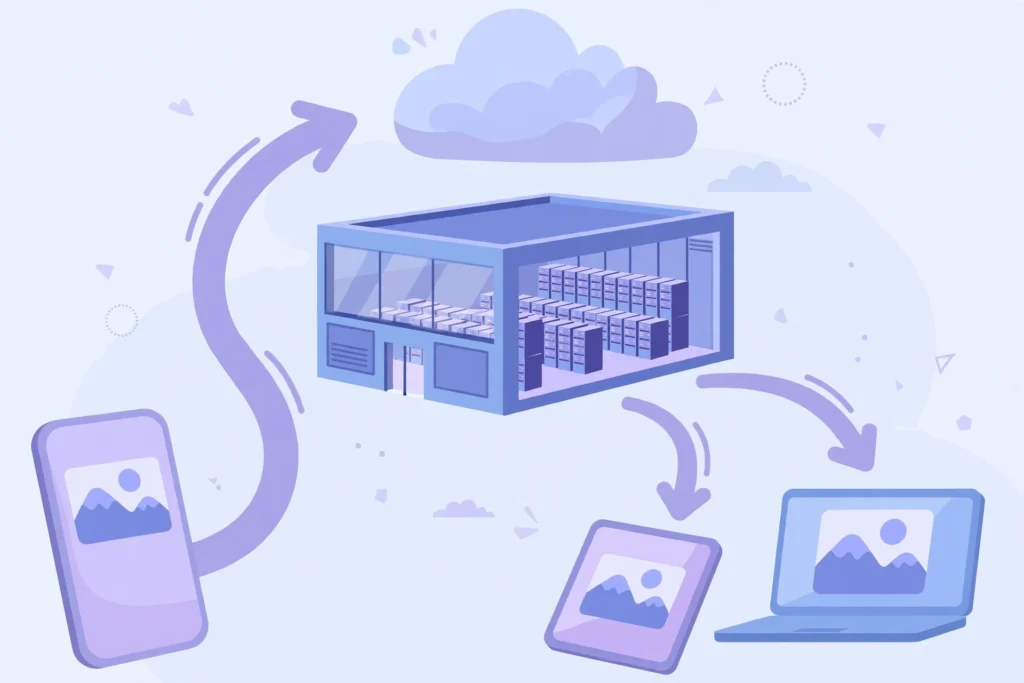
Cloud storage is an online service that stores your digital files on remote servers run by a provider, such as Google, Apple, Microsoft, or Dropbox, instead of only on your own devices. You use it through an app or website, but the files live in the provider’s data centers: large buildings full of specialized computers. When you save a photo to Google Drive or a document to OneDrive, a copy travels over the internet to those servers, where it is protected, duplicated, and made available to all your signed-in devices.
Two mix-ups are worth clearing. First, there is no literal cloud: the word is a friendly metaphor for “someone else’s computers on the internet,” borrowed from early cloud computing diagrams. Second, cloud storage is not your device’s memory. Storage holds files long-term, while RAM is short-term working memory apps use while running. Our RAM explainer covers that difference simply. For a deeper technical look, see our cloud-based storage explainer.
How Does Cloud Storage Work?
When you upload a file, your device sends it over an encrypted internet connection to the provider’s data center, where it is saved on powerful storage servers. The provider does not keep just one copy: it stores duplicates on several servers, often in different buildings or cities, so your files survive even if a whole server rack fails. This duplication, called redundancy, is why cloud storage outlasts a single USB stick or external hard drive.
Everything is managed through software. You see familiar folders in the app, while the provider handles the physical disks, the backups, the security patches, and the power and cooling. Open a file on another device and the app downloads the latest version. Many services also offer sync, which keeps matching copies of selected folders on each device and quietly uploads your changes. One catch worth knowing early: a synced folder also copies files to your hard drive, so it uses local disk space as well as cloud space.
What Are the Types of Cloud Storage?
For beginners, two flavors matter. The first is personal file sync and share, offered by Google Drive, iCloud, OneDrive, and Dropbox: an app, a set amount of space, familiar folders, and sharing links. This is what almost every beginner needs, and it is this guide’s focus.
The second flavor is business infrastructure, in three technical types. Object storage (like AWS S3 or Google Cloud Storage) stores files as “objects” with metadata, built for massive photo, video, and backup archives. File storage keeps the classic folder hierarchy for shared drives. Block storage splits data into small blocks for speed and powers databases and virtual machines. These are sold as public cloud (shared infrastructure, pay as you go), private cloud (dedicated to one organization), or hybrid mixes of the two. Our cloud data storage guide explains these models in depth.
Which Cloud Storage Service Should You Choose?
The best service is usually the one that fits your devices, since free tiers are generous and switching later is a chore. Here is how the popular options compare:
| Service | Free storage | Paid plans start around | Best for |
|---|---|---|---|
| Google Drive | 15 GB (shared with Gmail and Photos) | $1.99/month for 100 GB | Android users and anyone living in Gmail and Google Docs |
| iCloud | 5 GB | $0.99/month for 50 GB | iPhone, iPad, and Mac owners who want automatic photo backup |
| OneDrive | 5 GB | $1.99/month for 100 GB, or 1 TB bundled with Microsoft 365 | Windows users and Office document editing |
| Dropbox | 2 GB | $9.99/month for 2 TB | Simple, reliable syncing across every platform |
| pCloud | 10 GB | One-time lifetime plans from about $199 | People who hate subscriptions and want a pay-once option |
| Sync.com | 5 GB | About $8/month for 2 TB | Privacy-focused users who want zero-knowledge encryption included |
A few notes: Google Drive’s 15 GB is shared across Gmail, Drive, and Photos, so it fills fast. iCloud’s 5 GB is easy to outgrow, hence the $0.99 50 GB tier. Dropbox syncs beautifully despite only 2 GB free, while Sync.com and pCloud suit privacy-minded users. Start free and pay only when you genuinely run out of room.

How Do You Start Using Cloud Storage?
Setting up cloud storage takes about fifteen minutes, and the steps are nearly identical on every service. Follow this workflow once and you will be organized from day one.
Step 1: Pick one provider and create your account. Gmail users: start with Google Drive. iPhone: iCloud is built in. Windows: OneDrive is preinstalled. One service used well beats three used messily.
Step 2: Install the apps on every device you use. Get the mobile and desktop apps, sign in with the same account everywhere, and your files will follow you around.
Step 3: Choose which folders sync, and be selective. In the app’s settings, sync only what you need offline, like Documents and current projects. Keep old archives online-only so they do not eat your hard drive.
Step 4: Turn on automatic photo backup on your phone. This single setting solves the “storage almost full” problem for most people. Enable it over Wi-Fi only so it does not burn your mobile data.
Step 5: Create a simple folder structure. Use broad folders like Personal, Work, Photos, and Important Documents, with one folder per year inside Photos. A little structure saves hours of searching later.
Step 6: Upload your most important existing files. Start with what would hurt to lose: IDs, contracts, tax records, and family photos.
Step 7: Test a restore before you need one. Delete a test file, then recover it from trash or version history. It takes two minutes and proves the safety net works.

What Are the Benefits of Cloud Storage?
The biggest benefit is protection against everyday disasters that kill files: a stolen phone, a spilled coffee on a laptop, a hard drive that gives up after five years. Because copies live in professionally managed data centers, your files outlast any single device you own.
The second benefit is access from anywhere. Start a document on your laptop, review it on your phone, and present it from a borrowed computer. Sync keeps everything current so you never wonder which version is the latest.
Sharing is the third major win. Instead of attaching a 200 MB video to an email, you send a link, and the recipient always sees the current version. View-only permissions end the chaos of five conflicting copies of the same file.
Finally, cloud storage scales with your life. Running out of space no longer means buying a new hard drive; you upgrade in a few clicks. For students, freelancers, and families, that flexibility plus automatic backups and version history makes it the simplest safety net in personal computing.
How Much Does Cloud Storage Cost?
Most beginners pay nothing, because free tiers cover light use: 15 GB on Google Drive, 5 GB on iCloud and OneDrive, 2 GB on Dropbox, and 10 GB on pCloud. Those allowances comfortably hold documents and a modest photo library, but a few years of phone photos will fill any of them.
When you outgrow the free tier, paid plans are inexpensive: about $1 to $3 per month for 50 to 200 GB suits most individuals, and 2 TB family plans run $8 to $12 per month, with annual billing often discounted by roughly two months. Lifetime plans from services like pCloud charge a larger one-time fee, usually a few hundred dollars, and can win over five or more years if you trust the company.
Now the cost traps competitors rarely spell out. First, the storage-full lockout: a full free tier can stop Gmail receiving email and halt phone photo backups, pressuring a rushed upgrade, so check your usage meter quarterly. Second, providers raise prices, so review the subscription yearly. Third, sync can silently fill your computer’s disk: syncing a 2 TB drive to a 256 GB laptop fills the laptop, so use selective sync and online-only files. Fourth, business-grade storage like AWS S3 charges separately for downloading data (egress fees); consumer plans from Drive, iCloud, and OneDrive do not. Fifth, “unlimited” plans hide fair-use limits in the terms, so read the fine print before betting your archive on one.
What Are the Limitations of Cloud Storage?
The biggest is internet dependence: without a connection, you can only reach files you deliberately made available offline. If your internet is slow or capped, the first upload of thousands of photos can take days, so start it on fast Wi-Fi and let it run overnight.
Privacy is the second consideration. Your files sit on someone else’s servers, which means trusting the provider’s security, its access controls, and the laws where its data centers operate. For ordinary personal files this is a reasonable trade, but highly sensitive material deserves extra protection, such as encrypted vault features or a zero-knowledge service where even the company cannot read your files.
Other limits are practical. Providers can suspend accounts that violate their terms, occasionally locking people out during a dispute, so keep a second copy of anything irreplaceable on an external drive. Some free accounts close after long inactivity, and no provider is immortal, so never keep your only copy of anything with a tiny startup you cannot evaluate.
How Secure Is Your Data in the Cloud?
Reputable providers encrypt your files in transit (using TLS, the same technology as online banking) and at rest on their servers (typically AES-256), inside physically guarded data centers. Most breaches of personal cloud accounts do not come from broken encryption; they come from weak or reused passwords, which is why two-factor authentication is the single most important security step you can take.
Sharing links deserve caution: an “anyone with the link” setting means exactly that. Use view-only permissions, set expiry dates where offered, and turn link sharing off when a project ends. Also remember that ransomware can encrypt files in a synced folder and sync the damage upward; your safety net is version history, so confirm your plan includes it.
For extra peace of mind, encrypt your most sensitive files yourself before uploading, or choose a zero-knowledge service where only you hold the decryption key. If you often use cloud files on public Wi-Fi, a VPN adds a useful layer of privacy; our VPN definition explains how that protection works.
Frequently Asked Questions
Is cloud storage really free?
Yes, up to a point. Every major provider offers a free tier, from 2 GB on Dropbox to 15 GB on Google Drive, enough for documents and a small photo collection. You pay only when files outgrow the free allowance; entry plans start around one to three dollars per month.
Is my data safe from hackers in cloud storage?
It is well protected but not invincible. Providers use strong encryption and guarded data centers, while most account takeovers succeed through weak or reused passwords. Turn on two-factor authentication, use a unique password, and review your sharing links to close the biggest real-world gaps.
What happens to my files if I stop paying for cloud storage?
Providers typically give you a grace period, often 30 days or more, to download your files or renew. After that, they may restrict your account to read-only access or eventually delete excess data. Always download anything important before canceling a plan.
Can I access cloud storage without an internet connection?
Only files you marked for offline access will open without the internet. Most apps let you flag specific folders or files as available offline, which downloads a local copy. Everything else needs a connection, so mark your travel documents and current projects offline before a trip.
How is cloud storage different from an external hard drive?
An external hard drive is a physical device you own, carry, and can lose or break, while cloud storage keeps copies on remote servers you reach over the internet. Hard drives work offline and have no subscription, but they offer no automatic redundancy or access from multiple devices.
Does cloud storage automatically back up my phone?
It does once you enable the setting. iCloud Photos, Google Photos backup, and OneDrive camera upload can all copy every new photo and video automatically. Check that the backup is actually running and set it to Wi-Fi only, or your first big backup may consume your mobile data plan.
Conclusion
Cloud storage is a safer, more flexible home for your files: remote servers keep protected copies, your devices stay in sync, and sharing becomes a link instead of a chore. Start with the free tier of the service that matches your devices, turn on photo backup and two-factor authentication, and organize with a few simple folders. Take fifteen minutes today: install the app, back up your photos, and recover one test file from the trash so you know the safety net works. After that, the next “storage almost full” warning is a minor notification, not a crisis.