
Cloud-Based Storage Explained: Types, Benefits, and Tips
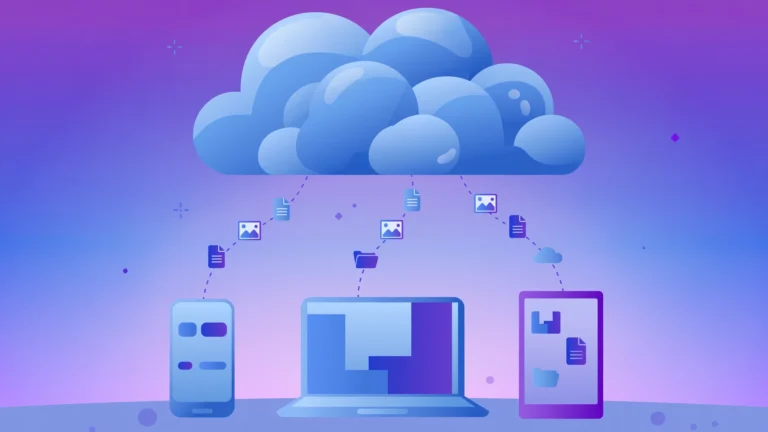
Cloud storage ends the ritual of deleting apps and photos when your phone fills up. Cloud-based storage saves your files on remote servers run by providers such as Google, Microsoft, and Amazon, accessible from any device with an internet connection. Your photos, documents, and backups live in secure data centers instead of on your phone or laptop. You can reach them anywhere, share them instantly, and increase your space whenever you need more room.
At CPN Tech, we explain technology in plain language. This guide covers what cloud-based storage is, how it works, the main types, security, costs, and how to choose the right service.
Key Takeaways
- Cloud-based storage keeps your files on remote servers, freeing you from your device’s hard drive limits.
- The four main types are personal, public, private, and hybrid; technically, data is stored as objects, files, or blocks.
- Providers keep multiple copies of your data across locations, so one hardware failure rarely loses a file.
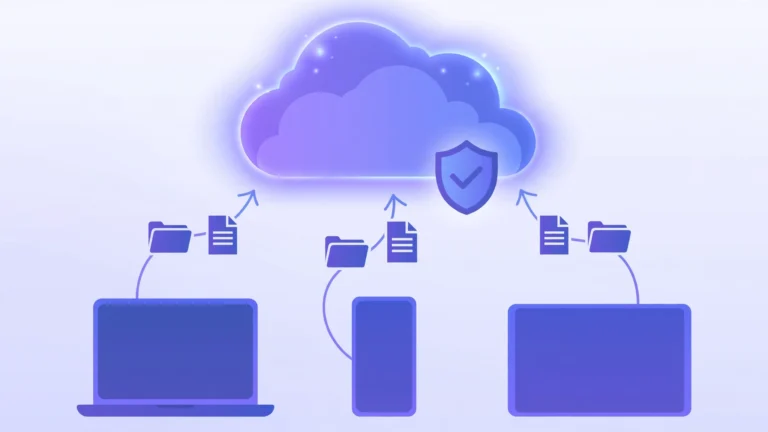
- Encryption, two-factor authentication, and sharing controls are the security features that matter most.
- Free tiers cover light use; paid plans scale cheaply with your space needs.
Table of Contents
- What Is Cloud-Based Storage?
- How Does Cloud-Based Storage Work?
- What Are the Main Types of Cloud-Based Storage?
- What Are the Key Features of Cloud Storage Services?
- What Are the Benefits of Cloud-Based Storage?
- What Are the Security and Privacy Considerations?
- How Much Does Cloud-Based Storage Cost?
- How Do You Choose the Right Cloud Storage Service?
- How Do You Get Started With Cloud Storage?
- Cloud-Based Storage vs Local Storage
- Frequently Asked Questions
- Conclusion
What Is Cloud-Based Storage?
Cloud-based storage is a service that stores your digital files on remote servers owned and maintained by a cloud provider, instead of on a hard drive inside your own device. You reach your files through an app or browser, and they look the same on your phone, laptop, or tablet. Wikipedia’s article on cloud storage describes it as storing data on remote servers maintained by a third party, which is exactly what you experience with Google Drive, Dropbox, Microsoft OneDrive, and Apple’s iCloud.
Two confusions are worth clearing up. First, this is not the weather: it is specific, carefully managed computers holding your files around the clock. Second, storage is not memory. RAM is temporary working memory; storage is where files live permanently. If that distinction is fuzzy, our explainer on what RAM is covers it in simple terms.
Cloud-based storage is a subset of cloud computing. Cloud computing covers any computing done on remote servers (running apps, processing data, hosting websites), while cloud-based storage has one job: keeping your files safe and available.
How Does Cloud-Based Storage Work?
When you save a file, it travels over the internet to one of the provider’s data centers: secure buildings filled with server racks, cooling systems, and backup power. Your file is not placed on a single disk. Multiple copies are stored across different servers, sometimes in different cities, so one failed drive or power outage does not destroy your data. Before a file counts as saved, the system confirms enough copies exist, and damaged copies are repaired automatically from healthy ones. Wikipedia’s overview of object storage explains the most common technology modern platforms use.
Sync brings files back to your devices. A small app keeps your folders identical across devices. Edit a document on your laptop and the phone version updates within seconds. Most services also support on-demand access: files appear as placeholders and download only when opened, saving local space. Sync speed depends on your connection, so if uploads crawl, your home network may be the bottleneck; our Wi-Fi 7 router buying guide helps you evaluate an upgrade.
What Are the Main Types of Cloud-Based Storage?

Cloud-based storage comes in four deployment models, differing in who owns the infrastructure and who it serves.
Personal cloud storage. The category most beginners start with. Google Drive, Dropbox, Microsoft OneDrive, and iCloud give individuals a simple app for uploading, syncing, and sharing files, with free tiers and paid plans.
Public cloud storage. Shared infrastructure managed by providers such as Amazon Web Services (AWS), Microsoft Azure, and Google Cloud. Amazon S3, the most famous example, stores trillions of objects. Your data is logically separated and protected even though the hardware is shared. It is the most affordable and scalable model, which is why most consumer services are built on it.
Private cloud storage. Dedicated to a single organization and shared with no other customer, favored by banks, hospitals, and governments for security control, at higher cost and complexity.
Hybrid cloud storage. Combines public and private in one strategy: sensitive records stay private while backups and collaboration live in the public cloud.
The three technical flavors. Under the hood, providers store data as objects (each item bundled with metadata and a unique ID, ideal for photos, videos, and backups), files (the familiar folders-and-files hierarchy), or blocks (fixed-size chunks used by databases and virtual machines). Services built on object storage, like most modern ones, handle large media libraries most efficiently.
What Are the Key Features of Cloud Storage Services?
- Automatic backup and sync: files stay current across devices, and many services back up your photo library or desktop automatically.
- Link sharing: generate a link with view-only or edit permissions instead of emailing large attachments, with optional passwords and expiry dates.
- Version history: previous versions are kept for 30 days or longer, so overwritten documents can be rolled back.
- Real-time collaboration: Google Drive and OneDrive let multiple people edit one document simultaneously with comments and change tracking.
- Offline access: mark files as available offline so they download to your device and sync changes when you reconnect.
- Selective sync: choose which folders sync to each device, keeping a huge archive in the cloud while syncing only current projects to a small laptop.
What Are the Benefits of Cloud-Based Storage?
Access from anywhere. Start a document on your office computer, review it on your phone, and finish it on a tablet. All you need is an internet connection and your login.
Scalability without new hardware. Outgrowing a phone’s storage used to mean buying a new device. With cloud storage, you upgrade a plan in minutes, from a free tier to 2 TB, or petabytes for businesses.
Lower costs, no maintenance. Providers handle hardware, repairs, electricity, cooling, and updates. You pay a small subscription instead of repeatedly buying and replacing external drives.
Built-in disaster protection. Fire, theft, floods, and dropped laptops destroy local data daily. Files in the cloud survive because they live in multiple locations, and automatic backup means you never have to remember to protect anything.
Easy sharing and collaboration. A 2 GB video project cannot go through email, but a cloud link shares it in seconds. Teams edit live documents instead of emailing version after version back and forth.
Device independence. Break your phone or damage your laptop and your files are untouched. Sign in on a new device and everything is there.
What Are the Security and Privacy Considerations?

Trusting a company with your files means understanding how that trust is earned and where its limits are.
How your data is protected. Reputable providers use encryption in transit (scrambling files traveling to the data center) and encryption at rest (scrambling files on their disks). Wikipedia’s encryption overview explains the techniques. Most services also support two-factor authentication, which blocks the vast majority of unauthorized logins. Some go further with zero-knowledge encryption: files are encrypted on your device before upload, and the provider never holds the key. Services like Sync.com and pCloud use this approach, so even the provider cannot read your files.
Risks to know about. Data breaches are rare among top-tier providers but have happened. Account takeovers are more common, usually caused by reused passwords, which is why two-factor authentication matters. Sharing links set to “anyone with the link can view” stay accessible until revoked, and providers can change pricing and terms.
Evaluate a provider before signing up. Ask: does it encrypt data in transit and at rest and name the standard (look for AES-256)? Does it offer two-factor authentication and zero-knowledge encryption? Where are its data centers, and does it comply with regulations like GDPR? Can shared links have passwords and expiry dates? Has it published independent security audits? On untrusted Wi-Fi, route traffic through a VPN for an extra layer; if you manage remote teams, see how VPN concentrators secure remote connections.
How Much Does Cloud-Based Storage Cost?
Two pricing models dominate. Subscription plans charge a flat monthly or annual fee for fixed space: this is how Google Drive, OneDrive, Dropbox, and iCloud sell to individuals. Pay-as-you-go charges per gigabyte stored plus data-transfer fees: this is how Amazon S3 bills businesses. Beginners want subscriptions; pay-as-you-go suits developers.
Free tiers let you start without paying. At the time of writing, Google Drive offers 15 GB free (shared across Gmail and Photos), Microsoft OneDrive offers 5 GB, Dropbox offers 2 GB, and Apple’s iCloud offers 5 GB. Enough for documents and light photo use, but heavy photo and video users outgrow them quickly.
Paid personal plans generally start around a few dollars per month for 100 to 200 GB and rise to roughly 10 dollars per month for 2 TB. Annual billing usually saves 15 to 20 percent over monthly. Watch three cost traps: overage fees when you exceed a plan’s limit, egress charges on developer platforms (fees for downloading your own data), and introductory prices that rise on renewal. Start with a free tier, then buy the smallest paid plan that covers your actual usage.
How Do You Choose the Right Cloud Storage Service?
Match yourself to a profile.
Students and families: Google Drive or iCloud. Drive’s 15 GB free tier and integration with Docs and Gmail suit students and Android households. Apple families do best with iCloud, which backs up iPhones automatically and shares space through Family Sharing. Pick the one that matches your devices.
Photographers and creators: Dropbox or Google Photos. Dropbox’s sync speed is consistently praised, while Google Photos’ search and organization are unmatched. Compare 2 TB plan prices directly, since this is where costs add up.
Small businesses: OneDrive, Google Workspace, or Dropbox Business. Follow your office software: Microsoft 365 shops belong on OneDrive, Google Workspace shops on Drive, and teams wanting best-in-class sync without switching suites do well on Dropbox Business.
Privacy-focused users and backup: Sync.com, pCloud, or Backblaze. For zero-knowledge encryption, Sync.com and pCloud lead. For set-and-forget backup, Backblaze covers one computer at a flat price, which is hard to beat.
Before committing, check five things: how much space you actually need, which devices and apps must integrate, your monthly budget, how important zero-knowledge encryption is to you, and how easily you can leave (export tools and contract terms).
How Do You Get Started With Cloud Storage?
Step 1: Pick one provider. Resist spreading files across five services. Start with the provider matching your devices, on its free tier.
Step 2: Install the apps and enable two-factor authentication. Install the desktop and mobile apps, then turn on two-factor authentication immediately.
Step 3: Organize before you upload. Create a simple folder structure (Documents, Photos, Work, Personal) and name files clearly. Uploading a messy folder means downloading a messy folder later.
Step 4: Upload and turn on automatic backup. Move key folders into the cloud folder or enable the backup feature for desktop, documents, and photos. Let the first upload finish completely; it can take hours on slow connections.
Step 5: Test recovery before deleting local copies. Download a few files on a different device and open them to confirm they are intact, then free up local space. Keep a local copy of anything irreplaceable for a few weeks.
Step 6: Review monthly. Check storage usage, review who can access your shared links, and confirm backups are still running.
Cloud-Based Storage vs Local Storage
Neither wins outright; they solve different problems.
| Factor | Cloud-Based Storage | Local Storage (hard drive, SSD, USB) |
|---|---|---|
| Accessibility | Any device with internet | Only the device holding the drive |
| Upfront cost | Free tiers; low monthly fees | Pay once for the drive |
| Scalability | Upgrade a plan in minutes | Buy another drive |
| Disaster protection | Multiple redundant copies | One copy; lost if the drive fails |
| Speed | Limited by internet speed | Very fast, especially SSDs |
| Privacy | Provider holds your data | Fully under your control |
| Sharing | Link sharing in seconds | Physical handoff or transfer |
The smartest approach is a hybrid: keep working files locally for speed, and let cloud storage handle backup, sync, and sharing.
Frequently Asked Questions
Is cloud-based storage free? Most providers offer a free tier of 2 to 15 GB, enough for documents and light photo use. Heavy users pay a few dollars per month for 100 GB to 2 TB. Business and developer plans cost more but add team features or pay-per-GB billing.
Is cloud-based storage safe? Major providers use strong encryption and redundant data centers, making them safer than a single home hard drive against failure and theft. Enable two-factor authentication, use a strong unique password, and review sharing links regularly.
What happens to my files if I stop paying? Most services give a grace period, often 30 to 90 days, to download files or renew before deletion. Your account reverts to the free tier, and uploads stop if you are over the limit. Keep a local copy of anything irreplaceable.
Can I access cloud storage without the internet? Yes, if you mark files as available offline beforehand. The app downloads them to your device, and changes sync when you reconnect. Without offline setup, you need a connection.
What is the difference between cloud storage and cloud backup? Cloud storage keeps files synced across devices for daily use. Cloud backup creates scheduled, restorable copies of your whole system for disaster recovery. Most people benefit from both.
How much cloud storage do I need? Documents and email need only a few gigabytes. A phone’s photo library typically needs 50 to 200 GB, while video creators often need 1 to 2 TB. Check your current usage, add 50 percent headroom, and pick the next plan up.
Can the cloud provider read my files? With standard encryption the provider holds the keys and could technically access your data, though reputable companies restrict this tightly. With zero-knowledge encryption only you hold the key. Check the privacy policy to know which model applies.
Conclusion
Cloud-based storage turns files trapped on one device into files available everywhere, protected by redundancy, and easy to share. You now know how it works, the four main types, the features that matter, security trade-offs, costs, and how to pick a service and get started.
Your next step: choose one provider that matches your devices, enable two-factor authentication, and move your most important folder to the cloud this week.