
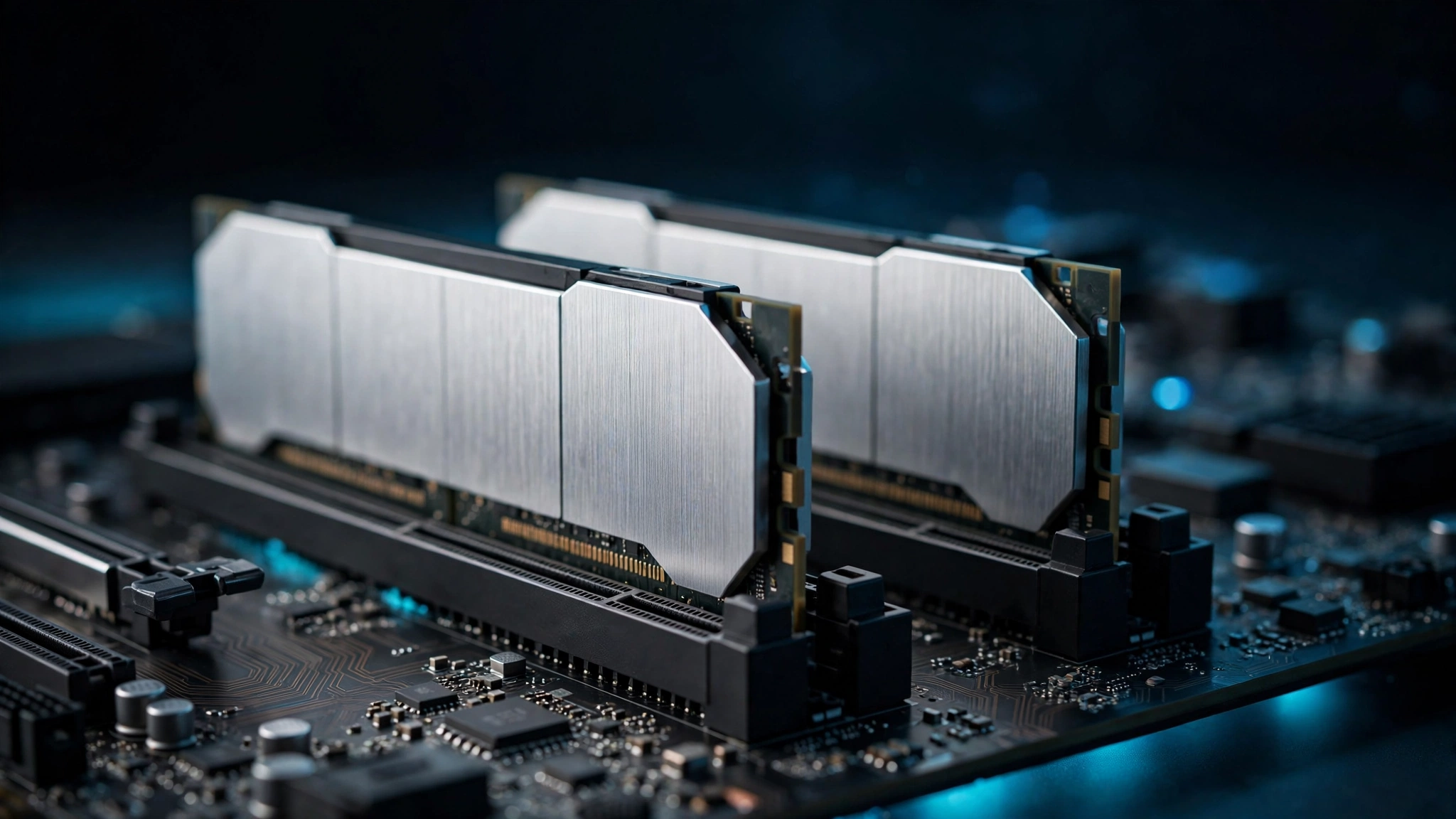
What Is RAM? Definition, Types, and How It Works
RAM stands for Random Access Memory: your computer’s short-term working memory. It temporarily holds data your CPU needs right now, from open apps to game levels. Close a program or shut down and everything in RAM is cleared, so anything worth keeping must be saved to storage first.
In plain terms, RAM is a fast, temporary workspace: more of it lets your computer juggle more apps and bigger tasks at once. It never stores files permanently, and it loses everything when power goes off. This guide explains everything in plain English: how RAM works, the types you will meet when shopping (DDR4, DDR5, LPDDR), how it differs from storage and cache, and how to choose the right amount for your needs.
Key Takeaways
- RAM (Random Access Memory) is fast, temporary memory holding data your CPU is actively using.
- It is volatile: everything in RAM disappears at power-off, which is why you save files to storage.
- DDR5 is the current mainstream standard; phones and thin laptops use power-efficient LPDDR.
- Cache is tiny and fastest, RAM is the working space, storage keeps everything permanently.
- 8 GB is the practical minimum, 16 GB suits most people, 32 GB or more fits gaming, editing, and AI.
Table of Contents
- What Is RAM and What Does It Do?
- How Does RAM Work?
- What Are the Different Types of RAM?
- What Is the Difference Between RAM, Storage, and Cache?
- How Much RAM Do I Need?
- What Are the Benefits of Having Enough RAM?
- What Are the Limitations of RAM?
- Real-World Examples: RAM in Everyday Devices
- Frequently Asked Questions
- Conclusion
What Is RAM and What Does It Do?
RAM, short for Random Access Memory, is the high-speed workspace holding data your computer is using right now: think of storage as the filing cabinet and RAM as the desktop holding only your active papers.
“Random” means the CPU can jump directly to any piece of data in RAM in roughly the same time, no matter where it sits physically. With no moving parts, access is effectively instant, which is why everything feels snappy when data lives in RAM and sluggish when it does not.
Practically, RAM keeps your OS, apps, and active data instantly available. Switch between a video call, a spreadsheet, and twenty browser tabs, and RAM keeps each one ready instead of reloading from scratch. Run out of it and the system shuffles data to the much slower drive, causing stuttering and freezing.
At CPN Tech, we break down hardware topics into plain language so beginners can shop and troubleshoot with confidence.
The short version for busy readers
RAM is temporary working memory, it decides how smooth multitasking feels, and you cannot download more of it: upgrades are physical.
How Does RAM Work?
RAM works by storing data as electrical charges in billions of tiny cells on memory chips, which the CPU reads and writes billions of times per second. Open an app and the OS copies its code and data from slow storage into RAM; close the app and that space is freed.
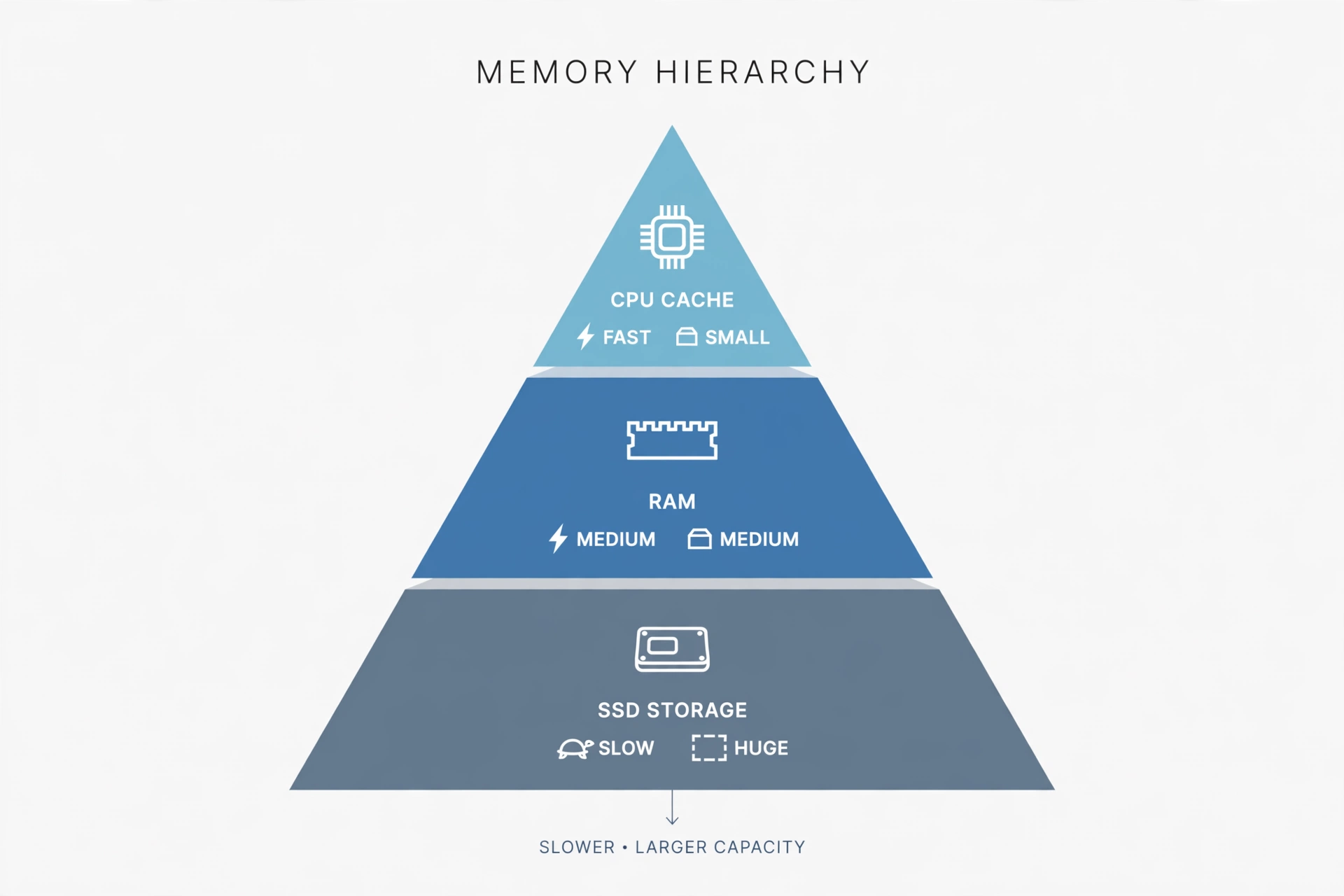
The memory hierarchy: why computers need several kinds of memory
Computers use a layered “memory hierarchy,” where each level trades speed for size:
- CPU cache: tiniest and fastest, inside the processor (KB to tens of MB).
- RAM: much larger (gigabytes), very fast, just outside the CPU.
- Storage: enormous (hundreds of GB to terabytes), far slower, permanent.
The processor checks cache first, then RAM, then storage. RAM exists because cache is too small and storage too slow to work from directly.
DRAM, SRAM, and why RAM forgets everything
Your RAM is almost always DRAM (Dynamic Random Access Memory). Each bit lives in a cell of one transistor plus one capacitor holding a charge (1) or no charge (0). Capacitors leak, so the controller “refreshes” every cell thousands of times per second, hence “dynamic.” SRAM (Static RAM) needs no refresh; it is faster but far pricier per bit, so it is reserved for CPU cache. DRAM is volatile: cut the power and every bit is gone, which is why unsaved work vanishes in a crash and why every device pairs volatile RAM with non-volatile storage for files.
What Are the Different Types of RAM?
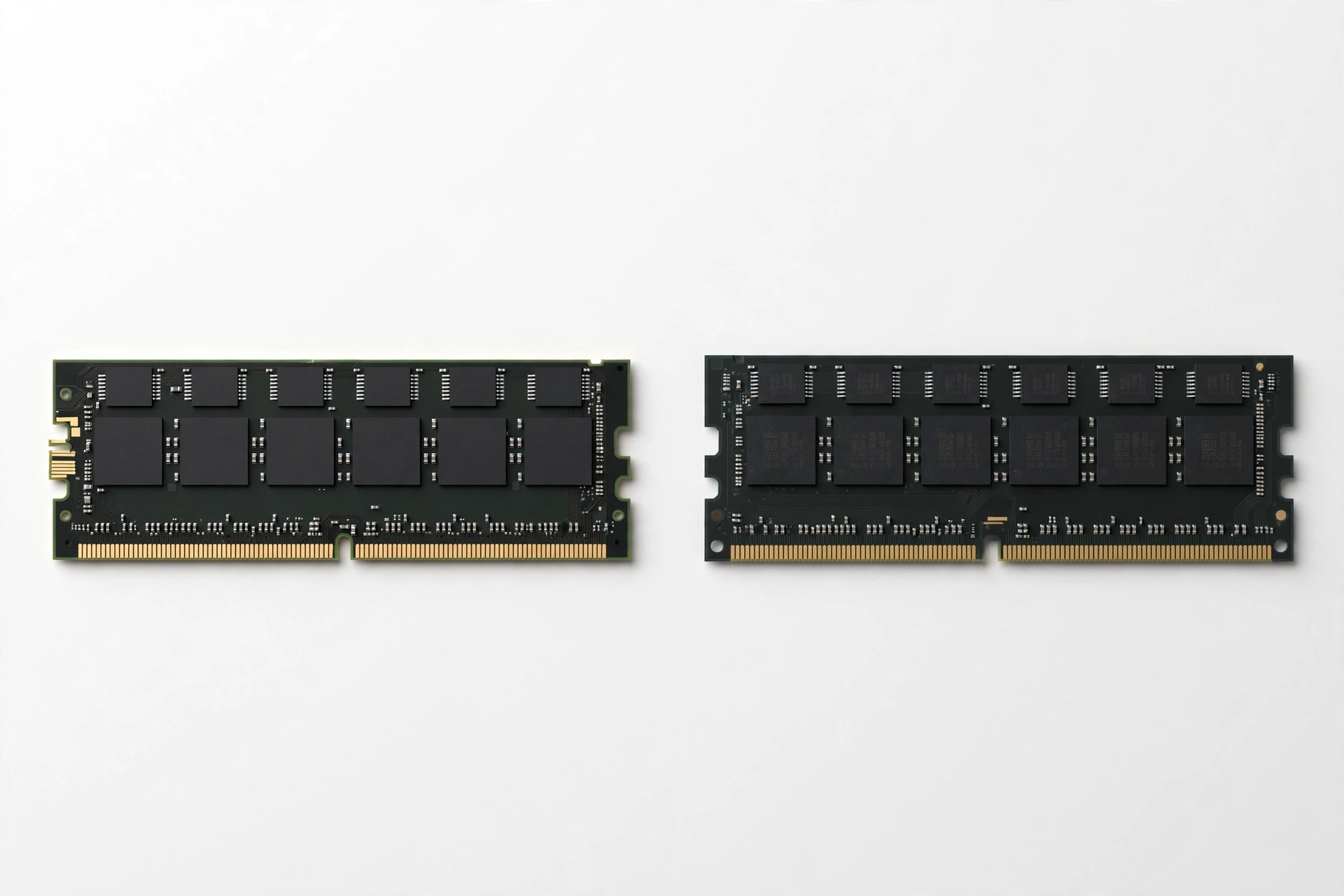
Shoppers meet a few RAM families: DDR for desktops and full-size laptops, low-power LPDDR for phones and thin laptops, SRAM for CPU cache, GDDR video memory for graphics cards, and unified memory designs like Apple’s. The generations are not interchangeable.
DDR5 vs DDR4: the two generations that matter now
DDR stands for Double Data Rate: the memory transfers data twice per clock cycle. DDR4 ruled PCs from the mid-2010s through the early 2020s; DDR5 is now the mainstream standard for new desktops and many laptops (the JEDEC DDR5 specification was published in July 2020). Here is the practical breakdown:
| Feature | DDR4 | DDR5 |
|---|---|---|
| Typical speeds | 2133 to 3200 MT/s (up to 4800 overclocked) | 4800 to 6400 MT/s (kits above 8000 available) |
| Dual-channel bandwidth | About 51 GB/s (DDR4-3200) | About 90 GB/s (DDR5-5600) |
| Voltage | 1.2 V | 1.1 V |
| Power management | Handled by the motherboard | On-module PMIC chip on each stick |
| Channels per stick | One 64-bit channel | Two independent 32-bit subchannels |
| Max per module | 32 GB common in consumer kits | Up to 128 GB per module |
| Compatibility | Needs a DDR4 board and CPU | Needs a DDR5 board and CPU |
Crucially, DDR4 and DDR5 are physically incompatible: the notch sits in a different position, so each motherboard supports only one generation. Speed is marketed in MT/s, often labeled as MHz (for example, DDR5-5600).
Bandwidth vs latency: the trade-off nobody explains simply
Every stick also has CAS latency (CL): roughly how many clock cycles it waits before delivering data. DDR5 shows bigger CL numbers (like CL40) than DDR4 (like CL16), which looks worse, but true latency in nanoseconds depends on both numbers:
True latency (ns) = (CAS latency / transfer rate) x 2000
So DDR4-3200 CL16 gives about 10 ns, while DDR5-4800 CL40 gives about 16.7 ns. Budget DDR5 can trail slightly at latency-sensitive tasks; premium DDR5-6400 CL32 lands back near 10 ns with far more bandwidth. Real-world DDR5 vs DDR4 gaming tests, such as the benchmarks at laptestpro.com, show roughly 3 to 10 percent gains in most games, with creative apps benefiting more.
LPDDR, CAMM2, SRAM, VRAM, and unified memory
- LPDDR (Low Power DDR, currently LPDDR5X) powers phones, tablets, and ultra-thin laptops. It nearly matches desktop DDR performance while sipping power, but it is usually soldered, so the capacity you buy is permanent.
- CAMM2 is a newer, far slimmer laptop standard that stays replaceable, unlike soldered LPDDR.
- SRAM is the small, ultra-fast cache inside your CPU; you never buy it separately.
- VRAM (video RAM) is reserved for the graphics card, using GDDR6/GDDR6X on recent GPUs and GDDR7 on the latest generation.
- Unified memory, popularized by Apple silicon Macs, is one high-bandwidth pool shared by CPU and GPU. Efficient for creative apps and on-device AI, but soldered and not upgradeable.
What Is the Difference Between RAM, Storage, and Cache?
RAM vs storage confuses many beginners, but your computer needs both for opposite jobs, with cache as a third layer even closer to the processor.
| Feature | Cache | RAM | Storage (SSD/HDD) |
|---|---|---|---|
| Job | The items the CPU needs this instant | Everything currently open and active | All files, apps, and the OS, permanently |
| Speed | Fastest (nanoseconds) | Very fast (tens of GB/s) | Slower (SSD: GB/s; HDD: ~150 MB/s) |
| Size | KB to tens of MB | 4 to 128 GB typical | 256 GB to several TB |
| Volatile? | Yes | Yes, cleared at power-off | No |
| Upgradeable? | No, built into CPU | Often yes (desktops, some laptops) | Usually yes |
| Analogy | Tools in your hand | Your desk surface | The filing cabinet |
Rule of thumb: slow switching between open apps points to RAM; slow opening files or booting points to storage, where a faster SSD helps most. For keeping files long term, our guide to what cloud storage is explains how online storage complements the drive inside your device.
What about virtual memory and the page file?
When RAM fills up, the OS borrows drive space as emergency overflow, called virtual memory (the page file on Windows, swap on macOS). Storage is far slower than RAM, so heavy swapping makes everything crawl, a clear sign you need more RAM.
How Much RAM Do I Need?
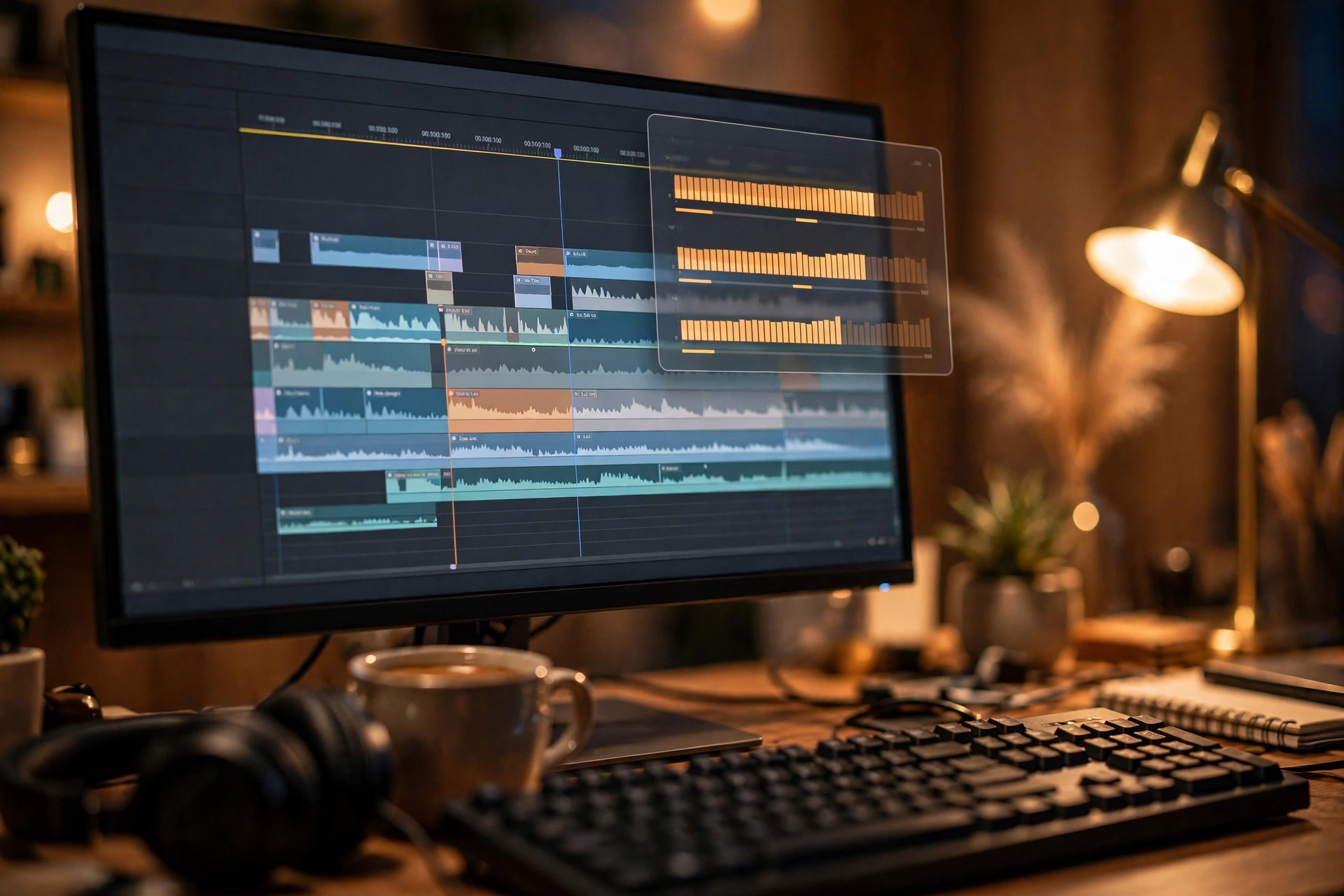
How much RAM do I need? It depends on what you do, not on a single magic number. Use the table below as a starting point, then check your actual usage (we show you how in the FAQ).
| Use case | Recommended RAM | Why |
|---|---|---|
| Web browsing, email, streaming, office docs | 8 GB minimum, 16 GB comfortable | Browsers are hungry; 8 GB is the floor for Windows 11 and macOS |
| Schoolwork, light photo editing, casual multitasking | 16 GB | The sweet spot for most people in 2026 |
| Gaming (AAA titles), streaming while gaming | 16 to 32 GB | Games plus chat, browsers, and streaming add up fast |
| Video editing, 3D modeling, music production | 32 to 64 GB | Large timelines and high-resolution footage eat memory |
| AI workloads, local LLMs, data science | 32 GB minimum, 64 GB+ ideal | AI models load entirely into memory |
| Software development, virtual machines | 32 GB+ | IDEs, containers, and VMs each reserve chunks |
8 GB is a floor, not a target: a browser, a video call, and background apps already push an 8 GB machine toward virtual memory. 16 GB is the sensible default; 32 GB is comfortable headroom for gaming, creative work, and AI. If you are experimenting with AI tools, our beginner’s guide to AI prompts will help you get better results.
For a deeper, scenario-by-scenario breakdown, see our dedicated guide on how much RAM you need.
A note on phones and tablets
Phones suspend background apps aggressively, so 8 GB on a phone feels generous while 8 GB on a desktop feels tight. For most buyers, 8 to 12 GB is plenty.
What Are the Benefits of Having Enough RAM?
Enough RAM is one of the most noticeable quality-of-life upgrades a computer can have:
- Smoother multitasking. Video calls, dozens of tabs, and documents all stay instantly ready.
- Faster-feeling everyday speed. Apps launch quicker when the system is not shuffling data to storage.
- Better gaming. Enough RAM prevents stuttering as games stream in new areas, with headroom for chat and streaming apps.
- Creative work without bottlenecks. Scrub 4K timelines and stack dozens of layers without freezing.
- Future-proofing. Software gets heavier yearly; buying a little extra now delays your next upgrade.
- AI readiness. Local AI features load large models into memory, so more RAM lets bigger models run on your machine.
One limit: once you have enough RAM, adding more changes nothing. It removes a bottleneck; it does not add horsepower beyond that.
What Are the Limitations of RAM?
RAM is powerful but has hard limits worth knowing before you spend money:
- It is temporary. Everything vanishes at power-off, so RAM can never replace storage.
- You cannot download more. It is physical hardware you install or buy built in, despite the joke sites claiming otherwise (Digital Trends debunks this myth in its RAM explainer).
- Generations are not interchangeable. DDR4 cannot go in a DDR5 slot and vice versa.
- More is not always better. Unused RAM sits idle; the money may serve you better as an SSD or faster CPU.
- Speed has diminishing returns. Everyday tasks barely notice faster kits; speed matters most for integrated graphics, competitive gaming, and creative work.
- Faulty RAM causes strange problems. Random crashes and corrupted files can trace to a bad module; Windows Memory Diagnostic or MemTest86 can verify your sticks.
Real-World Examples: RAM in Everyday Devices
Seeing RAM in context makes the numbers click. Typical configurations in 2026:
Budget laptop (8 GB): fine for essays, video classes, and streaming with reasonable tab counts. Thirty tabs plus a video call and it starts swapping.
Mainstream ultrabook (16 GB LPDDR5X): the do-everything machine for office work, light photo editing, and casual games. Soldered, so this is a buy-it-for-life decision.
Gaming laptop (16 to 32 GB DDR5): AAA games list 16 GB as the minimum and benefit from 32 GB when streaming. Many keep two upgradeable SO-DIMM slots.
Creator or AI workstation (64 GB+ DDR5): 4K editing, 3D rendering, virtual machines, and local AI models live here. Unified-memory designs shine for AI, since one pool serves CPU and GPU.
Frequently Asked Questions
What does RAM stand for?
RAM stands for Random Access Memory. “Random access” means the processor can read or write any location in about the same time, regardless of where the data physically sits.
Is 8 GB of RAM enough in 2026?
For light use, yes: browsing, email, streaming, and office documents. It is no longer comfortable for heavy multitasking, AAA gaming, or creative work. For most buyers, 16 GB is the safer default.
Does more RAM make my computer faster?
Only up to a point. If you run out of RAM, adding more helps dramatically by stopping the slow shuffling to storage. Once your workload fits in memory, extra RAM sits unused. Check usage before buying.
How do I check how much RAM I have and how much is in use?
Windows: Ctrl + Shift + Esc, then Performance > Memory. macOS: Activity Monitor > Memory tab. Linux: run free -h. Sustained use above 80 percent means consider an upgrade; Intel’s RAM guide lists this plus frequent crashes and slow file opens among the warning signs.
Can I mix different RAM sticks?
Sometimes, but all sticks run at the slowest speed and mismatched kits can cause instability. Best practice: a matched kit in the correct dual-channel slots.
What is the difference between RAM and VRAM?
RAM serves the CPU and apps; VRAM (video RAM) is reserved for the graphics card. They use different standards (DDR vs GDDR), though Apple silicon shares one unified pool.
Will DDR5 work in a DDR4 motherboard?
No. Different notch position, voltage, and signaling make them physically and electrically incompatible.
Conclusion
So, what is RAM? Your computer’s short-term working memory: the fast, temporary space where everything active lives, from browser tabs to AI models. It is volatile, sits between CPU cache and permanent storage, and the right amount runs from 8 GB for light use to 32 GB or more for gaming, creative work, and AI.
Practical next step: open Task Manager or Activity Monitor and check your memory usage during a typical workday. Regularly above 80 percent means a RAM upgrade is one of the most cost-effective speed boosts you can buy. Shopping for a soldered-memory laptop? Pick a capacity you can live with for years.