Image to Prompt: Turn Any Picture Into an AI Prompt
You found an image with the perfect look: the lighting, the style, the mood. You want that look for your own project, but describing it in words feels impossible. This is exactly what image to prompt solves.
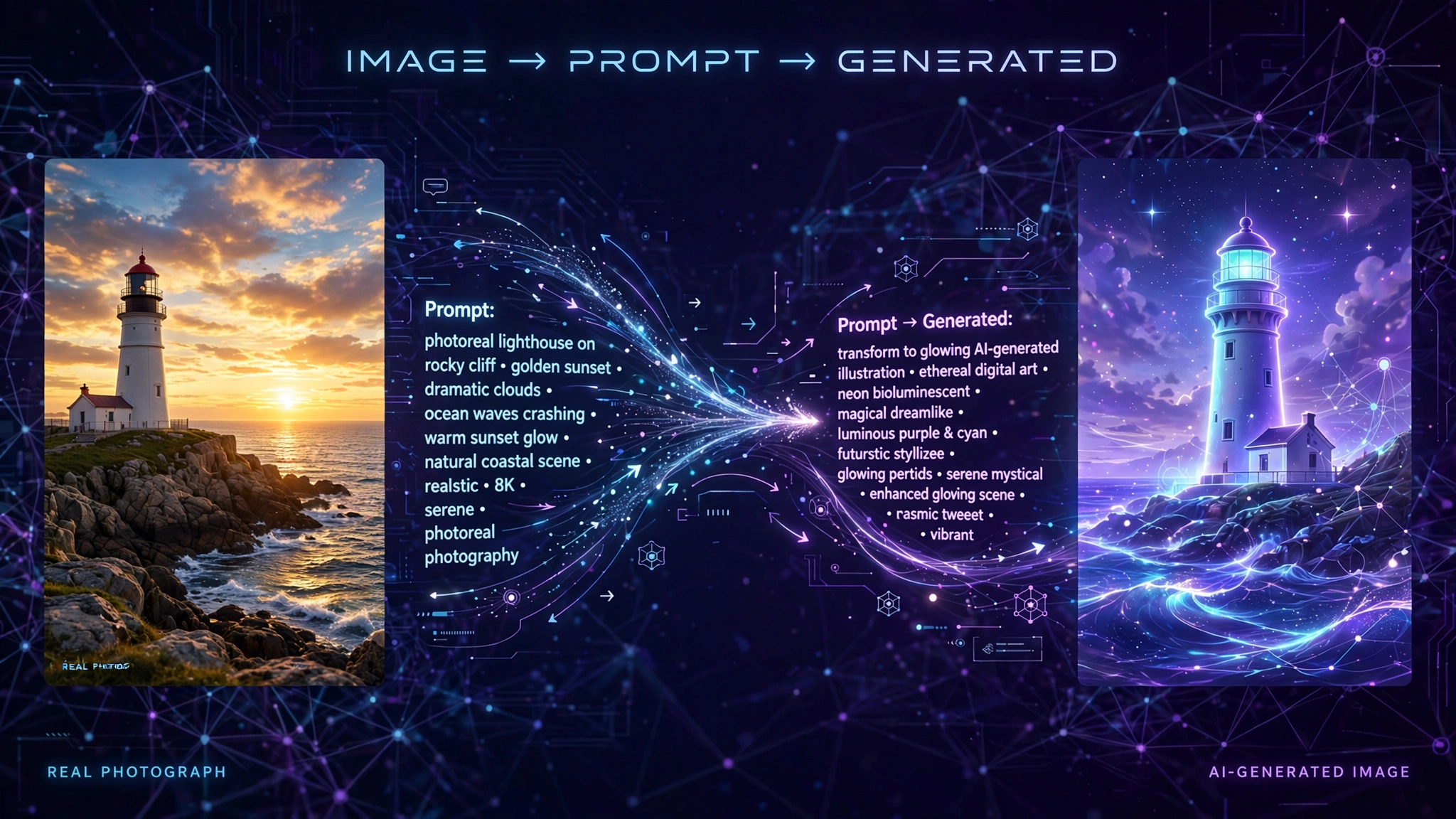
Image to prompt is the process of converting a picture into a written text prompt that an AI image generator can use. A vision-language model analyzes the image and describes its subject, style, lighting, color palette, and composition in words. You then paste that description into a tool like Midjourney, Stable Diffusion, Flux, or DALL-E to recreate the look or build on it. Think of it as reverse prompt engineering: instead of words becoming an image, an image becomes words.
In this guide, you will learn how image to prompt works, how to do it step by step, which free tools are worth your time, how to use ChatGPT, Claude, or Gemini as a free alternative, and how to edit a reverse prompt so the result actually matches the picture you started with.
Key Takeaways
- Image to prompt reverses the usual AI workflow: a finished picture goes in, a ready-to-use text prompt comes out.
- Every tool runs the same core steps (vision model reads the image, then formats the description), and what separates tools is the output format: plain description, model-specific syntax, JSON, or tags.
- Reverse prompts are estimates, not recoveries: a finished image does not store its original prompt, so no tool can fetch the creator’s exact words.
- Tools regularly invent details, name the wrong colors, or set a wrong aspect ratio, so always verify the prompt against the image before generating.
- ChatGPT, Claude, and Gemini can do image to prompt for free if you ask them to format the output as a generator-ready prompt.
Table of Contents
- What Does Image to Prompt Mean?
- How Does Image to Prompt Work?
- What Are the Different Types of Image to Prompt Outputs?
- How Do You Convert an Image to a Prompt?
- Which Are the Best Free Image to Prompt Tools?
- Can ChatGPT, Claude, or Gemini Do Image to Prompt?
- What Are the Limitations of Reverse Prompts?
- What Is the Difference Between Image to Prompt, Image to Image, and Caption Generators?
- How Do You Edit a Reverse Prompt So It Actually Works?
- FAQs
- Conclusion
What Does Image to Prompt Mean?
Image to prompt means translating the visible content of a picture into a text prompt written for an AI image generator. The goal is a “visual recipe” of the image: the subject, the setting, the composition, the lighting, the color palette, the artistic style, and the mood, all written as words a generator like Midjourney or Stable Diffusion understands.
People also call it reverse prompting, prompt extraction, or reverse prompt engineering, and image generators often name the feature “describe.” The idea gained popularity alongside AI art tools, because prompt writing turned out to be a genuine skill, and beginners wanted a shortcut past the blank text box.
It helps to know what image to prompt is *not*. It is not the same as image-to-image generation, where your picture feeds directly into the model as a visual reference and no words are ever written down. It is not an image caption or alt text generator, which writes one plain sentence for readers and screen readers rather than a prompt a model can render from. And it is not a text-to-prompt tool, which builds a prompt from a written idea with no picture involved.
How Does Image to Prompt Work?

Image to prompt works in two stages: a vision-language model reads the picture, then the tool formats that reading as a prompt. A vision-language model is an AI trained on huge numbers of image-caption pairs, so it has learned to map visual features to language. When it looks at your upload, it identifies the subject, the medium or style, the lighting, the camera angle, the composition, and the color palette, then writes those observations out as text.
The second stage is what separates basic tools from good ones. A basic tool hands you the raw description. A good tool reshapes it for your target generator: Midjourney wants descriptive phrases with flags like –ar for aspect ratio, Stable Diffusion works best with comma-separated weighted tags, DALL-E prefers plain-language sentences, and some tools offer a structured JSON prompt with fields for subject, style, lighting, mood, colors, composition, and camera.
One honest limit runs through the whole process. A finished image file does not store the prompt or the seed that created it, so no tool is recovering the original creator’s exact words. What you get is a strong reconstruction of the image’s visual recipe, built only from what the vision model can see.
What Are the Different Types of Image to Prompt Outputs?
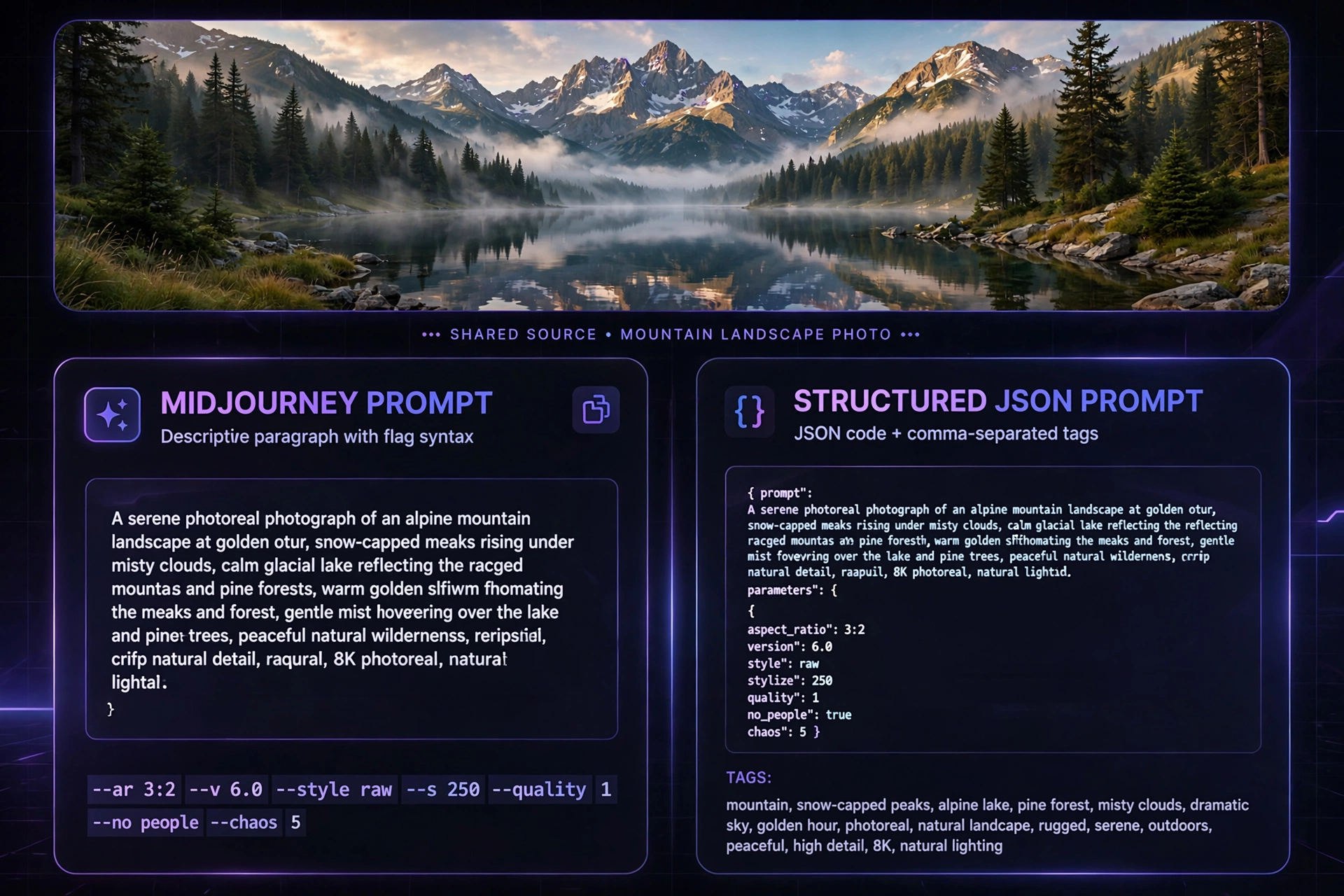
The four common output types are plain descriptive prompts, model-specific prompts, structured JSON prompts, and tag-based prompts with negative prompts. Knowing the type matters, because a prompt written for one generator often underperforms in another.
Plain descriptive prompts are one or two paragraphs of natural language describing the scene. They are the most portable format and work acceptably everywhere, which is why chatbots produce them by default.
Model-specific prompts are rewritten in a particular generator’s syntax. Midjourney versions add flags such as –ar 3:2 for aspect ratio or –v for the model version. Stable Diffusion versions use dense comma-separated tags. DALL-E versions stay in plain sentences, since that model is tuned for natural language.
Structured JSON prompts break the description into labeled fields: subject, style, lighting, mood, colors, composition, camera, and sometimes the exact aspect ratio. JSON output is useful when you want to swap one element, like the style, while keeping everything else.
Tag-based prompts with negative prompts list short keyword tags plus a negative prompt: things the generator should avoid, such as blurry, watermark, or extra fingers. This style comes from the Stable Diffusion community, where the open-source CLIP Interrogator set the standard by ranking a fixed list of style words and artist names against the image.
For more beginner-friendly explainers on the AI tools behind these techniques, visit the CPN Tech homepage.
How Do You Convert an Image to a Prompt?
To convert an image to a prompt, pick your target generator first, upload a clean image, choose the matching output mode, then edit the result before you generate. The order matters: the output mode depends on the generator you plan to paste into, and the edit step is where most people skip and then wonder why the result looks wrong.
Step 1: Pick the target generator first
Decide whether the prompt is going into Midjourney, Stable Diffusion, Flux, DALL-E, or another tool before you upload anything. A Midjourney-mode prompt pasted into Stable Diffusion wastes the flags, and a tag-style prompt pasted into DALL-E reads like noise. If you are unsure, take the plain descriptive output, since it works acceptably in all of them.
Step 2: Upload a clean, rights-cleared image
Use a sharp, uncropped JPG, PNG, or WebP. Most free tools accept files up to about 5 MB, and some downsize the long side before analysis. Blurry or heavily cropped images produce vague prompts, because the model can only describe what it can actually see. Also make sure you have the right to use the image, especially for client or commercial work.
Step 3: Choose the matching output mode
Select the mode built for your target: a Midjourney mode for flag syntax, a tag mode for Stable Diffusion, JSON if you plan to remix individual elements, and the plain mode for DALL-E or general chatbots. Several tools, including imagetoprompt.dev, let you switch between seven or more modes from one upload.
Step 4: Read the prompt against the image
Compare the generated text with the picture line by line. This is the step that separates a good result from a disappointing one, and the next section explains exactly what to check.
Step 5: Render and compare
Run the edited prompt, put the new image next to the source, and change one detail at a time until the look converges. Save the prompt that worked, together with the source image and the generator settings, so you can reuse the style later.
Which Are the Best Free Image to Prompt Tools?
The best free image to prompt tool depends on your target generator and whether you want a plain description or model-specific syntax. Independent testing published in 2026 found that accuracy varies widely: in a one-photo test, ImagePrompt.org correctly named 7 of 8 visible details, while the open-source CLIP Interrogator named 2 of 8 and invented artist names and wrong colors. Treat every output as a draft, not a finished prompt.
| Tool | Free tier | Output formats | Best for |
|---|---|---|---|
| ImagePrompt.org | 5 free credits per day, no account | General, Midjourney, Stable Diffusion, Flux, JSON, and more | Best all-round free option |
| CLIP Interrogator | Free, open source | Dense tags plus BLIP caption | Stable Diffusion users who want the community-standard tag style |
| Reprompt | Free, no signup, daily limit | Detailed text prompt plus JSON prompt | Quick free extractions with structured output |
| imagetoprompt.dev | Free, no signup | 7 model-specific modes (Midjourney, SD, Flux, DALL-E 3, Firefly, Leonardo, Ideogram) | Matching output to a specific generator |
| PixelPanda | 5 free per month, account adds 10 | General, Flux, Midjourney v6, SD positive and negative | Comparing four variants side by side |
| inxct | Free with account | Structured natural-language description | Private prompt history with your account |
| Midjourney Describe | Paid plans only (from about $10/month) | Native Midjourney flag syntax | Midjourney subscribers who want the built-in option |
| ChatGPT, Claude, Gemini | Free vision on free plans | Plain description unless you specify a format | A quick reverse prompt when a chat assistant is already open |
Two practical notes on limits. Hosted free tools often carry daily GPU or usage quotas: the CLIP Interrogator demo on Hugging Face, for example, throttles anonymous requests, so running the open-source package locally is the reliable route for heavy use. Midjourney ended its free trial in March 2023, so its Describe feature needs a paid subscription.
Can ChatGPT, Claude, or Gemini Do Image to Prompt?
Yes. ChatGPT, Claude, and Gemini all read uploaded images on their free plans and can write an image-to-prompt description, but you must tell them the exact format you want. Left to themselves, they produce a plain caption-style description, not a prompt tuned for a specific image generator.
The trick is a precise ask. Upload the image and write something like this:
Describe this image as a detailed prompt for Midjourney v6. Include the subject, setting, composition, lighting, color palette, art style, and mood, in the order of importance. Finish with the aspect ratio as a –ar flag. Do not invent details that are not visible in the image, and do not name a camera model, location, or brand unless it is clearly shown.
Swap “Midjourney v6” for your target and adjust the format request: comma-separated tags for Stable Diffusion, a JSON object with named fields if you want structure, or a negative prompt listing artifacts to suppress. If you are already building a prompt library, pair this technique with our guide to AI prompts to sharpen the from-scratch side of the skill.
What Are the Limitations of Reverse Prompts?
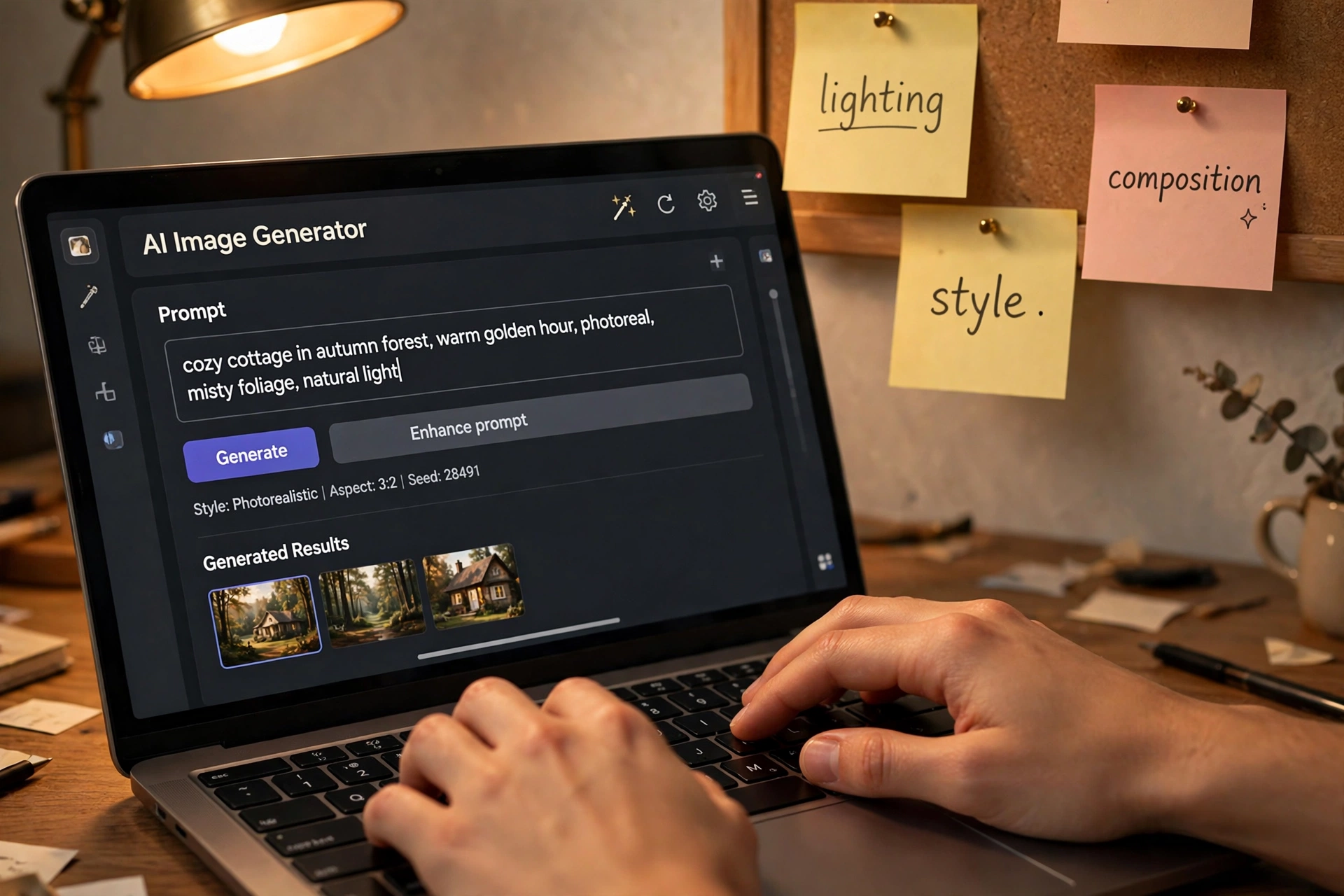
Reverse prompts are reconstructions, not recoveries, and they inherit the vision model’s mistakes. Understanding the failure modes keeps you from blaming the generator for a bad input prompt.
Invented details. Vision models sometimes add things that are not in the image: a camera model, a location, an artist name, or a brand. In the 2026 test mentioned earlier, one tool attributed the photo to invented painters and called a green door red. Delete anything you cannot verify against the picture.
Wrong aspect ratio. Some tools append a Midjourney –ar flag that does not match the source image’s real ratio. Check the ratio yourself and fix the flag, or the new image will come out cropped to the wrong shape.
Famous images get recognized, not described. Run a well-known painting through a tool and it may name the artist instead of describing the pose, clothing, light, and background. A title does not recreate a style on a new subject, so crop to a detail or use a lesser-known reference when you want a reusable style prompt.
Style words are approximate. Terms like “cinematic” or “editorial” compress a lot of visual information, and different generators interpret them differently. Treat style words as starting points and refine them with concrete details (for example, “soft window light from the left, shallow depth of field” instead of just “cinematic”).
Copyright and ethics. A reverse prompt built from someone else’s artwork can closely reproduce a distinctive style. That is fine for study and inspiration, but for commercial work, build on images you own or that are clearly licensed for reuse. For background on training data and model behavior, see what practices are beneficial for training AI models with prompts.
What Is the Difference Between Image to Prompt, Image to Image, and Caption Generators?
The difference is what goes in and what comes out: image to prompt turns a picture into words, image to image turns a picture into another picture, and caption generators turn a picture into a plain sentence. Searchers constantly mix these up because they all start with an image.
- Image to prompt: picture in, generator-ready text prompt out. Example tools: ImagePrompt.org, Midjourney Describe, CLIP Interrogator. Use it when you want an editable, reusable recipe of a look.
- Image to image: picture in, new picture out, with no words written down. Midjourney’s image prompts and Leonardo’s image guidance work this way. Use it when you want to restyle or vary the actual image rather than extract a recipe.
- Caption or alt text generator: picture in, one plain sentence out, written for readers and screen readers. Use it for accessibility and SEO descriptions, not for generation.
- Text to prompt: written idea in, structured prompt out, with no picture involved. Use it when you have the idea in your head and need help wording it.
If you have a reference image and want to riff on its look, image to prompt is the right tool. If you have only an idea, start from a text-to-prompt approach instead.
How Do You Edit a Reverse Prompt So It Actually Works?
Edit every reverse prompt with a verify pass: delete invented details, fix colors and aspect ratio, add what the tool missed, then render and compare. Tools get you 80 percent of the way in seconds; the edit pass is the remaining 20 percent that decides the result.
Delete what is not visible. Remove invented artist names, camera models, locations, brands, and stray noise words. CLIP Interrogator outputs are known for noise tokens such as “arafed” (a quirk of its caption model, not a real word) and random numbers, so strip those first.
Fix colors, light, and the aspect ratio. Compare each descriptive claim with the image. If the tool says “red door” and the door is green, fix it. If it appends –ar 3:2 to a 16:9 photo, set the flag to the real ratio of your source.
Add what the tool missed. No tool in the published test caught every visible detail. Scan the image for the elements that matter to your use case, small props, background textures, the exact pose, and write them into the prompt in the generator’s syntax.
Use a preserve-and-change structure for edits. When refining in a chatbot or an agentic tool, phrase changes as: “Use the uploaded image as the base. Preserve [the fixed elements]. Change only [one element]. Match [lighting, perspective, and shadows].” This is clearer than a vague “make it better” and keeps the parts you liked intact.
Render, compare, save. Run the prompt, compare the new image with the source side by side, adjust one variable at a time, and keep the winning prompt with its source image and settings. That saved pair becomes a reusable style recipe for future projects, which is the real payoff of reverse prompting. If you are new to AI tools in general, our how to use AI guide is a good starting point for the fundamentals.
FAQs
What is an image to prompt generator?
An image to prompt generator is a tool that reverses the usual AI workflow: you upload a finished image, and a vision model analyzes it and returns a text prompt describing the subject, style, lighting, composition, and colors. The prompt is formatted for AI image generators such as Midjourney, Stable Diffusion, Flux, or DALL-E.
Is image to prompt free?
Many image to prompt tools are free with limits. ImagePrompt.org gives 5 free credits a day with no account, Reprompt is free with a daily limit, and CLIP Interrogator is free and open source. ChatGPT, Claude, and Gemini also describe uploaded images on their free plans. Paid tiers remove daily caps and add higher usage.
Can image to prompt recover the exact original prompt?
No. A finished image does not store the prompt or seed that created it, so no tool can fetch the creator’s exact words. Image to prompt reconstructs a strong estimate from what the vision model can see. Treat the output as a starting point, then edit it against the image before generating.
What is the difference between image to prompt and image to image?
Image to prompt turns a picture into a written text prompt you can edit and reuse. Image to image feeds your picture into the model as a visual reference and generates a new picture directly, without ever writing the look down as words. Choose prompt extraction when you want an editable recipe, and image to image when you want to restyle the picture itself.
Which image to prompt tool is best for Midjourney?
For native Midjourney syntax, Midjourney’s own Describe feature is the most direct option, but it needs a paid plan. Among free tools, ImagePrompt.org and imagetoprompt.dev both offer dedicated Midjourney output modes with the correct flag syntax. Always check the –ar aspect ratio flag, since tools sometimes set it wrong.
Can I use image to prompt for commercial work?
You can, but with care. Build reverse prompts from images you own or that are clearly licensed for reuse, and treat style extraction from someone else’s artwork as inspiration rather than replication for client deliverables. Also clear the rights to the source image before uploading it to any third-party tool.
Does image to prompt work on any image?
It works best on clear, sharp images with a readable subject and style: photos, renders, illustrations, and screenshots. Blurry, tiny, or heavily cropped images produce vague prompts. Famous artworks may be recognized rather than described, which gives you a title instead of a reusable style recipe.
Conclusion
Image to prompt is one of the most practical skills in the AI art toolbox. Instead of guessing at the words behind a look you admire, you upload the picture and let a vision model do the describing: subject, style, lighting, palette, composition. The free tools covered here get you a solid draft in seconds, and the edit pass, deleting invented details, fixing colors and aspect ratio, adding what the tool missed, turns that draft into a prompt that actually reproduces the look.
Start with a single reference image today. Run it through a free tool, refine the output with the checklist above, and save the winning prompt with its source image. That small habit compounds: over time you build a personal library of proven visual recipes, and reverse prompting stops feeling like a trick and starts feeling like a workflow.