How Do I Know If My Phone Is Hacked? Signs and Checks
Your phone feels wrong. The battery drops fast, a strange app appears, or a friend asks why you sent a message you never wrote. That uneasy feeling is common, and most of the time it has a harmless cause. Still, it is worth checking properly, because a hacked account, a malicious app, and a hacked phone need different fixes.
How do I know if my phone is hacked? You know by looking for a pattern, not a single symptom. Check for several warning signs together, then run the built in checks on your phone and in your Google or Apple account. If unknown apps, strange permissions, unfamiliar signed in devices, and messages you did not send appear together, treat the phone as compromised and follow the recovery steps in this guide.
Key Takeaways
- One sign alone rarely proves a hack. Three or more signs together deserve a full check.
- A hacked account is far more common than a hacked phone. Check your account sessions first.
- Android users should check Play Protect, device admin apps, and special app access. iPhone users should check Safety Check, signed in devices, and configuration profiles.
- Change passwords from a clean device, not from the phone you suspect.
- A factory reset is a last resort, not the first step, and it does not fix a stolen password.
Table of Contents
- What does a hacked phone actually mean?
- What are the warning signs that my phone is hacked?
- How do I know if my phone is hacked: a quick self-check
- How do I check an Android phone for hacking?
- How do I check an iPhone for hacking?
- Could it be a SIM swap or stalkerware?
- How to tell if my computer has a virus
- What should I do if my phone is hacked?
- How can I stop my phone from being hacked again?
- Frequently asked questions
What does a hacked phone actually mean?
A hacked phone means someone else can use, watch, or control part of your phone without your permission. That covers four different problems, and each one needs a different fix.
First, a hacked account is the most common case. Someone has your Google, Apple, email, or social media password. They do not need to touch your phone. They sign in from their own device, read your mail, reset other passwords, or send messages as you. Your phone looks normal, because the phone itself is not infected.
Second, a malicious app is a real infection on the phone. The app may show ads outside the browser, steal contacts, read messages, or send premium texts. Many malicious apps behave like trojans, which hide inside software that looks harmless. They often arrive from outside the official app store, from a fake version of a popular app, or from a link that asked you to install something.
Third, stalkerware is monitoring software installed by someone who had physical access to your phone, often a partner or former partner. It can track location, read messages, and record calls. It is a safety issue as well as a security issue, so the response needs care.
Fourth, targeted spyware is rare for ordinary users. It can exploit a phone without a tap, through a message or a call. If you are a journalist, activist, or public official and you suspect this type, seek expert help and consider Lockdown Mode on iPhone, which Apple built for people at high risk.
Knowing which type you face matters. If only your account is hacked, cleaning the phone will not help, because the attacker can sign in again. If a bad app is the problem, changing your password will not remove it.
What are the warning signs that my phone is hacked?
Warning signs fall into three groups: the phone behaves strangely, your accounts behave strangely, and money or messages move without you.
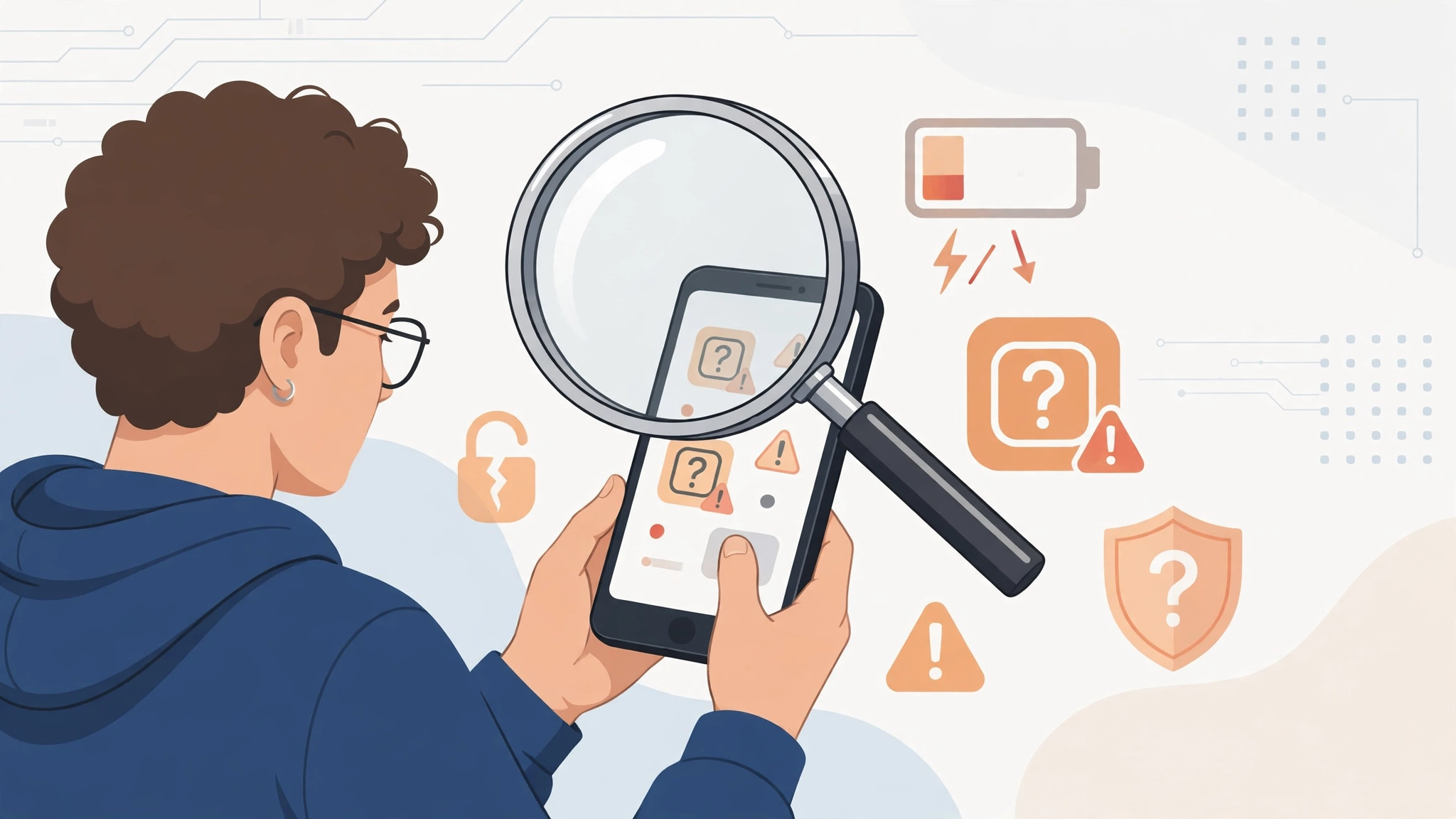
Phone behaviour signs include a battery that drains much faster than usual with no change in how you use the phone, a phone that runs hot while idle, apps that crash or close by themselves, and a phone that restarts on its own. A camera or microphone indicator that lights up when no app should be using it is also a warning. On iPhone, that is a green dot for the camera and an orange dot for the microphone. On Android 12 and later, a green camera icon or orange microphone icon plays the same role.
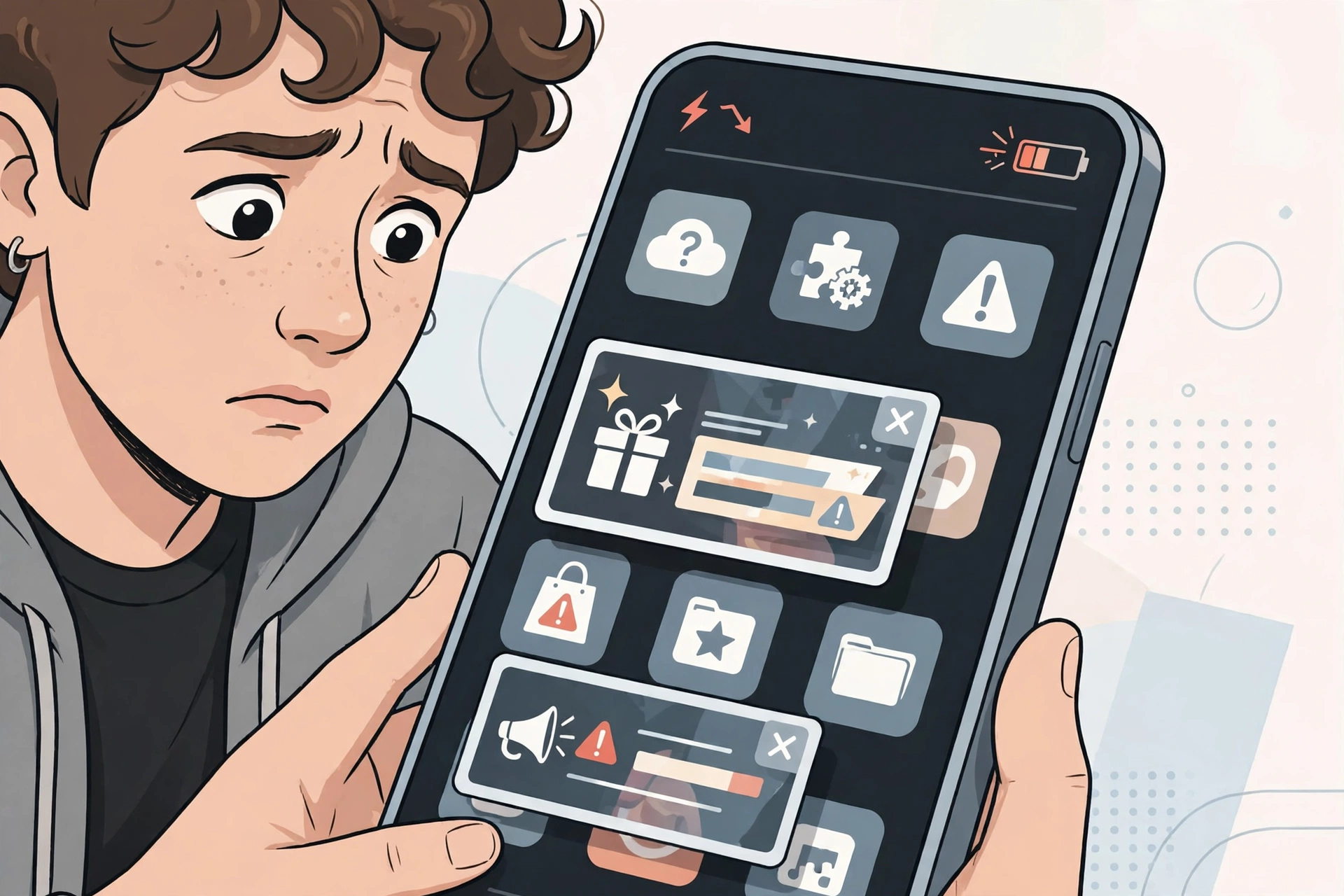
App and settings signs are often stronger evidence. Look for apps you did not install, apps with generic names such as System Service or Phone Manager, or an app whose icon vanished from the home screen but still appears in the full app list. Pop-up ads on the home screen or over other apps, a changed browser homepage, and settings that changed by themselves, such as a new device administrator, an unknown VPN, or a disabled security feature, all point to a bad app or a malicious profile.
Account and money signs include messages, posts, or emails you did not send, password reset emails you did not request, being locked out of an account, and sign-ins from strange places or at odd times. If messages you did not send are the main sign, also read how to spot phishing attacks, because phishing often precedes account takeover. Unknown charges on your phone bill, in your app store purchase history, or on a bank card linked to the phone are serious signs. Treat them as urgent, and contact your bank or carrier as well as securing your accounts.
None of these signs proves a hack on its own. An old battery drains fast. A software update can make a phone hot for a day. A full storage can slow a phone down. The rule used by security teams is simple: one sign is a clue, two signs are a reason to check, and three or more signs together are a reason to act.
How do I know if my phone is hacked: a quick self-check
How do I know if my phone is hacked without special tools? You can run a useful check in about ten minutes, using only the settings already on your phone and your account security pages.
Step 1: Check battery and data use by app. Open Settings, then Battery, and look for an app near the top that you do not recognise or that uses far more power than your normal apps. Then check data use in the same way. An unknown app with high battery and high data use is a strong lead.
Step 2: Review your full app list. Do not rely on the home screen. Open the full list in Settings, and look for apps you did not install or apps with vague names. Search the web for any name you do not recognise before you delete it, so you do not remove a genuine system app.
Step 3: Check signed in devices. Open your Google Account security page or your Apple Account device list, and look for devices you do not recognise. An unknown phone, tablet, or computer signed in to your account is often the real problem, even when the phone itself is clean.
Step 4: Check sent messages and account activity. Look at recent sent texts, emails, and social posts, and at recent sign-in activity and password changes. Messages you did not send, or a security setting changed without you, point to an account compromise.
Step 5: Check permissions and profiles. On Android, check device admin apps and special app access, especially accessibility access. On iPhone, check VPN and device management for a configuration profile you did not install. A single unknown app with deep access matters more than ten ordinary apps.
Score your results simply. If you found nothing unusual, your phone is probably fine. If you found one unusual item, investigate that item alone. If you found unusual items in two or more steps, follow the recovery section below, starting from a clean device.
How do I check an Android phone for hacking?
Android gives you several built in tools, and they are free. Start with Play Protect, then move to apps, permissions, and your Google Account.
First, run a Play Protect scan. Open the Play Store, tap your profile picture, tap Play Protect, then tap Scan. Play Protect checks installed apps against known harmful apps. It is not perfect, but it is a fast first filter.
Second, review your apps. Go to Settings, then Apps, then See all apps. Remove anything you do not recognise or no longer use. Be careful with preinstalled apps from your phone maker or carrier, which often have unfamiliar names. If you are unsure, search for the app name first.
Third, check special access. In Settings, search for device admin apps, and remove admin rights from any app you do not trust. Then search for special app access, and review accessibility, notification access, and permission to appear over other apps. Accessibility access is powerful, because it can read the screen, so only trusted apps such as a screen reader should hold it.
Fourth, check your Google Account. Open myaccount.google.com, or go to Settings, then Google, then Manage your Google Account. Open Security, then Your devices, and remove any device you do not recognise. Also review recent security activity and two step verification settings. Change your Google password from a clean device if you find an unknown device.
Finally, check call forwarding and linked apps. In the Phone app settings, check that call forwarding is off unless you set it yourself. In WhatsApp, open Settings, then Linked devices, and log out any computer or browser you do not recognise. Attackers use linked devices and call forwarding to intercept codes, so these checks close a gap many guides skip.
How do I check an iPhone for hacking?
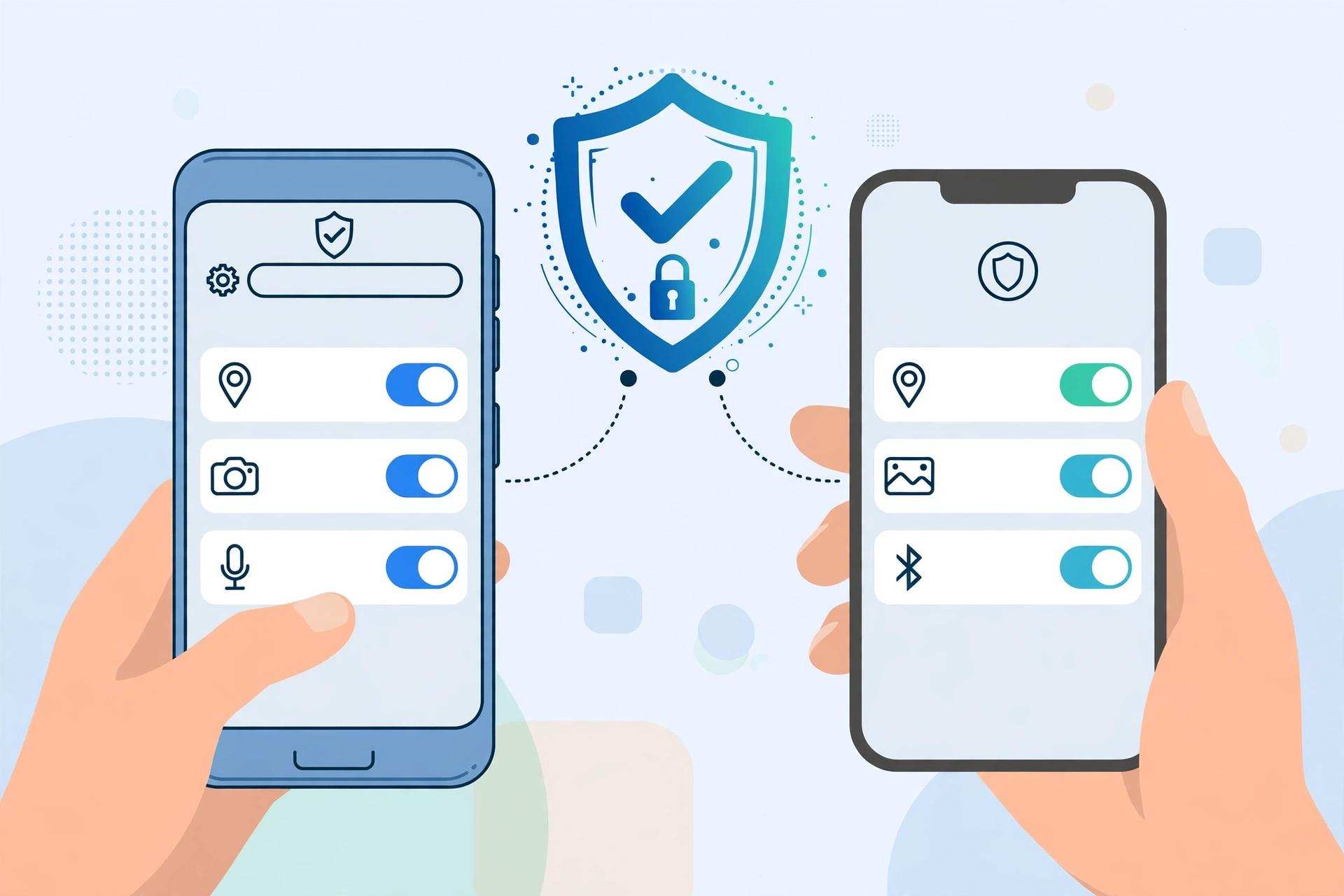
iPhones are harder to infect with a malicious app, because apps come only from the App Store and run in a restricted space. That does not make an iPhone immune. Most iPhone compromises are account compromises, malicious profiles, or stalkerware, not classic viruses.
First, update iOS. Go to Settings, then General, then Software Update, and install any available update. Updates close the security holes that spyware uses.
Second, check signed in devices. Open Settings, tap your name at the top, and scroll to the device list. Every device listed there can access your iCloud data and receive your security codes. Tap any device you do not recognise, and remove it.
Third, run Safety Check. Go to Settings, then Privacy and Security, then Safety Check. Apple built Safety Check for people who need to review sharing quickly. It shows who you share location and data with, which apps have access, and it can stop sharing with everyone at once.
Fourth, check for unknown profiles. Go to Settings, then General, then VPN and Device Management. A configuration profile you did not install can redirect traffic, add a VPN, or change settings. If you find one and you do not use a work or school device, remove it.
Fifth, review apps, battery use, and sign-ins. Open Settings, then Battery, and look for an app with unusual use. Review which apps can use your location, camera, microphone, and contacts. Then check your Apple Account sign-in activity, and turn on two factor authentication if it is not already on.
Could it be a SIM swap or stalkerware?
Two special cases look like a phone hack but work differently.
A SIM swap happens when an attacker convinces your mobile carrier to move your number to a SIM they control. Suddenly you lose signal, you cannot make calls or send texts, and friends say your messages go to voicemail. The attacker then receives your SMS codes and can reset your accounts. If you lose service for no reason, contact your carrier at once from another phone, ask whether your SIM was changed, and ask for a SIM PIN and a port out block. Also change your email password from a clean device, and move important accounts from SMS codes to an authenticator app where possible.
Stalkerware signs include a partner who seems to know things only your phone could tell them, a phone that is always warm, and an app you cannot find on the home screen but that appears in settings. If you suspect stalkerware, do not confront the installer from the phone itself, and do not factory reset at once without a safety plan, because a reset can alert the installer or delete evidence you may need. Seek help from a trusted support service, use a safe device to change passwords, and ask an expert to check the phone. Safety comes before technical cleanup in this case.
A third special case is a scam call. If someone rings and says your phone is hacked, then asks for remote access or payment, hang up. Security teams warn that this call itself is the scam.
How to tell if my computer has a virus
Many readers ask how to tell if my computer has a virus at the same time as they check their phone, because the same account often links both devices. The signs overlap, but the checks differ.
On a computer, a virus often shows as slow performance, frequent crashes, pop-up ads in the browser, a changed homepage or search engine, new toolbars or extensions you did not install, and files you do not recognise. A computer that sends emails you did not write also deserves a check. To tell if a computer has a virus, run a full scan with a reputable antivirus tool, review installed programs and browser extensions, and check your account sign-in activity in the same way as for a phone.
The link between the two devices matters. If your phone and computer share the same Google, Apple, or Microsoft account, an attacker who steals that password can reach both. That is why recovery starts with the account, not the device. Secure the account once, from a clean device, and you protect the phone and the computer together. For a deeper guide, read what an antivirus does and how it protects a device.
What should I do if my phone is hacked?
If your self-check found a real problem, follow this order. It protects your accounts first, then cleans the phone, and only resets the phone if needed.
Step 1: Use a clean device. Do not change passwords from the phone you suspect, because keylogging malware could capture the new password. Use a trusted computer or a family member’s phone, and start with your main email account, then your Google or Apple account, then banking and social accounts.
Step 2: Turn on two factor authentication. Use an authenticator app rather than SMS codes where possible, because SMS codes are vulnerable to SIM swap. Save your backup codes somewhere safe, offline, and away from the phone.
Step 3: Remove unknown devices, apps, and profiles. Sign out unknown devices from your Google or Apple account, delete unknown apps, remove unknown configuration profiles, and log out unknown WhatsApp linked devices. Revoke third party app access in your account settings.
Step 4: Run a scan and update everything. On Android, run a Play Protect scan and a reputable mobile security scan. On both phones, update the operating system and all apps.
Step 5: Warn contacts and check money. Tell close contacts not to click links from your number or accounts until you confirm the phone is clean. Check bank statements, app store purchases, and your phone bill for unknown charges, and report fraud to your bank and carrier at once.
Step 6: Reset only if the problem remains. Back up photos and important files first, but do not restore a full backup made after the problem started, because it may restore the bad app. Reset the phone, set it up as a new device where possible, reinstall only apps you trust, and change passwords again after the reset.
How can I stop my phone from being hacked again?
Prevention is mostly habit, not special software. Keep your operating system and apps on automatic update, because most attacks use known holes that updates already fix. Use a strong, unique password for your email and your Google or Apple account, and turn on two factor authentication everywhere it is offered.
Be strict about apps. Install apps only from the official App Store or Google Play, check the developer name and reviews before installing, and review permissions when an app asks for more than it needs. A torch app does not need your contacts. Delete apps you no longer use, because every unused app is a door you forgot to close.
Be careful with links, public Wi-Fi, and unlocked phones. Do not tap links in unexpected texts, even if they look like a delivery notice or a bank alert. On public Wi-Fi, avoid banking and account changes, or use a trusted VPN. Lock your phone with a PIN or biometrics, and do not leave it unlocked around people you do not fully trust.
Finally, review your accounts once a month. Check signed in devices, third party access, and linked devices in WhatsApp and other messaging apps. A five minute monthly check catches a compromise early, when it is still easy to fix. Start from the CPN Tech homepage for the latest guides across all categories.
Frequently asked questions
Can a phone be hacked by just answering a call?
Answering a call alone is very unlikely to hack a modern phone, but calls and texts can start a social engineering attack. An attacker may pretend to be your bank or carrier, ask you to tap a link, install an app, or read out a code. Never follow instructions from an unexpected caller.
Does a fast battery drain mean my phone is hacked?
Not by itself. A fast battery drain is one of the most common signs, but it is also caused by an old battery, a recent update, poor signal, or one busy app. Check battery use by app first. If an unknown app sits near the top, or if fast drain appears with other signs, then treat it as a warning.
How can I check if my phone is hacked for free?
You can check for free using built in tools. On Android, run Play Protect, review apps and special access, and check your Google Account devices. On iPhone, check signed in devices, run Safety Check, and review configuration profiles. No paid app is required, and no dial code can prove whether a phone is hacked.
Should I factory reset my phone if I think it is hacked?
Only if the problem remains after you secure your accounts, remove unknown apps and profiles, and update the phone. A factory reset removes most consumer malware, but it does not fix a stolen password, and restoring a backup made after the infection can bring the problem back.
What is the difference between a hacked phone and a hacked account?
A hacked account means someone has your password and signs in from their own device. Your phone itself is clean, but your mail, photos, and other accounts are exposed. A hacked phone means malicious software or a profile is on the phone itself. Check both: signed in devices tell you about the account, and apps, permissions, and profiles tell you about the phone.
Can antivirus software remove a phone hack?
Antivirus software can find and remove known malicious apps on Android, and it helps as a second check. On iPhone, antivirus apps cannot scan the whole system in the same way, so account checks, Safety Check, and updates matter more. In both cases, changing passwords from a clean device matters more than any single scan.
Conclusion
How do I know if my phone is hacked? The honest answer is that you know by checking, not by guessing from one symptom. Look for a pattern of signs, run the ten minute self-check, and separate a hacked account from a bad app and a hacked phone. Most worries turn out to have a harmless cause, such as an old battery or a busy app, and a calm check will show that. When the check does find a real problem, act in order: secure your accounts from a clean device, remove unknown apps and access, update the phone, and reset only if needed. Then build the monthly habit of checking signed in devices and app permissions, so the next warning sign is caught early, while it is still easy to fix.