What Is an SSID? Wi-Fi Network Name Explained Simply
An SSID is the name your Wi-Fi router broadcasts so nearby devices can find the network and connect to the right one. The question “what is an ssid” comes up every time a new device asks for a network name. SSID stands for Service Set Identifier (SSID), and the SSID is the label you tap in the Wi-Fi list on a phone or laptop. Every wireless network has one. The SSID can be up to 32 characters long, the SSID is case-sensitive, and the SSID is public by default. This guide explains how the SSID works, how to find the SSID on any device, how to change the SSID in router settings, and whether hiding the SSID helps security. The guide also clears up the SSID number confusion, compares the SSID with the BSSID and MAC address, and lists practical steps to protect a home network.
Key Takeaways
- An SSID (Service Set Identifier) is the public name of a Wi-Fi network. The SSID holds up to 32 characters and is case-sensitive.
- The SSID is not the Wi-Fi password. The SSID identifies the network; the password controls who can join it.
- Find the SSID on the router sticker, in device Wi-Fi settings, or in the router settings page under Wireless or Wi-Fi.
- Rename the factory default SSID. A custom name hides the router brand from public view and avoids confusion with neighbors.
- Hiding the SSID adds no real security. A long password with WPA3 encryption does the actual protecting.
- There is no “SSID number.” The number people look for is usually the router IP, the password, or the MAC address.
Table of Contents
- What Is an SSID?
- What Does SSID Stand For?
- How Does an SSID Work?
- SSID vs BSSID: What Is the Difference?
- How to Find Your SSID on Any Device
- How to Change Your SSID
- What Is an SSID Number?
- Should You Hide Your SSID?
- Is an SSID the Same as a Wi-Fi Password?
- How to Pick a Good SSID Name
- SSID Security Risks and How to Protect Your Network
- FAQs
- Conclusion
What Is an SSID?
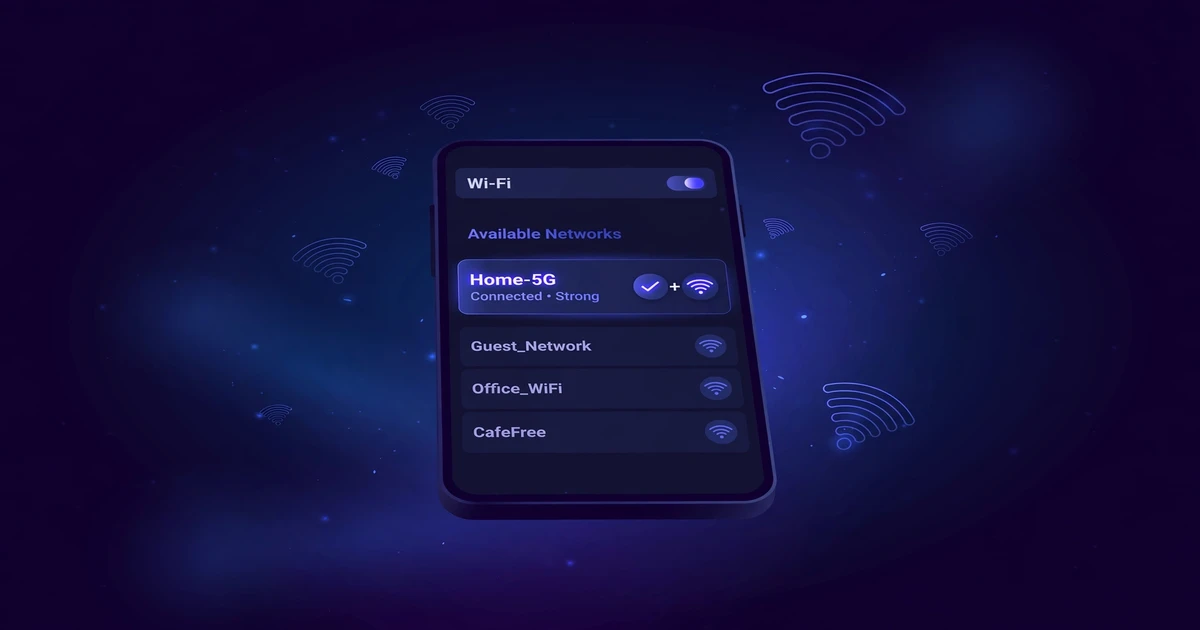
An SSID is the public name of a Wi-Fi network. SSID stands for Service Set Identifier (SSID). A router broadcasts its SSID so nearby phones, laptops, and tablets can see the network in their Wi-Fi list. Tapping the SSID starts the connection process. The SSID identifies the network; the SSID never controls who can join it.
An SSID shows up as the network name on every Wi-Fi device. The phone settings screen lists SSIDs for home routers, office networks, coffee shops, and airports. Each SSID in the list belongs to a different wireless network. The SSID carries no security on its own: the SSID names the network, and the password guards entry to it.
What Does SSID Stand For?
SSID stands for Service Set Identifier. The words break down into plain parts. “Service set” is the group of wireless devices sharing one network, and “identifier” is the name that marks the group. In everyday language, the ssid meaning is the Wi-Fi network name.
The 802.11 wireless standard defines the service set as the group of devices on one wireless network, and the identifier is the name assigned to the group. In daily use people say “Wi-Fi name” or “network name” instead. Router settings screens often label the field “SSID” or “Network Name” side by side.
How Does an SSID Work?
An SSID works by being broadcast in small radio messages called beacon frames. The router sends these messages many times per second. Nearby devices listen for the messages and build the Wi-Fi list from the SSIDs they hear. The user taps the SSID, the device sends a join request, and the device reconnects automatically.
The technical rules for an SSID come from the IEEE 802.11 standard. An SSID holds 0 to 32 octets, which usually means up to 32 characters of text (Source: Wikipedia, 2026). Read the IEEE 802.11 service set identifier specification for the full technical definition.
To keep learning wireless basics, browse our Hardware & Networking guides.
SSID vs BSSID: What Is the Difference?
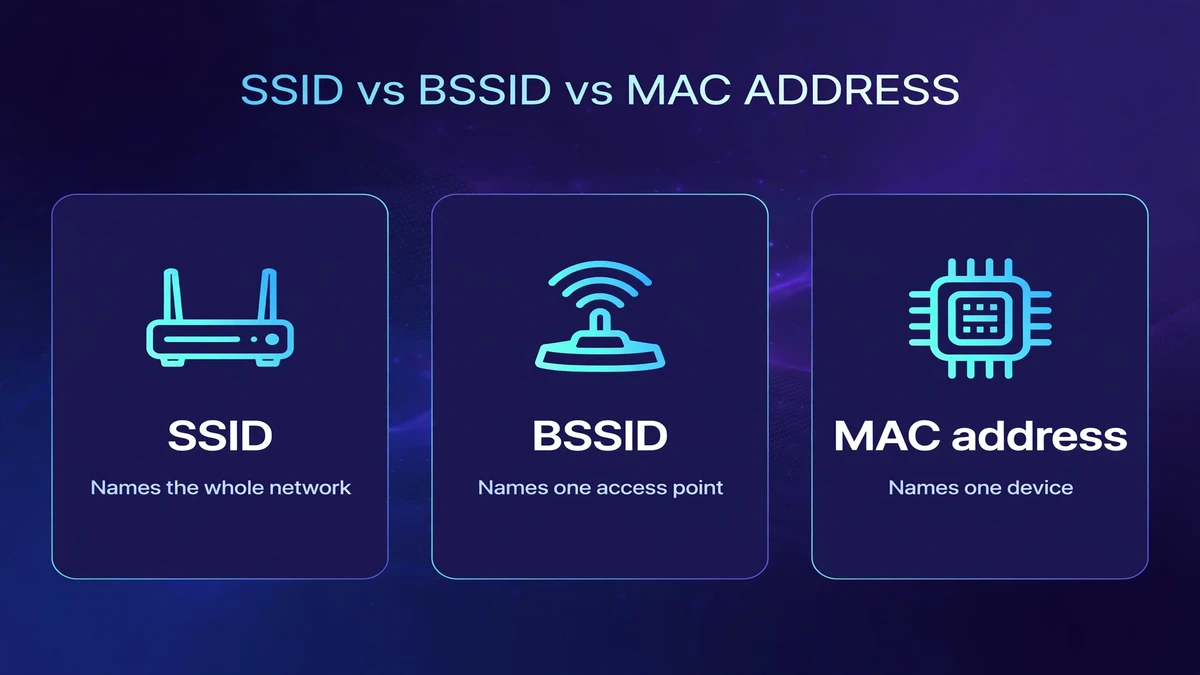
An SSID names the whole Wi-Fi network, while a BSSID names one specific access point. BSSID stands for Basic Service Set Identifier (BSSID). Every access point has a BSSID in the same format as a Media Access Control (MAC) address. A mesh system shares one SSID across many access points, and each access point keeps its own BSSID.
The five values below show up in router screens and troubleshooting guides, and each one does a different job.
| Feature | SSID | BSSID | MAC address | IP address | Wi-Fi password |
|---|---|---|---|---|---|
| What it identifies | The Wi-Fi network name | One access point | One network adapter | One device on the network | The entry credential |
| Who sets it | The router owner | The router hardware | The device maker | The router (DHCP) | The router owner |
| Is it public | Yes | Visible to scanners | Partly; phones randomize it | No | No |
| Example | HomeWiFi_5G | 5C:CF:7F:12:9A:3B | 5C:CF:7F:12:9A:3B | 192.168.1.24 | Kept secret |
How to Find Your SSID on Any Device
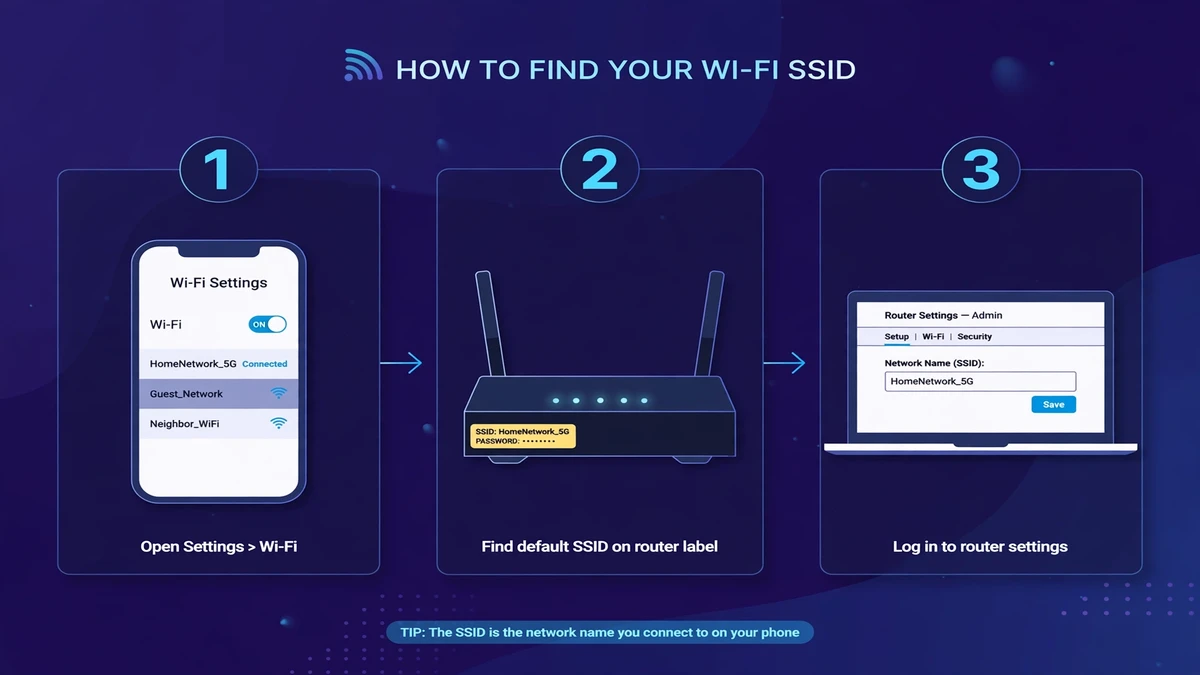
You find your SSID in your device Wi-Fi settings, on the router sticker, or in the router settings page. The connected network name at the top of the Wi-Fi list is your SSID. The default SSID is printed on a sticker on the router. The current SSID is always visible in the router settings page under Wireless or Wi-Fi.
On Windows
- Click the network icon on the right side of the taskbar.
- Read the network name at the top of the panel.
- Click the arrow to see the other nearby SSIDs.
On macOS
- Click the Wi-Fi icon in the menu bar.
- Read the network name with the checkmark next to it.
On iPhone and iPad
- Open Settings and tap Wi-Fi.
- Read the network name with the checkmark at the top.
On Android
- Open Settings and tap Network and Internet.
- Tap Wi-Fi and read the connected network name.
On the router sticker
- Turn the router over and find the label.
- Read the value next to SSID or Network Name.
In the router settings page
- Open a browser and enter the router IP address.
- Log in with the admin username and password.
- Open Wireless settings and read the SSID field.
SSID not showing after a rename? Learn how to reset network settings on iPhone and clear the stale entry.
How to Change Your SSID
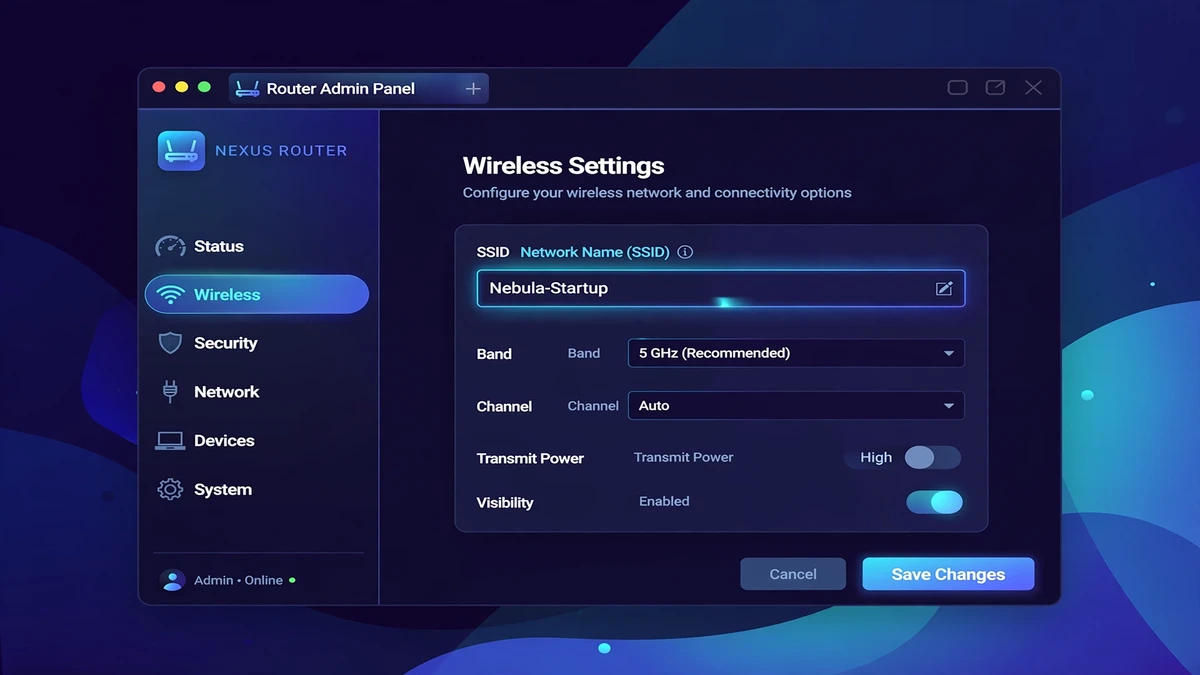
You change your SSID in the router settings page under Wireless or Wi-Fi settings. Log in to the router admin page, find the SSID field, type the new network name, and save. The router restarts its wireless radio, and every connected device drops off. You then reconnect each device with the new SSID and the existing password.
To change your SSID, follow these steps:
- Connect to the router over Wi-Fi or with an Ethernet cable.
- Open a browser and enter the router IP, often 192.168.0.1 or 192.168.1.1.
- Log in with the admin username and password from the router sticker.
- Open Wireless or Wi-Fi settings and find the SSID field.
- Type the new network name and save the settings.
- Reconnect every device with the new SSID and the existing password.
When I renamed my own router from the factory default, every phone, laptop, and smart speaker in the house dropped off at once, and each device needed the new SSID typed in by hand. The five minutes of typing beat months of guessing between identical default names on the street.
Changing the SSID never changes the password, and the two update separately. A new SSID does not change internet speed; the router wifi name is only a label.
What Is an SSID Number?
There is no such thing as an SSID number. The SSID is a text name, not a number. When people search for their “SSID number”, they usually need one of three things: the Wi-Fi password on the router sticker, the router IP address, or the MAC address of the router.
| What you might mean by “SSID number” | What it really is | Where to find it |
|---|---|---|
| The number on the router sticker | The default Wi-Fi password or network key | The router sticker |
| The number typed into a browser | The router IP address, often 192.168.0.1 | The router sticker or manual |
| A long code in device settings | The MAC address or BSSID | The device network details |
No router assigns a number as the SSID. The SSID field takes text. A technician asking for the “SSID number” wants one of the values in the table.
Should You Hide Your SSID?
No, hiding your SSID adds no real security to a Wi-Fi network. A hidden SSID stops the router from listing the network name, but the network traffic stays visible to scanning tools. Hiding also forces manual entry on every new device. A long password and Wi-Fi Protected Access 3 (WPA3) encryption protect the network far better than a hidden SSID.
A hidden SSID tells the router to send beacon frames with an empty name field. The network disappears from the Wi-Fi list. New devices must type the SSID by hand to join.
Hiding backfires in one specific way. Devices that know a hidden SSID send probe requests carrying the SSID name wherever they go. The probe requests expose the hidden name to anyone listening. A visible SSID with WPA3 stays safer than a hidden SSID with a weak password.
Routers place the ssid broadcast toggle in Wireless settings next to the SSID field. Leave the broadcast on, and use the guest network for visitors instead of hiding the main SSID.
Is an SSID the Same as a Wi-Fi Password?
No, an SSID is not the same as a Wi-Fi password. The SSID is the public name of the network. The Wi-Fi password is the secret key that grants access to the network. Anyone nearby can see the SSID. Only people with the password can join. You select the SSID first, then you enter the password.
Router makers call the Wi-Fi password several names: network key, wireless key, WPA2 key, or pre-shared key (PSK). All four names mean the same secret, and the two values serve different jobs.
The sticker on a new router prints both values. The SSID sits next to labels like “Network Name” or “SSID”. The password sits next to “Password”, “Network Key”, or “Wireless Password”.
How to Pick a Good SSID Name
A good SSID name is unique, free of personal details, and free of tricky characters. A unique name avoids confusion with neighbors using default names. Personal details in an SSID are visible to everyone in range. Some older devices fail on emoji in an SSID. Adding “_nomap” to the end of an SSID asks location services to skip the network.
To pick a good SSID name, follow these rules:
- Pick a name only your household recognizes.
- Leave out your name, address, and apartment number.
- Skip the router brand and model.
- Avoid emoji and unusual symbols for older devices.
- Add “_nomap” at the end to opt out of some location databases.
Good SSID examples stay neutral: “MapleStreet_5G” works for a family, and “Studio_Guest” works for visitors. “Emily Apt 4B” leaks a name and a door number. Apple’s location services treat an SSID ending in “_nomap” as an opt-out from its location database (Source: Wikipedia, 2026).
SSID Security Risks and How to Protect Your Network
The main SSID security risks are evil twin attacks, default SSID targeting, and joining the wrong network. Attackers copy trusted SSID names to lure devices onto fake hotspots. Default SSIDs reveal the router brand and model to anyone scanning. Devices can auto-join a copycat SSID. WPA3 encryption, a long password, and a guest network for visitors block these attacks.
A guest network is a second SSID on the same router with its own password. Guests join the guest SSID and stay cut off from home computers, printers, and shared files.
When to use which SSID:
- Join the main SSID for family devices that need printers and shared files.
- Join the guest SSID for visitors and smart home gadgets.
- Avoid open public SSIDs for banking, or use a VPN on them.
An evil twin attack copies a trusted SSID name, such as “Airport_Free_WiFi”, onto a rogue hotspot. A phone that remembers the real SSID can join the fake one without warning. Verify the exact network with staff before joining, and forget public SSIDs after the trip. Read our VPN definition to see how a VPN protects traffic on public Wi-Fi. More wireless safety explainers live here on CPN Tech.
FAQs
| Question | Answer |
|---|---|
| What is an SSID on Wi-Fi? | An SSID on Wi-Fi is the name of a wireless network. The SSID appears in the Wi-Fi list on phones, laptops, and tablets. The router broadcasts the SSID so devices can find the network. Tapping the SSID selects the network for connection. |
| How do I find my SSID? | Your SSID is the network name at the top of your Wi-Fi list. Open Wi-Fi settings on your phone or laptop and read the connected network name. The default SSID is printed on the router sticker. The current SSID is listed in the router settings page under Wireless settings. |
| Should I hide my SSID? | No, hiding your SSID adds no real security. A hidden SSID disappears from the Wi-Fi list, but the network traffic stays visible to scanning tools. Your own devices can also broadcast the hidden name in probe requests. A long password with WPA3 encryption protects the network instead. |
| What is my SSID number? | There is no SSID number; the SSID is a text name. People searching for an SSID number usually need the Wi-Fi password, the router IP address, or the MAC address. The password and the router IP are printed on the router sticker. The MAC address sits in the device network details. |
| Can I have multiple SSIDs on one router? | Yes, most routers support several SSIDs at once. A router can run a main SSID, a guest SSID, and separate SSIDs for the 2.4 GHz and 5 GHz bands. Each SSID can carry its own password and access rules. A guest SSID keeps visitors away from home computers and files. |
| Is the SSID the Wi-Fi name or the password? | The SSID is the Wi-Fi name, not the password. The SSID is the public label you tap in the Wi-Fi list. The password is the secret key that lets a device join. You pick the SSID first, then you enter the password to connect. |
Conclusion
An SSID is the name a Wi-Fi router broadcasts so nearby devices can find the network. The SSID holds up to 32 characters, the SSID is case-sensitive, and the SSID stays public by default. The SSID is a text name, never a number, and any number on the sticker is the password, the router IP, or the MAC address.
The question “what is an ssid” now has a full answer: the BSSID names one access point while the SSID names the whole network, and hiding the SSID adds no real security. A unique SSID, a long password, and WPA3 encryption protect a home network far better.
Try the free networking tools on the CPN Tech tools hub to put these steps into practice.