
Cloud to Cloud Backup: What It Is and How It Works
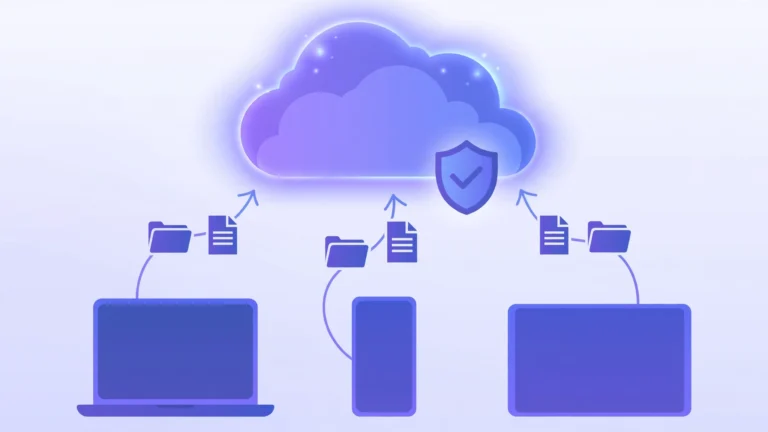
Cloud to cloud backup, usually written as cloud-to-cloud backup and shortened to C2C backup, copies data that already lives in the cloud from one cloud service to a second, independent cloud. For example, it automatically copies your Microsoft 365 mailboxes or Google Drive files into a separate cloud vault, giving you a recoverable copy that survives accidental deletion, ransomware, and outages.
Most people assume data stored in the cloud is automatically protected. It is not. Your SaaS provider keeps the service running, but recovering your files after a mistake or an attack is mostly your problem. Cloud to cloud backup adds the one thing the cloud does not give you by default: a second, independent copy you can restore from, with no servers or hardware on your side. This guide explains what it is, how it works, what it costs, and how to choose a provider.
Key Takeaways
- Cloud to cloud backup copies data from one cloud platform to another independent cloud, automatically and on a schedule.
- SaaS platforms like Microsoft 365 and Google Workspace do not back up your data for you; under the shared responsibility model, your data is your job.
- Direct to cloud backup eliminates on-premise hardware: nothing downloads to your computers; the copy moves cloud to cloud.
- Look for immutable backups, granular restore, and clear retention policies; skip providers that hide their restore process.
- Price the two-year total, including restore and egress charges, not just the monthly license or per-terabyte figure.
- What Is Cloud to Cloud Backup?
- How Does Cloud to Cloud Backup Work?
- What Types of Cloud to Cloud Backup Exist?
- Why Do You Need Cloud to Cloud Backup?
- What Are the Benefits of Cloud to Cloud Backup?
- What Data Can You Back Up With Cloud to Cloud Backup?
- Cloud to Cloud Backup vs Traditional Cloud Backup
- How Much Does Cloud to Cloud Backup Cost?
- How Do You Choose a Cloud to Cloud Backup Provider?
- What Are the Limitations of Cloud to Cloud Backup?
- How Do You Plan a Cloud to Cloud Backup Strategy?
- Real-World Examples of Cloud to Cloud Backup
- Frequently Asked Questions
- Conclusion
What Is Cloud to Cloud Backup?
Cloud to cloud backup is a backup method in which data stored in one cloud service is copied directly to a different cloud service, without the data ever passing through your own computers. The first cloud is the source, such as Microsoft 365, Google Workspace, Salesforce, or Amazon S3. The second cloud is the destination, often a separate storage cloud run by the backup provider.
The difference from traditional cloud backup is the starting point. Traditional backup copies data from your local devices or office servers up to the cloud. Cloud to cloud backup skips the local step entirely, because your data was already in the cloud. When your company email, files, and records live in SaaS apps, there is no local server to back up, so the cloud-to-cloud model protects cloud-resident data with cloud-resident copies.
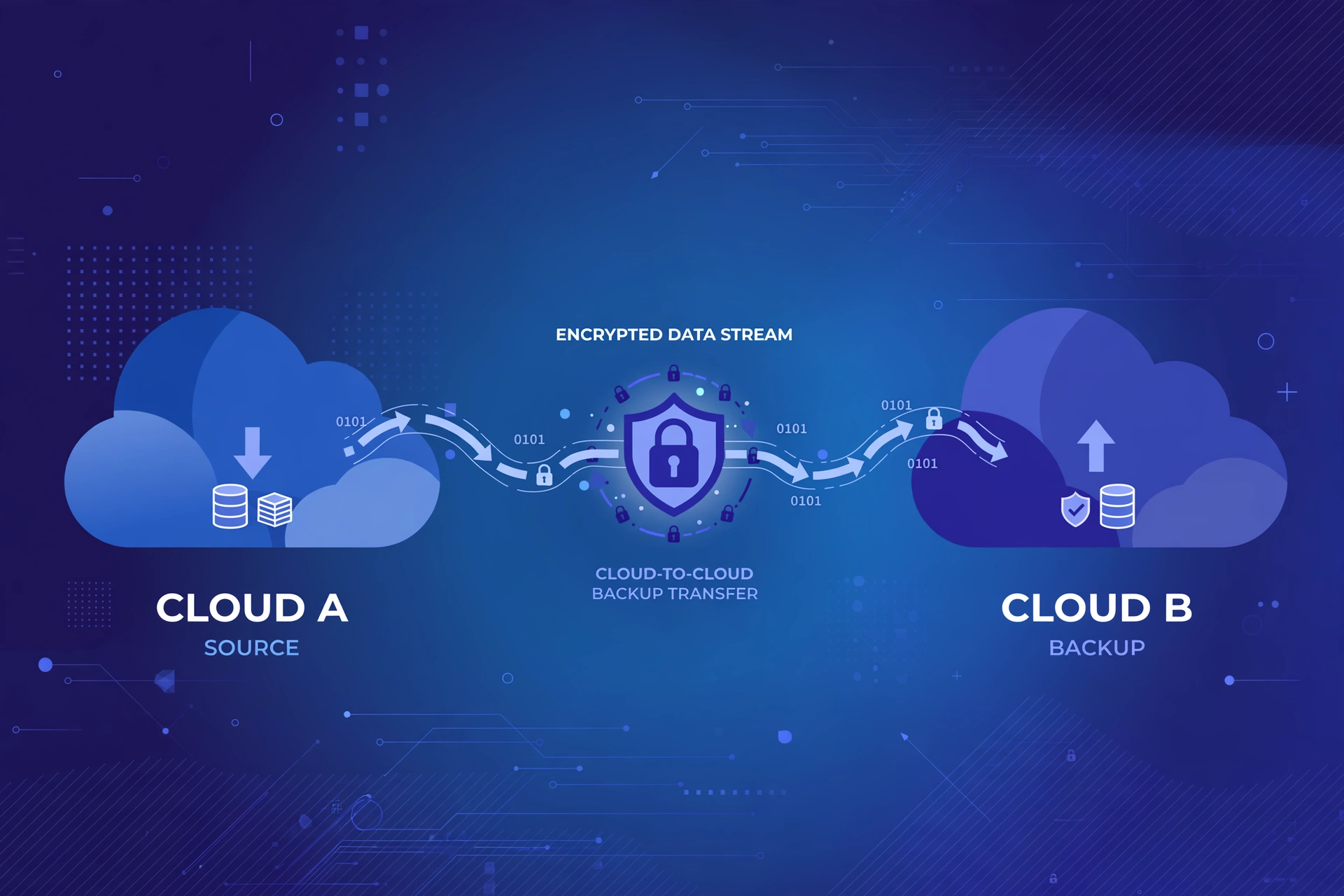
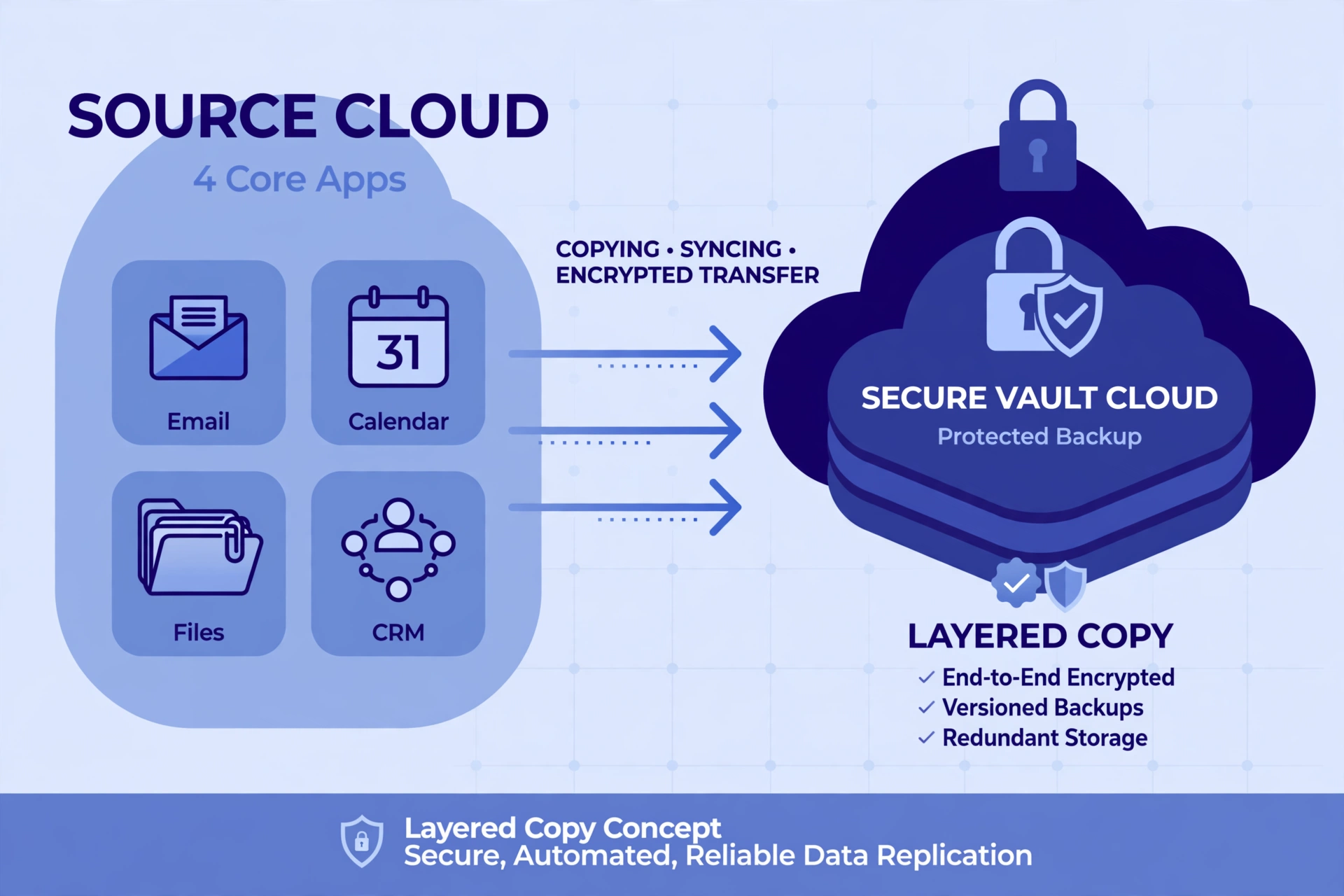
It runs through a managed process. A cloud to cloud backup service connects to your source cloud through official APIs, reads your data on a schedule you set, encrypts it, and writes it to the destination cloud, which holds versioned, restorable copies independent of the source service. If the source cloud is breached, misconfigured, or switched off, the copies still exist.
How Does Cloud to Cloud Backup Work?
Cloud to cloud backup works by copying your cloud data from one cloud application to another through a series of automated steps. Once configured, it runs in the background and keeps your data protected without any daily effort from you or your IT team.
The process follows a consistent sequence. First, the backup solution connects securely to your source cloud platform through official APIs with proper authentication. Next, you set the rules: which data needs backup, how often it should run, and how long copies are kept. Data is encrypted in transit and at rest, then lands in the separate destination cloud.
After the first full backup, the system switches to incremental copies: only what changed since the last run is transferred, which keeps bandwidth and storage costs down and allows hourly or near real time protection.
What Types of Cloud to Cloud Backup Exist?
Cloud to cloud backup comes in several forms, and the right one depends on what data you are protecting and who is managing it.
SaaS application backup is the most common type. It protects data inside software-as-a-service apps: Microsoft 365 mailboxes, SharePoint, OneDrive and Teams; Google Workspace Gmail, Drive and Calendar; Salesforce records; Slack messages; and Zoom recordings.
Cloud storage to cloud storage backup copies raw data between object storage clouds, for example from one Amazon S3 bucket to another region or provider.
Managed C2C backup services bundle the software, scheduling, destination storage, and support into one product. You point the service at your source cloud and it handles the rest, the simplest option for businesses without a backup engineer.
DIY and free transfer tools sit at the other end. Open-source tools like rclone copy files between cloud drives from a command line, and free multi-cloud managers move data between personal cloud accounts through a browser. These move data reliably, but they are transfer tools, not backup platforms: they lack versioning, retention policies, and one-click restore.
Why Do You Need Cloud to Cloud Backup?
You need cloud to cloud backup because SaaS providers protect the service, not your data. This arrangement is called the shared responsibility model. Microsoft, Google, Salesforce, and Dropbox secure their infrastructure and keep their applications available. Recovering your accidentally deleted, corrupted, or encrypted files is your responsibility.
Deleted files sit in a recycle bin for a limited retention period, often around 30 days, after which they are gone. Version history helps with individual documents but does not restore your whole mailbox to a point in time. Internal threats, a disgruntled employee or an administrator’s mistake, can wipe data the provider cannot bring back. Ransomware targets cloud data too: if attackers encrypt your SaaS files, an independent backup is your only clean recovery path.
What Are the Benefits of Cloud to Cloud Backup?
The core benefit is independence. Your backup lives in a separate cloud under separate credentials, so a single breach, outage, or billing problem cannot take both your data and its backup at once.
Automation is the second benefit. Once configured, backups run on schedule without anyone remembering to start them, which eliminates the biggest cause of backup failure: human forgetfulness. No hardware is needed either: cloud to cloud backup requires no tapes, drives, or local servers.
Compliance gets easier too. Immutable backup copies, which cannot be deleted or modified during their retention window, give you a tamper-evident trail that satisfies regulators and simplifies audits. And recovery is flexible: granular restore recovers one email, one file, or one record instead of rolling back an entire tenant, and you can restore to a different location when the primary cloud is unavailable.
What Data Can You Back Up With Cloud to Cloud Backup?
Cloud to cloud backup covers any data that lives in the cloud, but the typical targets fall into three groups.
SaaS applications are the largest group. Microsoft 365 is the most common C2C backup use case: Exchange Online mailboxes, SharePoint, OneDrive, and Teams. Google Workspace follows with Gmail, Drive, Calendar, and Sites. Salesforce records, Slack messages, and Zoom recordings round out the list.
Cloud infrastructure data is the second group. On Amazon Web Services that means EC2 snapshots, S3 buckets, and database backups; on Microsoft Azure, virtual machines, Blob storage, and managed databases; on Google Cloud Platform, Compute Engine instances, Cloud Storage, and Cloud SQL. Teams copy this data to a second cloud or region so an outage in one provider does not strand their applications.
Personal and team cloud files are the third group. Files in Google Drive, Dropbox, OneDrive, and iCloud can be mirrored to a second cloud so a single account lockout or accidental mass deletion does not destroy everything. Free transfer tools often cover this need, though they do not provide versioning or scheduled retention.
Cloud to Cloud Backup vs Traditional Cloud Backup
People often use “cloud backup” as one blanket term, but the direction of the data changes everything about the product.
| Aspect | Traditional cloud backup | Cloud to cloud backup |
|---|---|---|
| Source of data | Local computers, office servers | Data already in the cloud (SaaS, cloud storage) |
| Direction | On-premise to cloud | Cloud to cloud, direct |
| Local infrastructure needed | Agents on each device or server | None; everything happens between clouds |
| Typical user | Businesses with physical servers and PCs | Cloud-first businesses with no local servers |
| Best for | Endpoint and server protection | SaaS data protection, cloud disaster recovery |
| Bandwidth load on your network | High during backup windows | Zero; your network is never involved |
The two are complementary, not competing. A hybrid company with office servers and SaaS apps needs both. A startup born in the cloud, with no servers and no local files that matter, can skip traditional backup entirely and run purely on cloud to cloud backup.
How Much Does Cloud to Cloud Backup Cost?
Pricing usually follows one of three models. Per-user pricing charges a fixed monthly fee per protected user, often a few dollars per user, with generous storage included. Per-terabyte pricing charges for the amount of data stored, which suits storage-heavy workloads but grows with your data. License plus your own storage means you pay for the backup platform and separately for the cloud storage it consumes.
The headline price is never the full price. Watch for four hidden cost lines. Egress fees: providers charge to move data out, and a full restore of terabytes can cost more than months of service. Retention multipliers: a year of daily copies means storing a year of changed versions. Restore and API charges: some platforms meter restores or throttle API calls during large recoveries. Data residency premiums: pinning backups to a specific country or region can raise the storage rate.
Model the two-year total, including one full restore, before comparing providers. For broader guidance on pricing business backup services, see our guide to cloud backup services for business.
How Do You Choose a Cloud to Cloud Backup Provider?
Choosing a provider is easier when you separate the sales pitch from the five things that actually determine whether your data survives.
1. Immutability. Ask whether backups can be locked so they cannot be deleted or modified during retention. This is the most effective defense against ransomware that tries to encrypt your backups too.
2. Granular restore. Can you restore a single email, file, or record to a different location? Full-tenant rollbacks are blunt instruments; granular, searchable restore is what you will use week to week.
3. Your storage, or theirs? Some providers use their own cloud; others let you use your own Amazon S3 or Azure storage. Your own storage gives you control over region, residency, and exit options.
4. Retention and compliance. Match retention to your legal obligations: daily copies for 30 days, weekly for a year, monthly for several years is a common pattern. Verify the provider supports legal hold and produces audit reports.
5. Transparent restore testing. Ask for a trial, run a restore of real data into a test location, and time it. This one exercise tells you more than any feature checklist.
What Are the Limitations of Cloud to Cloud Backup?
Cloud to cloud backup is not magic, and an honest article should name its limits. First, it cannot protect what it cannot see: if a job excludes an app, a shared drive, or a departed employee’s mailbox, that data has no copy. Inventory every cloud app holding real data before you configure anything.
Second, the initial backup takes time. Copying terabytes through APIs is limited by the source provider’s rate limits, so first syncs can take days or weeks for large tenants, though later incremental runs finish in minutes.
Third, you are still trusting a vendor. Your backup provider holds your data, its encryption keys, or both. Check for independent audits like SOC 2 reports, and confirm how you would export your data if you left: a backup you cannot leave with is a form of lock-in. Fourth, restores have speed limits. Granular restores of a few files are fast, but restoring an entire tenant runs at whatever speed the APIs and egress bandwidth allow. Recovery time objectives must be agreed in writing rather than assumed.
How Do You Plan a Cloud to Cloud Backup Strategy?
A backup strategy answers four questions before you buy anything. Start with an inventory: list every cloud application that holds data your business cannot lose, including the ones individual teams adopted without telling IT. Missed apps are the most common cause of unrecoverable data. Next, define two numbers. Your recovery point objective (RPO) is the maximum data loss you can accept, and it sets your backup frequency. Your recovery time objective (RTO) is how fast you must be back online. Write both down; vague goals produce vague protection.
Then set the retention policy: how long each generation of copies is kept. Daily copies for 30 days, weekly for 12 months, and monthly for 3 to 7 years for regulated records is a sensible default, aligned with your industry’s legal requirements. If you are also reviewing your overall setup, compare these retention options against your existing cloud based storage solutions to keep policies consistent.
Finally, schedule restore tests. A quarterly test restore of real data into a non-production location proves the whole chain works: credentials, APIs, and your team’s ability to run the process under pressure.
Real-World Examples of Cloud to Cloud Backup
Consider a 40-person marketing agency running on Google Workspace. A departing employee deletes a shared drive folder containing two years of client work after the 30-day trash retention has expired. With daily cloud to cloud backup to a separate cloud, the administrator finds the folder as it looked the day before deletion and restores it in under an hour. More real-world scenarios like this appear in the practical guides on the CPN Tech homepage.
Frequently Asked Questions
What is the difference between cloud backup and cloud to cloud backup?
Traditional cloud backup copies data from your local devices or servers up to the cloud. Cloud to cloud backup copies data that already lives in the cloud to a second independent cloud. No local hardware is involved.
Is Microsoft 365 or Google Workspace data backed up automatically?
No. These platforms keep the service running and offer short recycle bins and version history, but they do not keep independent, long-term backups. Under the shared responsibility model, protecting your data is your job.
How often should cloud to cloud backups run?
As often as your recovery point objective demands. Daily backups are the minimum for most businesses; hourly or near real time runs suit teams where a few hours of lost work would be expensive.
Can ransomware destroy cloud to cloud backups?
Not if the backups are immutable. Immutable copies cannot be deleted or modified during their retention window, so ransomware that encrypts your primary cloud cannot touch them.
Do individuals need cloud to cloud backup, or is it only for businesses?
Individuals benefit too, though the tools differ. Free multi-cloud transfer tools can mirror personal files between Google Drive and Dropbox, protecting against account lockouts and accidental deletions. Businesses with compliance duties should use managed services.
Conclusion
Cloud to cloud backup closes the most misunderstood gap in modern IT: your cloud apps are reliable, but they are not your backup. A managed C2C service copies your SaaS and cloud data directly to an independent cloud on an automatic schedule, encrypts it, and keeps immutable versions you can restore in minutes. Inventory your cloud apps, set your RPO and RTO, pick a provider with immutable backups and granular restore, model the two-year cost including a full restore, and test a restore before disaster forces one. Then a deleted folder or an encrypted tenant becomes a routine restore job instead of a crisis.