How to Spot Phishing Attacks: A Simple Guide
Phishing attacks are getting smarter every year — but spotting them is still a learnable skill. A phishing attack is any message that pretends to be from a trusted sender to steal your passwords, money, or personal data. In 2026, these scams arrive by email, text, phone call, and even QR code.
Learning how to spot phishing attacks takes just a few minutes, and it protects everything from your bank account to your family photos. This guide walks you through the warning signs, the newest tricks scammers use, and a simple 60-second check you can run on any suspicious message.
Key Takeaways
- Phishing is a fake message pretending to be someone you trust, designed to steal data or money.
- Watch for urgency, strange sender addresses, typos, unexpected attachments, and requests for personal info.
- The 60-second S.L.A.M. check (Sender, Links, Attachments, Message) catches most scams fast.
- Never click first — verify through a separate, trusted channel instead.
- If you clicked, act quickly: disconnect, change passwords, and report the message.
Table of Contents
- What Are Phishing Attacks and How Do They Work?
- How to Spot Phishing Attacks in Email: 8 Warning Signs
- Try It: Spot the Phishing Email Quiz
- How Can You Spot Phishing Attacks on Your Phone?
- What Are the Main Types of Phishing Attacks?
- Why Do Phishing Attacks Look So Convincing Now?
- What Is the 60-Second S.L.A.M. Check?
- What Should You Do After Clicking a Phishing Link?
- How Can You Protect Yourself From Phishing Attacks?
- Frequently Asked Questions
- Conclusion
What Are Phishing Attacks and How Do They Work?
Phishing attacks work by impersonation. A scammer crafts a message that looks like it came from your bank, your boss, a delivery company, or a streaming service — then pushes you to click a link, open a file, or hand over sensitive details. The fake link usually leads to a lookalike login page that harvests whatever you type.
Most campaigns follow the same three steps: bait (a convincing message), hook (a link, attachment, or reply request), and catch (your credentials, payment info, or access to your device). Knowing how to spot phishing attacks means recognizing the bait before you ever reach the hook.
Cybercriminals send billions of these messages because the economics favor them: even a tiny response rate pays off. Automated toolkits now let attackers personalize messages with your name, employer, or recent purchases scraped from data breaches and social media.
The good news is that nearly every phishing message leaves clues. Once you know the patterns, you can spot phishing attempts in seconds — on any device, in any inbox.
How to Spot Phishing Attacks in Email: 8 Warning Signs
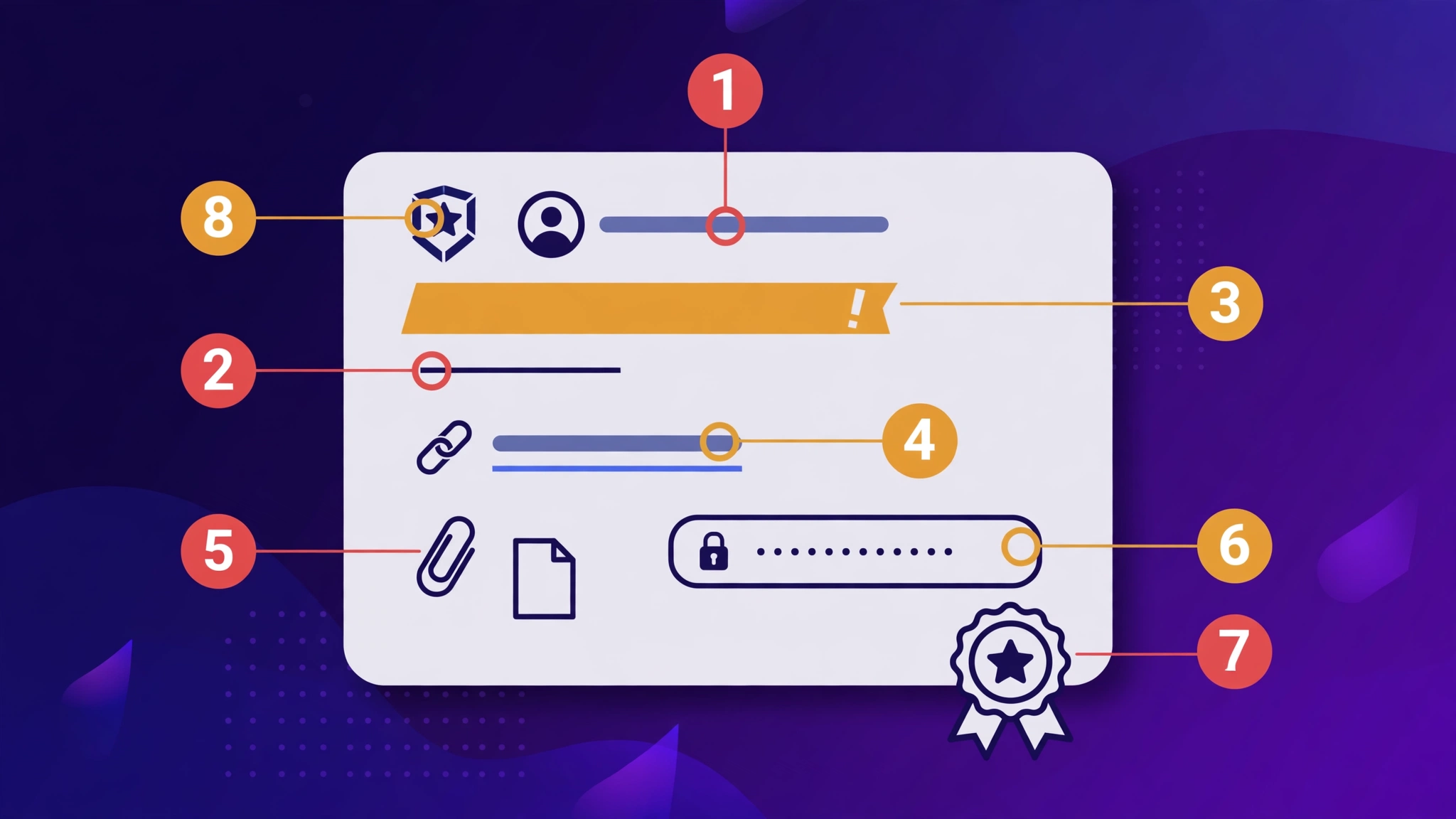
You spot phishing attacks in email by checking the sender, hovering over links, and questioning urgency. These eight warning signs cover the vast majority of malicious emails — if a message trips even one or two of them, treat it as suspicious.
1. The sender address looks “almost right”
Scammers register domains like paypa1.com (with a “1” instead of an “l”) or support@amaz0n-billing.net. The display name may say “PayPal,” but the real address tells the truth. Always expand the sender field and read the full address carefully.
2. Urgent threats or too-good-to-be-true offers
“Your account will be locked in 24 hours!” or “You’ve won a $500 gift card!” Urgency and greed short-circuit careful thinking — which is exactly why attackers use them. Legitimate companies rarely demand instant action by email.
3. Generic greetings
“Dear Customer” or “Hello User” instead of your name is a classic bulk-phishing tell. Your real bank or subscription service almost always uses the name on your account.
4. Spelling, grammar, and formatting quirks
Odd phrasing, mismatched fonts, blurry logos, and broken layouts suggest a rushed copy job. Polished brands proofread their emails; scammers often don’t — though AI is closing this gap fast.
5. Suspicious links and mismatched URLs
Hover (don’t click) over any link to preview the real destination in your browser’s status bar. If the visible text says paypal.com but the preview shows paypal-secure-login.ru, it’s a trap. On touchscreens, long-press the link to preview it.
6. Unexpected attachments
Invoice.zip, “updated policy” documents, or HTML attachments you didn’t ask for are common malware carriers. Even a PDF can hide malicious links. When in doubt, don’t open it — verify with the sender through another channel first.
7. Requests for sensitive information
No legitimate bank, tax agency, or tech company asks for your full password, Social Security number, or card PIN by email. Any message that does is phishing — full stop.
8. Unusual sending time or context
An “urgent” wire-transfer request from your CEO at 2 a.m. — when she never emails about finance — should set off alarms. Context mismatches are powerful signals, especially for targeted spear-phishing.
🎣 Spot the Phish: Interactive Quiz
Five real-world examples. Decide: Phishing or Legit?
How Can You Spot Phishing Attacks on Your Phone?
On phones, phishing hides in texts (smishing), calls (vishing), and messaging apps. Small screens make scams harder to spot because sender details and link previews are truncated — so slow down even more on mobile.
Watch for texts claiming a package is stuck, a bank account is frozen, or a toll fee is unpaid, all with a link to “resolve” the issue. Scammers also spoof caller ID so an incoming call appears to come from your bank’s real number.
QR code phishing (“quishing”) is rising fast: a sticker over a restaurant menu or parking meter QR sends you to a malicious site. Before scanning any public QR code, check for tampering — and preview the URL your phone shows before opening it.
The mobile rule is simple: never tap a link in an unexpected text. Open the company’s official app yourself, or call the number on the back of your card. Delete and report the message as junk — on iPhone and Android, you can report spam right from the message thread.
What Are the Main Types of Phishing Attacks?
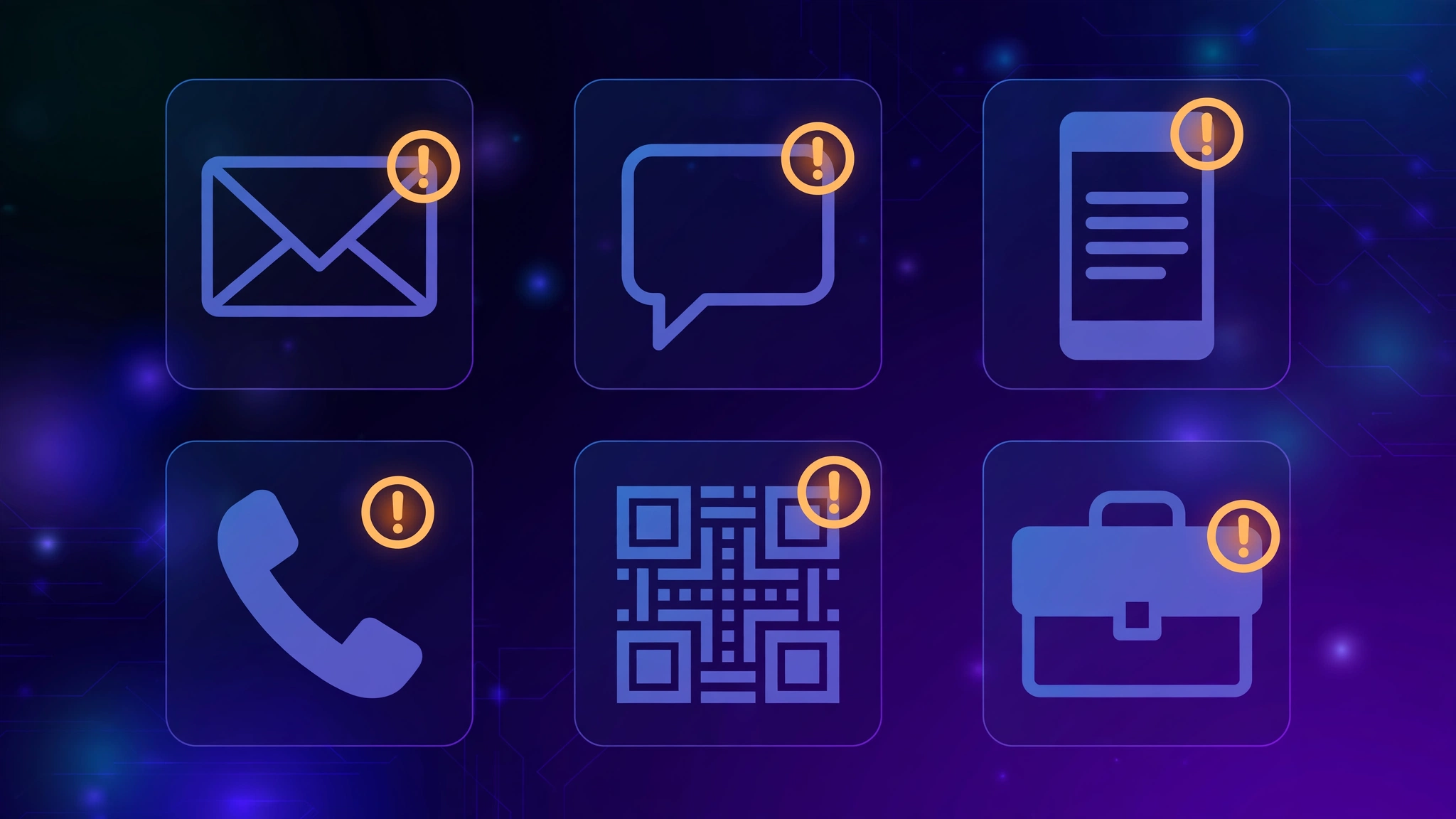
The main types are email phishing, spear phishing, smishing, vishing, and QR-code phishing. Each uses a different channel, but all rely on impersonation and urgency.
| Type | Channel | How It Works | Red Flag to Watch |
|---|---|---|---|
| Bulk email phishing | Millions of generic scam emails sent at once | Generic greeting, mass-sent offers | |
| Spear phishing | Email / DM | Targeted message using your name, role, or company | Odd request that breaks normal process |
| Smishing | SMS / text | Fake delivery, bank, or toll alerts with links | Unexpected text + shortened URL |
| Vishing | Phone call | Caller pretends to be your bank or tech support | Asks for codes or remote access |
| Quishing | QR code | Malicious QR stickers on menus, meters, or flyers | Sticker over original code, odd URL preview |
| CEO / invoice fraud | “Boss” or “vendor” demands an urgent payment | Pressure to bypass normal approval |
Spear phishing deserves special attention: because it’s personalized, it sails past spam filters and skepticism. If a message references real details about you but the request feels off, verify the sender through a known-good phone number or email thread before responding.
Why Do Phishing Attacks Look So Convincing Now?
AI changed the game. Attackers now generate flawless, personalized messages in any language, clone voices for vishing calls, and build pixel-perfect fake login pages in minutes. The typos and clumsy layouts that once gave scams away are disappearing.
Data breaches supply the raw material: your name, employer, recent orders, and even partial card numbers get woven into messages that feel eerily legitimate. A text about “your recent order #84721” is far more persuasive than a generic blast.
Deepfake audio has made vishing especially dangerous — a short voice clone of a family member or executive can be generated from seconds of public audio. Any urgent voice request involving money deserves verification through a separate channel, no exceptions.
That said, the fundamentals still work. AI can polish the bait, but it can’t remove the need for urgency, the mismatched link, or the odd request. Your best defense is process, not perception: slow down, verify independently, and never act on pressure.
What Is the 60-Second S.L.A.M. Check?
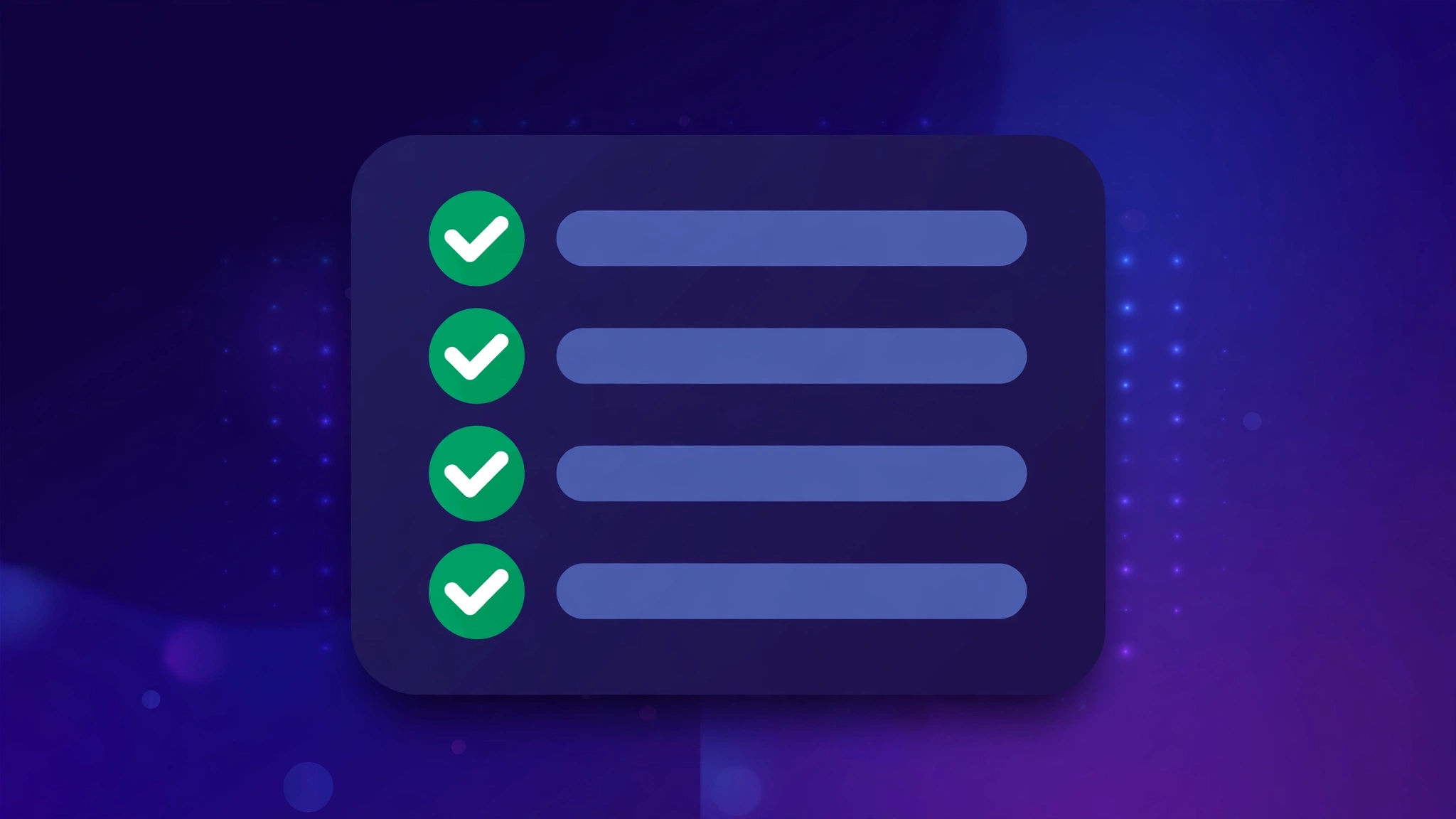
The S.L.A.M. check is a 60-second routine — Sender, Links, Attachments, Message — that catches most phishing attempts. Run it on any unexpected message before you click, reply, or download.
- S — Sender: Expand the sender field. Is the full address exactly right? Watch for lookalike domains, free email accounts posing as companies, and display-name tricks.
- L — Links: Hover or long-press every link. Does the real destination match the claimed brand and use the correct domain? Never click to “find out.”
- A — Attachments: Were you expecting a file? Unexpected invoices, “voicemails,” and HTML attachments are classic malware carriers — verify first.
- M — Message: Read critically. Is it urgent, threatening, or oddly generous? Does the tone or request fit this sender? When anything feels off, stop.
If a message passes S.L.A.M. but still involves money, credentials, or sensitive data, add one more step: verify through a separate channel. Call the official number, open the official app, or start a new email thread to a known address. This single habit defeats nearly every phishing attack.
What Should You Do After Clicking a Phishing Link?
If you clicked a phishing link, act fast: disconnect, don’t enter anything, and secure your accounts. Quick action dramatically limits the damage.
- Stop and disconnect. Close the page or app immediately. Don’t enter any information. If you downloaded a file, don’t open it.
- Change passwords for any account that might share the credentials you typed — starting with email, banking, and the impersonated service. Use unique passwords and turn on two-factor authentication.
- Scan your device with reputable antivirus or your OS’s built-in tools, and install pending security updates.
- Watch for fraud: review bank and card statements, set up transaction alerts, and consider a credit freeze if identity details were exposed.
- Report it: forward phishing emails to your provider’s abuse address (e.g., reportphishing@apwg.org), report texts as junk, and tell your IT team or the impersonated company.
Don’t feel embarrassed — phishing fools millions of careful people every year. Reporting helps protect everyone else, and fast password changes close the window attackers need.
How Can You Protect Yourself From Phishing Attacks?
Protect yourself with layered habits: verify independently, use strong authentication, and keep software updated. No single tool stops everything, but layers make you a very hard target.
- Verify through separate channels before acting on any unexpected request involving money or credentials.
- Use a password manager — it won’t autofill credentials on lookalike domains, which quietly blocks many phishing pages.
- Turn on two-factor authentication (2FA) everywhere, preferably with an authenticator app or hardware key instead of SMS.
- Keep devices and browsers updated so known exploits get patched.
- Use spam and phishing filters from your email provider, and report what slips through.
- Back up important data so ransomware or account loss never becomes catastrophic.
- Talk about it: share the S.L.A.M. check with family — especially kids and older relatives, who are prime targets.
Frequently Asked Questions
What is the easiest way to spot a phishing email?
Check the sender’s full address and hover over links before clicking. If the domain is a lookalike (like paypa1.com instead of paypal.com) or the message pushes urgency, it’s almost certainly phishing.
Can phishing happen by text message?
Yes — it’s called smishing. Fake package, bank, and toll alerts with malicious links are the most common texts. Never tap unexpected links; open the official app instead.
What should I do if I clicked a phishing link?
Close the page, don’t enter any data, change your passwords (starting with email and banking), enable two-factor authentication, scan your device, and report the message.
Are QR codes safe to scan?
Most are, but scammers place malicious QR stickers over legitimate ones (“quishing”). Check for tampering and preview the URL before opening it.
Does two-factor authentication stop phishing?
It helps a lot — stolen passwords alone won’t grant access. Use an authenticator app or hardware key rather than SMS codes when possible.
How do I report a phishing message?
Forward phishing emails to reportphishing@apwg.org, report spam texts from your messaging app, and notify your IT team or the impersonated company.
Conclusion
Phishing attacks succeed by rushing you — so your greatest advantage is simply slowing down. Learn the warning signs, run the 60-second S.L.A.M. check on anything unexpected, and verify through a separate channel before money or credentials are involved.
Share this guide with the people you care about. A two-minute conversation about smishing or QR scams today can save someone a very bad day tomorrow — and a little skepticism is the best antivirus of all.