What Is Ethernet? A Simple Guide to Wired Networking
Ethernet is the wired networking technology that connects computers, routers, switches, printers, and game consoles into local area networks using physical cables. When you plug a cable from your router into your laptop, you are using Ethernet, a set of rules standardized as IEEE 802.3 that governs how data is formatted, addressed, and transmitted over copper or fiber cabling.
For more than fifty years Ethernet has been the backbone of office networks and data centers, because a cable delivers speed, stability, and low latency that wireless struggles to match. This guide explains what Ethernet is, how it works, the cable categories and speed standards, Power over Ethernet, and when a wired connection still beats WiFi in 2026.
Key Takeaways
- Ethernet is the IEEE 802.3 standard for wired networking, covering the physical and data link layers of the OSI model.
- Data travels in frames addressed by MAC addresses; modern switches forward each frame only to its destination port.
- Gigabit Ethernet (1 Gbps) is the common home standard, while 2.5GbE and 10GbE are spreading on new routers and NAS devices.
- Cable categories from Cat5e to Cat8 define speed and distance; 100 meters is the maximum reliable twisted-pair run.
- Ethernet beats WiFi on latency, consistency, and security, but trades away mobility, so most homes work best using both.
- What Is Ethernet, Exactly?
- How Does Ethernet Work When You Plug In a Cable?
- Where Did Ethernet Come From?
- What Are the Main Types of Ethernet?
- What Do Ethernet Cable Categories Mean?
- What Is Power over Ethernet (PoE)?
- Is Ethernet Better Than WiFi?
- What Are the Advantages and Limitations of Ethernet?
- When Should You Use Ethernet at Home in 2026?
- Why Is My Ethernet Connection Not Working?
- Frequently Asked Questions
What Is Ethernet, Exactly?
Ethernet is a family of wired networking technologies that lets devices in a local area network, usually called a LAN, talk to each other through physical cables. It defines two things at once: the physical medium (the cable and connectors) and the rules for packaging data so every device on the network can send, recognize, and receive it. Those rules are published as the IEEE 802.3 family of standards, maintained by the Institute of Electrical and Electronics Engineers.
In the OSI model, Ethernet covers Layer 1 (the physical layer) and Layer 2 (the data link layer): it handles the signals on the wire and the framing of data, while higher-layer protocols such as IP, TCP, and HTTP sit on top. When people say “wired internet,” they usually mean an Ethernet connection carrying their internet traffic.
Almost any device with a rectangular network jack can use Ethernet: desktop PCs, laptops, routers, switches, printers, game consoles, smart TVs, network storage (NAS) boxes, and security cameras. Each Ethernet-capable device has a network interface card, or NIC, with a unique hardware address called a MAC address. Data is chopped into units called frames, each carrying the sender and receiver MAC addresses plus a check sequence that lets the receiver detect transmission errors.
How Does Ethernet Work When You Plug In a Cable?
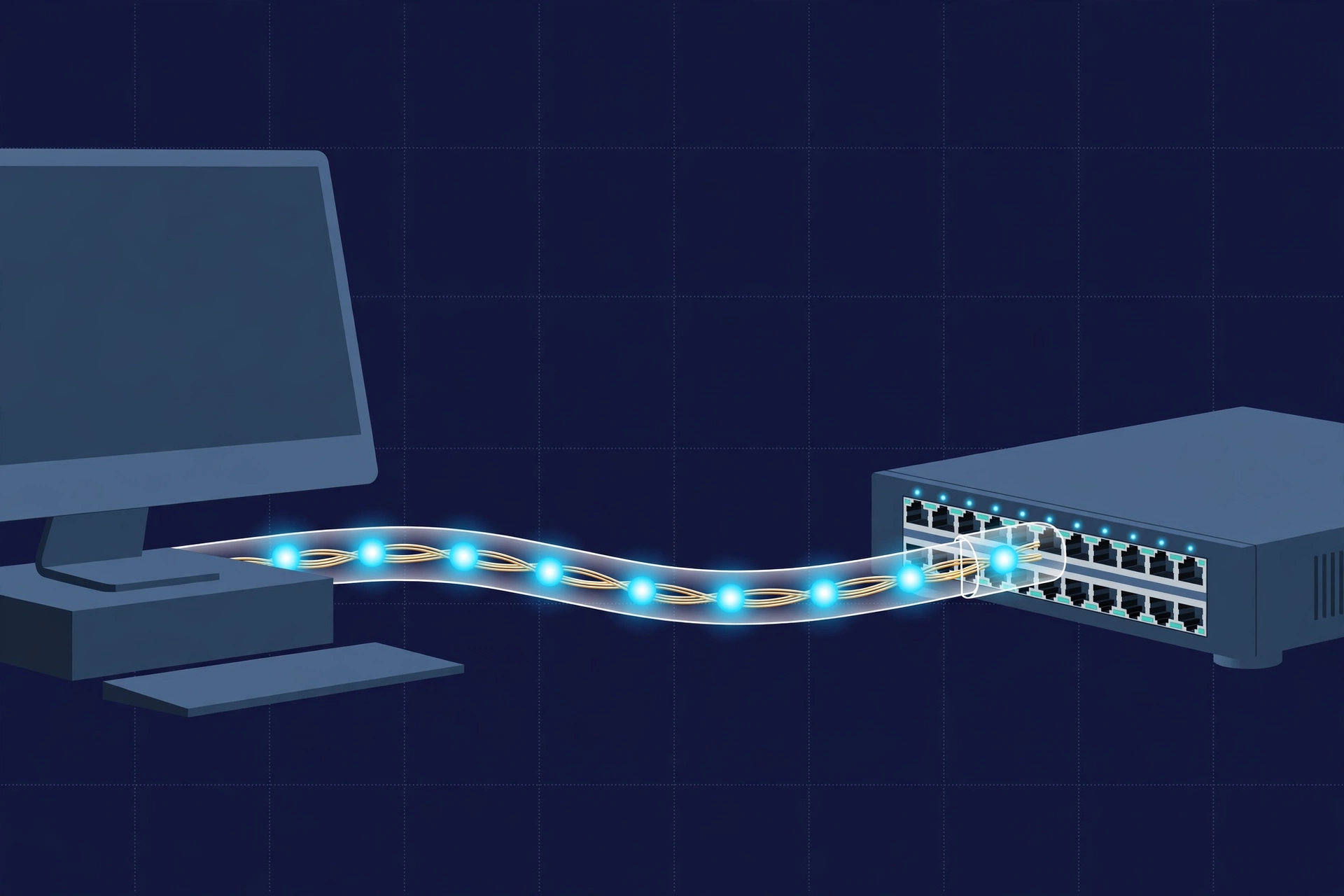
Plugging in an Ethernet cable sets off a quick, automatic sequence. Understanding it makes troubleshooting far easier.
- Physical connection: The RJ45 connector on the cable clicks into the NIC jack on your device and into a port on a router or switch. Small link lights near the jack turn on, usually one solid light for a link and one blinking light for activity.
- Auto-negotiation: The two devices automatically agree on the fastest speed they both support, such as 1 Gbps, and on full-duplex operation, meaning they can send and receive at the same time. This is why you rarely configure anything manually.
- MAC learning: The switch reads the source MAC address of your device and records which port it arrived on, building an internal address table.
- Frame forwarding: When your device sends data, the switch looks up the destination MAC address and forwards the frame only to the correct port. Older hubs broadcast every frame to every port, which is why switches replaced them.
- IP address assignment: Your router’s DHCP service hands your device a local IP address, gateway, and DNS servers, usually within seconds.
- Data transfer: Applications send data down through TCP/IP, which is packaged into Ethernet frames for the local hop and unwrapped by the router on its way to the internet.
One piece of history still lives in the standard: CSMA/CD, or Carrier Sense Multiple Access with Collision Detection. On the earliest shared-medium networks, devices listened before transmitting and backed off when two transmitted at once. Modern switched, full-duplex networks give each device a dedicated path, so collisions effectively no longer happen.
Where Did Ethernet Come From?
Ethernet was invented in 1973 by Robert Metcalfe and David Boggs at Xerox PARC. The name comes from “luminiferous ether,” the invisible substance nineteenth-century physicists once believed carried light waves. The first experimental version ran at just under 3 Mbps.
Metcalfe then championed the technology through a consortium of Digital Equipment Corporation, Intel, and Xerox, known as DIX, which published the first open Ethernet specification in 1980. In 1983 the IEEE formally adopted it as the 802.3 standard. That openness was decisive: Ethernet displaced IBM’s Token Ring and became the default wired LAN technology by the early 1990s.
Speed climbed in steady tenfold steps: 10 Mbps original, 100BASE-TX (Fast Ethernet) in the mid-1990s, Gigabit Ethernet around 1999, 10 Gigabit Ethernet in the 2000s, and 100 to 400 Gbps standards for data center backbones today. Every generation kept backward compatibility, so a modern switch still talks happily to a twenty-year-old printer.
What Are the Main Types of Ethernet?
| Type | Standard name | Speed | Typical use |
|---|---|---|---|
| Standard Ethernet | 10BASE-T | 10 Mbps | Very old devices, largely retired |
| Fast Ethernet | 100BASE-TX | 100 Mbps | Older printers, budget IoT devices |
| Gigabit Ethernet | 1000BASE-T | 1 Gbps | The common home and office standard |
| 2.5 Gigabit Ethernet | 2.5GBASE-T | 2.5 Gbps | New routers, motherboards, NAS, WiFi 7 access point backhaul |
| 5 Gigabit Ethernet | 5GBASE-T | 5 Gbps | Prosumer and small business gear |
| 10 Gigabit Ethernet | 10GBASE-T | 10 Gbps | Servers, video editing workstations, enthusiasts |
| Fiber Ethernet | 10GBASE-SR and faster | 10 Gbps to 400 Gbps | Data centers and long building runs |
The NBASE-T standards (2.5GBASE-T and 5GBASE-T) run over ordinary Cat5e and Cat6 cabling, giving you a speed upgrade without rewiring your walls. Copper twisted-pair dominates homes and offices, while fiber optic Ethernet takes over for long distances and extreme speeds.
What Do Ethernet Cable Categories Mean?
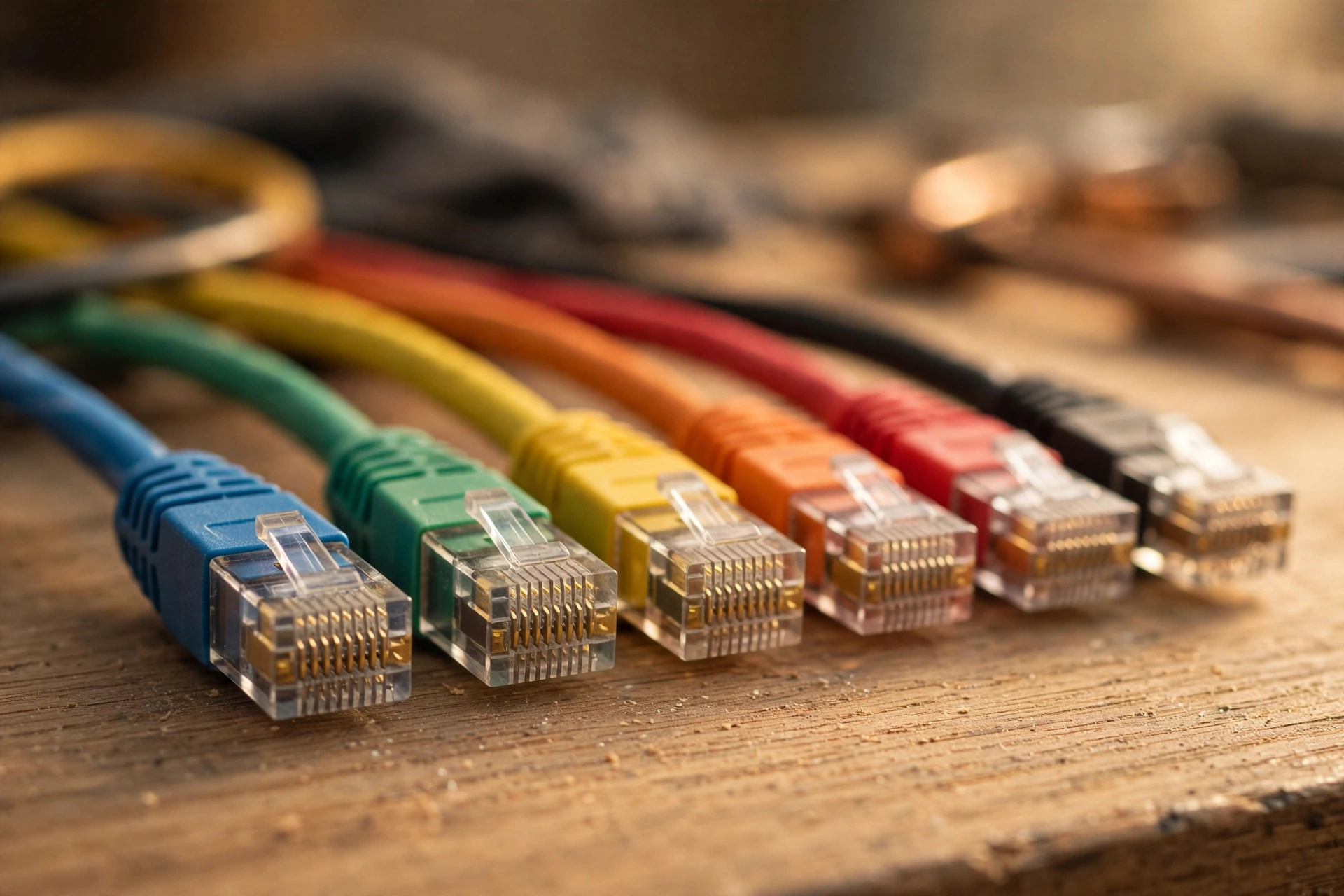
Ethernet cable categories, usually shortened to “Cat,” certify how much bandwidth a cable can carry and at what distance.
| Category | Max speed | Bandwidth | Max distance at top speed | Notes |
|---|---|---|---|---|
| Cat5e | 1 Gbps | 100 MHz | 100 m | Minimum sensible choice today; handles gigabit fine |
| Cat6 | 10 Gbps | 250 MHz | 55 m (1 Gbps to 100 m) | Sweet spot for most homes; better noise resistance |
| Cat6a | 10 Gbps | 500 MHz | 100 m | Best for new in-wall installations; thicker cable |
| Cat7 | 10 Gbps | 600 MHz | 100 m | Heavily shielded; an ISO standard, not an IEEE one |
| Cat8 | 25 to 40 Gbps | 2000 MHz | 30 m | Data center grade; overkill and stiff for home use |
For most homes in 2026, Cat6 is the sensible buy: affordable and fast enough for gigabit and 2.5 gigabit connections. If you are running cable inside walls during a renovation, Cat6a future-proofs the job for 10 Gbps.
A few buying cautions will save you money. Avoid copper-clad aluminum (CCA) cables, which break easily and often fail certification; pure copper is the real thing. Flat cables fit under rugs but generally have worse shielding than round ones, and unshielded twisted pair (UTP) is fine for typical home runs.
What Is Power over Ethernet (PoE)?
Power over Ethernet, standardized as IEEE 802.3af, 802.3at (PoE+), and 802.3bt, delivers electrical power and data over the same cable, so one cable run replaces both a network cable and a power cord.
The standards scale with need: original PoE (802.3af) supplies about 15 watts per port, PoE+ (802.3at) about 30 watts, and 802.3bt supplies 60 or 90 watts. Common uses: WiFi access points mounted on ceilings, security cameras, VoIP desk phones, and smart lighting controllers.
For home users, PoE shines when you mount a security camera under an eave or an access point high on a wall: one cable run handles data and power, with no electrician visit for a nearby outlet. Just confirm both the switch and the device support compatible PoE standards before you buy.
Is Ethernet Better Than WiFi?
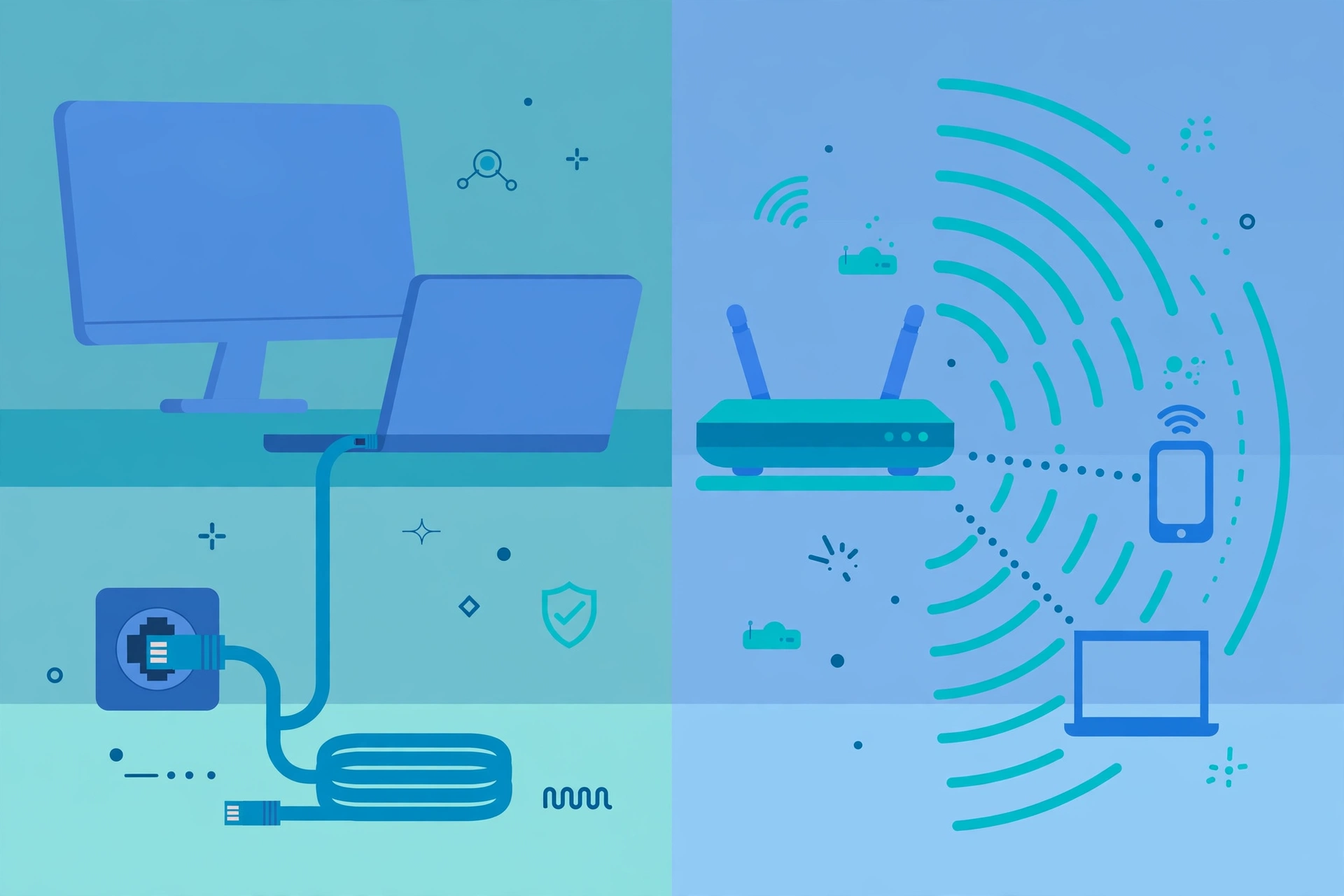
The honest answer is that Ethernet and WiFi win in different categories, which is why most networks use both. Ethernet is a dedicated wired pipe to one device; WiFi is a shared wireless medium affected by every nearby device, wall, and appliance.
| Factor | Ethernet | WiFi |
|---|---|---|
| Speed consistency | Full rated speed, steady | Varies with distance, interference, and congestion |
| Latency | Typically under 1 ms on a LAN | Several ms at best, spikes under load |
| Interference | Immune (fiber) or highly resistant (twisted pair) | Susceptible to walls, appliances, neighboring networks |
| Security | Requires physical access to the cable | Encrypted but broadcast through the air; needs strong WPA3 settings |
| Mobility | Tethered to the cable | Roam freely around the home |
| Installation | May need cable runs through walls | Place the router and connect |
A practical rule: wire everything that does not move. Desktop PCs, game consoles, smart TVs, and NAS devices all perform better on Ethernet, freeing WiFi airtime for phones and laptops. If the wireless side of your network needs attention too, our guide to what an SSID is explains how WiFi networks are named and organized.
What Are the Advantages and Limitations of Ethernet?
Advantages:
- Speed and consistency: You get the full rated speed with almost no variation, regardless of time of day or how many neighbors are online.
- Low latency: Sub-millisecond LAN latency makes Ethernet the clear choice for competitive gaming, video calls, and remote desktop work.
- Reliability: No dead zones, no signal drops when someone microwaves lunch, and no interference from nearby networks.
- Security: An attacker needs physical access to your cabling, a far higher bar than sniffing wireless traffic.
- Backward compatibility: New and old Ethernet gear interoperates, protecting your investment in switches and wiring.
- Cost: Gigabit switches, NICs, and Cat6 cables are inexpensive commodities.
Limitations:
- No mobility: You are physically tied to the cable, which rules out phones and tablets.
- Installation effort: Clean cable runs through walls and between floors take planning, tools, or a professional.
- Distance limits: Twisted-pair Ethernet tops out at 100 meters per run; longer spans need switches or fiber.
- Port scarcity: Many modern laptops dropped the Ethernet jack, so you may need an inexpensive USB-to-Ethernet adapter.
When Should You Use Ethernet at Home in 2026?
Even in the WiFi 7 era, a cable earns its place for stationary, demanding devices. Competitive gaming is the classic case: the difference between sub-millisecond wired latency and variable wireless latency decides close matches. 4K and 8K streaming, large downloads, cloud backups to a NAS, and all-day video conferencing all benefit from a connection that never wavers.
Ethernet also plays a hidden role in modern wireless setups. High-end WiFi 7 mesh systems perform dramatically better with wired backhaul, meaning the mesh nodes talk to each other over Ethernet instead of sharing airtime with your devices. If you are weighing a wireless upgrade, our Wi-Fi 7 vs Wi-Fi 6 comparison breaks down what the new standard actually delivers.
One 2026-specific tip: 2.5GbE ports are now common on mid-range routers, motherboards, and NAS enclosures. If your internet plan exceeds 1 Gbps, or you move big files between a PC and a NAS, connecting those 2.5GbE ports with your existing Cat5e or Cat6 cable is a free speed upgrade.
Why Is My Ethernet Connection Not Working?
- Check the physical layer: Reseat both ends of the cable until the RJ45 connectors click, and confirm the link lights are on. No lights means no link, so try a different cable and a different router or switch port.
- Confirm the adapter is enabled: On Windows, check Settings, Network. On macOS, look under System Settings, Network. USB adapters should appear when plugged in.
- Restart the chain: Power-cycle the modem, router, and computer in that order, waiting about 30 seconds between each.
- Update the driver: An outdated NIC driver causes intermittent drops. Download the latest driver from your motherboard or laptop maker’s site using another connection.
- Run the troubleshooter: Windows includes a network troubleshooter that resets the TCP/IP stack and renews the DHCP lease automatically.
- Reset network settings: As a last resort before suspecting hardware failure, reset the network stack to defaults. On an iPhone having network trouble, our guide to resetting network settings on iPhone walks through each step.
If every device on the switch loses connection at once, suspect the switch, its power supply, or the uplink cable to the router rather than any single computer.
Frequently Asked Questions
Is Ethernet faster than WiFi?
Usually yes, and more importantly it is more consistent. A gigabit Ethernet link delivers a steady 1 Gbps with sub-millisecond latency, while WiFi speeds fluctuate with distance, walls, interference, and how many devices share the airtime.
Do I need a special port to use Ethernet?
You need an Ethernet jack (RJ45) on your device. Many thin laptops omit it, in which case a USB-C or USB-A to Ethernet adapter costing around ten to twenty dollars adds a full gigabit port.
What is the maximum length of an Ethernet cable?
For twisted-pair copper Ethernet, the maximum reliable channel length is 100 meters, or about 328 feet, including patch cables at both ends. Longer runs need an intermediate switch, or fiber optic cable, which can span kilometers.
Can I use Ethernet and WiFi at the same time?
Yes. Most operating systems use the wired connection as the primary path when both are active. This is handy as a fallback: if someone trips over your cable, WiFi keeps you online.
Is Ethernet more secure than WiFi?
Yes, inherently. Ethernet signals stay inside the cable, so intercepting them requires physical access to your wiring. WiFi broadcasts through walls, so it depends entirely on strong encryption (WPA3) and a good password.
Do I need Cat8 cables for gigabit internet?
No. Cat5e already handles gigabit Ethernet to 100 meters, and Cat6 adds headroom for 2.5 and 5 gigabit speeds. Cat8 targets 25 to 40 Gbps data center links, so it is unnecessary for home gigabit connections.
Conclusion
Ethernet is the quiet workhorse of networking: a fifty-year-old wired standard that still delivers the fastest, steadiest, most secure connection in homes and offices. You now know what Ethernet is, how frames and switches move your data, which cable categories and speed tiers matter, and when a cable beats WiFi. Wire the devices that stay put, let wireless handle the rest, and your network will feel faster without spending a fortune. For more networking explainers in plain language, visit the CPN Tech homepage.