What Is VPN on iPhone? A Simple Beginner Guide
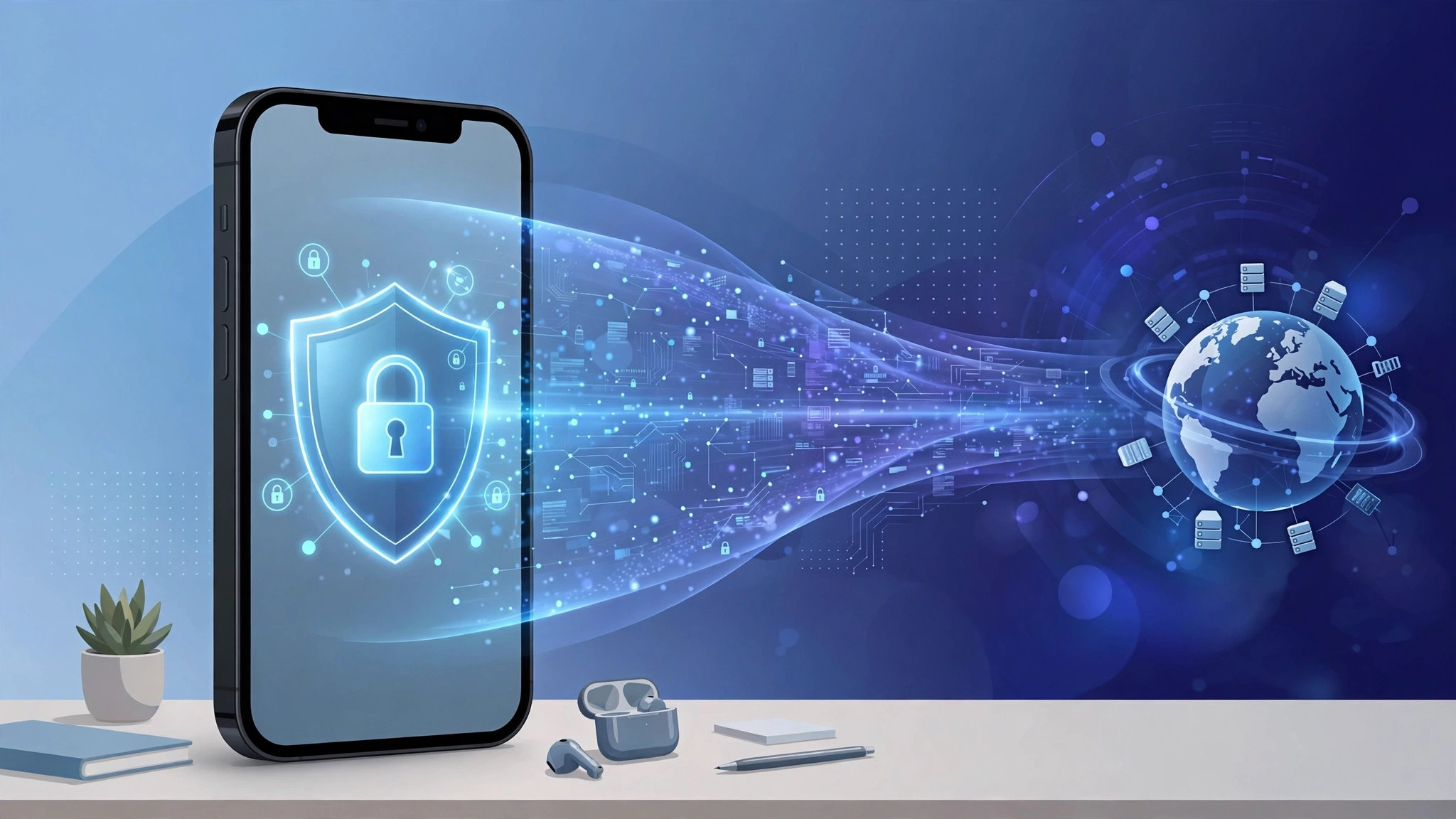
A VPN on iPhone is a virtual private network connection that encrypts your internet traffic and routes it through a remote server before it reaches the website or app you are using. When the VPN is on, websites and apps see the VPN server’s IP address instead of your real one, and anyone on your Wi-Fi network or your mobile carrier can no longer read the traffic passing between your iPhone and that server. The small VPN icon at the top of your screen simply means this encrypted connection is active.
This guide explains what VPN on iPhone means in plain language: how a VPN works on iOS, the difference between a VPN app and the VPN settings built into your iPhone, how to turn a VPN on and set one up manually, the real benefits and limits, how a VPN compares with iCloud Private Relay, and how to fix the most common iPhone VPN problems.
Key Takeaways
- A VPN on iPhone encrypts your internet traffic and hides your real IP address behind a VPN server’s address.
- iPhone does not include its own VPN service, but iOS has built-in VPN settings that work with any provider or workplace network.
- The easiest way to use a VPN on iPhone is a VPN app from the App Store, while manual setup suits work networks and advanced users.
- A VPN protects traffic on public Wi-Fi and from your internet provider, but it does not make you anonymous online.
- iCloud Private Relay is not a full VPN: it covers Safari only, while a VPN protects every app on your iPhone.
Table of Contents
- What Does VPN Mean on iPhone?
- How Does a VPN Work on iPhone?
- Does iPhone Have a Built-In VPN?
- How Do You Turn On a VPN on iPhone?
- How Do You Set Up a VPN Manually on iPhone?
- What Are the Benefits of Using a VPN on iPhone?
- What Are the Limitations of a VPN on iPhone?
- VPN on iPhone vs iCloud Private Relay
- How Do You Choose a VPN App for iPhone?
- How Do You Fix Common VPN Problems on iPhone?
- Should You Keep a VPN On All the Time on iPhone?
- FAQs
- Conclusion
What Does VPN Mean on iPhone?
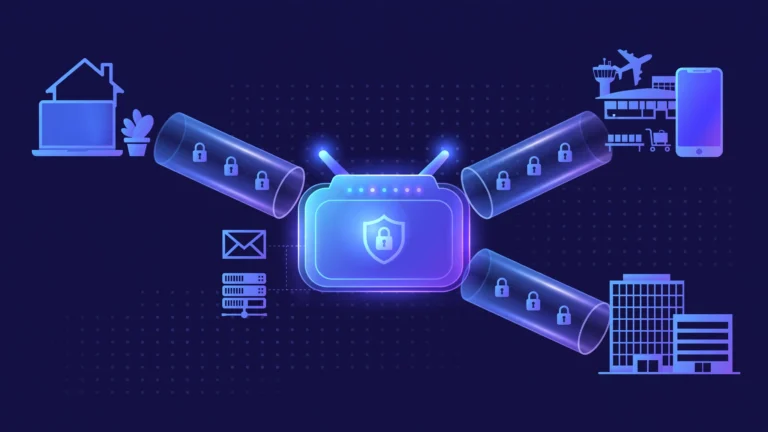
VPN stands for Virtual Private Network. On an iPhone, the VPN label you see in Settings and the small VPN icon in the status bar mean your phone is sending its internet traffic through an encrypted tunnel to a remote server run by a VPN provider, your employer, or your school. Your data travels inside that tunnel, unreadable to anyone watching the network, and then exits to the internet from the VPN server.
People often confuse the VPN setting with a feature Apple provides. The truth is simpler: the VPN section in iPhone settings is a framework, not a service. Apple gives you the controls, but the actual VPN connection comes from somewhere else, either a VPN app you install or a configuration your workplace provides. If no VPN is configured on your phone, the VPN section stays empty and the icon never appears.
How Does a VPN Work on iPhone?

A VPN on iPhone works by creating an encrypted tunnel between your phone and a VPN server, then sending all of your internet traffic through that tunnel. First, your VPN app or iOS VPN configuration contacts a VPN server and agrees on encryption keys using a VPN protocol such as IKEv2 or WireGuard. Second, your iPhone wraps every packet of internet traffic in encryption, so the data looks like unreadable noise to anyone between your phone and the server. Third, the VPN server decrypts the traffic and forwards it to its destination, such as a website or streaming service, and replies travel back along the same path in reverse.
Two changes result from this process. Your IP address changes, because websites see the VPN server’s address instead of the address assigned by your Wi-Fi router or mobile carrier. And your traffic becomes private on the local network, because the coffee shop Wi-Fi owner, the airport hotspot, or an attacker on the same network can only see encrypted data flowing to one server, not which sites you visit. A VPN works the same way on Wi-Fi and on cellular data, whether your iPhone connects through a home router, a public hotspot, or a 4G or 5G mobile plan.
It helps to understand what a VPN does not do. A VPN encrypts traffic between your iPhone and the VPN server only. Once your data leaves the VPN server, it travels to websites normally, so a website can still see what you do on it if you log in. A VPN also does not protect you from malware, phishing messages, or weak passwords. For a deeper look at how the tunnel itself works, read our guide on how a VPN works.
Does iPhone Have a Built-In VPN?
iPhone does not have a built-in VPN service, but iOS does have built-in VPN support. The distinction matters, because it explains why the VPN settings exist even though Apple sells no VPN subscription.
Built-in VPN support means iOS can manage VPN connections natively. You can add a configuration in Settings, switch it on and off from the same screen, and iOS will maintain the tunnel, reconnect after network changes, and show the VPN icon. The protocols iOS supports natively are IKEv2 and IPSec, with L2TP available on older setups. Apple has deprecated L2TP because its security is weaker than modern options, so IKEv2 is the sensible choice for manual setup.
What iOS does not include is a VPN server network of its own. To actually connect, you need a VPN app from a commercial provider, a work or school VPN configuration, or your own VPN server. Most people choose the first option, because the app handles server selection, protocol choice, and reconnection automatically. Apple does offer a related feature called iCloud Private Relay, included with a paid iCloud+ plan. Private Relay hides your IP address and encrypts DNS queries in Safari, but it is not a full VPN: it covers Safari traffic only, it does not let you choose a server location, and it does not protect other apps.
How Do You Turn On a VPN on iPhone?
You can turn on a VPN on iPhone in two ways: through a VPN app or through the Settings app. The app method is the easiest for most people, while the Settings method suits manual configurations.
To turn on a VPN with an app, open the App Store and install a reputable VPN app. Sign in to your account, allow the app to add VPN configurations when iOS asks for permission, then tap the large Connect button. The app will pick the fastest server automatically, or you can choose a country or city from its server list. Once connected, the VPN icon appears in your status bar or Control Center. To disconnect, open the app again and tap Disconnect, or toggle the VPN switch in Settings.
To turn on a VPN from Settings, open Settings, then go to General, then VPN and Device Management, then VPN. If a configuration already exists, flip its Status switch to on. On recent iOS versions, once a VPN configuration exists, a VPN row also appears near the top of the main Settings screen, just below Personal Hotspot. This is simply a shortcut to the same switch, not a separate feature.
How Do You Set Up a VPN Manually on iPhone?
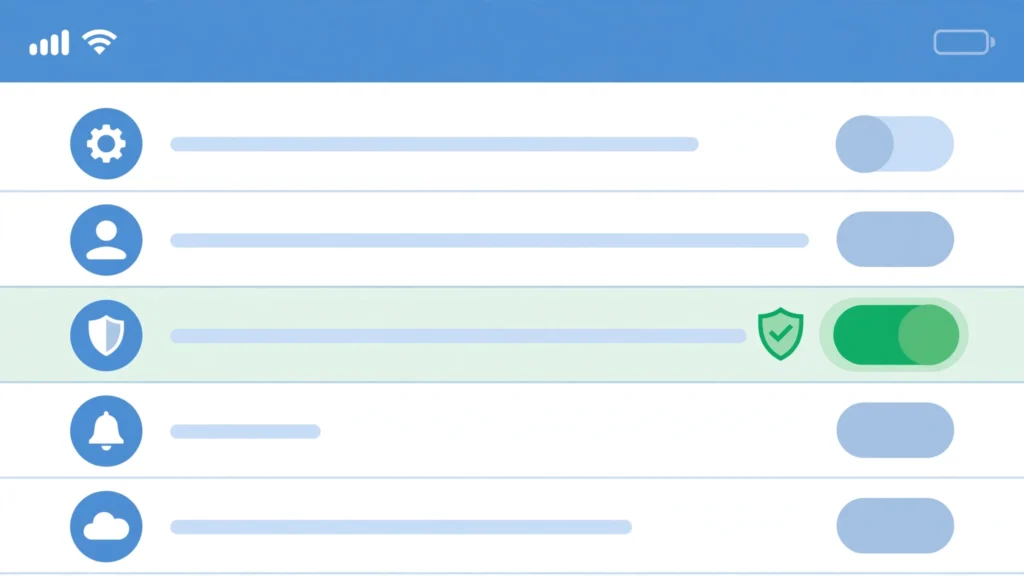
Manual setup is worth learning if your employer gives you VPN server details, if you run your own VPN server at home, or if you want a connection without installing a third-party app. You need four pieces of information from your VPN provider or IT department: the protocol type, the server address, the remote ID (for IKEv2), and your login credentials or certificate.
Follow these steps to add a manual VPN configuration:
- Open Settings, then go to General, then VPN and Device Management, then VPN.
- Tap Add VPN Configuration.
- Choose the Type: IKEv2 for most modern setups, IPSec for older enterprise networks.
- Enter a Description, such as Work VPN or Home VPN, so you can recognize it later.
- Enter the Server address and Remote ID exactly as your provider gave them.
- Enter your username and password, or select a certificate if your organization uses certificate authentication.
- Leave the proxy setting at Off unless your provider tells you otherwise.
- Tap Done to save, then flip the Status switch to connect.
If your provider sends you a .mobileconfig file instead, setup is even simpler. Open the file on your iPhone from Mail or Files, and iOS walks you through installing the profile, including a warning screen that shows exactly what the profile can change. Once installed, the configuration appears in the VPN list and you connect with the same Status switch.
One detail catches many people out: manual configurations support only the protocols built into iOS. WireGuard and OpenVPN, two popular modern protocols, are not available in the manual settings screen. To use them on iPhone, you need the provider’s app or a dedicated client app such as WireGuard or OpenVPN Connect from the App Store.
What Are the Benefits of Using a VPN on iPhone?
- Protection on public Wi-Fi. Coffee shops, airports, hotels, and libraries run open networks where anyone nearby can observe traffic. A VPN encrypts your connection before it leaves your phone, so an attacker on the same network sees only scrambled data heading to one server.
- Privacy from your internet provider. Without a VPN, your mobile carrier or home internet provider can see every domain your iPhone contacts. With a VPN active, the provider sees only an encrypted connection to the VPN server, not the sites and apps behind it.
- Access to work and school resources. Many companies restrict email servers, intranets, and file shares to their office network. A work VPN makes your iPhone appear to be on that network, so you can reach internal tools from anywhere.
- A stable IP address location. Some services show different content by region, and some accounts lock you out when your location changes suddenly while traveling. Connecting through a VPN server in your home country can keep access stable and avoid repeated security checks.
- Protection against network attacks. On untrusted networks, attackers can redirect traffic or inject fake pages. Because VPN traffic is authenticated and encrypted between your phone and the server, these man-in-the-middle attacks become far harder to pull off.
What Are the Limitations of a VPN on iPhone?
- No anonymity. Your VPN provider can see your real IP address and the fact that you connected, even if it cannot read your encrypted traffic. Choosing a provider with a verified no-logs policy matters, because you are shifting trust from your internet provider to the VPN company.
- No end to app tracking. Once you log in to a social network, a shopping app, or a Google account, that service identifies you by your account, not your IP address. Cookies, device fingerprints, and ad identifiers continue to work normally through a VPN.
- Some speed loss. Encryption takes processing time, and routing through a distant server adds latency. On a fast home connection you may not notice, but on a weak public hotspot or a congested server, speeds can drop noticeably. A nearby server and a modern protocol such as WireGuard or IKEv2 keep the slowdown small.
- No malware or phishing protection. A malicious app, a fake login page, or a scam text message works just as well through a VPN as without one. Security basics still apply: keep iOS updated, download apps only from the App Store, and treat unexpected links with suspicion. Our guide on how to spot phishing attacks explains the warning signs in detail.
- Blocked on some networks. Certain streaming services detect and block VPN server addresses, some countries restrict VPN use by law, and some public Wi-Fi networks block the ports VPNs use. In those cases the VPN may connect but the service refuses to load, or the connection may fail outright.
VPN on iPhone vs iCloud Private Relay
iCloud Private Relay is the feature iPhone owners most often confuse with a VPN, so a direct comparison helps.
| Feature | VPN on iPhone | iCloud Private Relay |
|---|---|---|
| Coverage | Every app and all system traffic | Safari browser traffic only |
| Server location choice | Yes, pick a country or city | No, Apple assigns a general region |
| Hides your IP address | Yes, replaced by the server’s address | Yes, in Safari only |
| Encrypts traffic | Yes, full tunnel encryption | Yes, for Safari and DNS queries |
| Works on any network | Yes, Wi-Fi and cellular | Yes, Wi-Fi and cellular |
| Requires | VPN app or manual configuration | iCloud+ subscription |
| Bypasses regional blocks | Usually, depending on the provider | No |
The practical rule is simple. If you want privacy in Safari and already pay for iCloud+, Private Relay is a useful free extra. If you want protection for every app, control over your server location, or access to a work network, you need a real VPN. Many iPhone owners run both: Private Relay for Safari and a VPN for everything else, though running both at once can occasionally cause connection quirks.
How Do You Choose a VPN App for iPhone?
First, check the privacy policy and logging claims. A trustworthy provider states clearly what it logs and undergoes independent audits. Vague promises such as “we respect your privacy” without specifics are a warning sign. Second, look for iOS-specific features: a kill switch, which blocks all traffic if the VPN drops, and automatic reconnection when you switch between Wi-Fi and cellular. Note that iOS limits what kill switches can do compared with desktop systems: if the VPN app crashes, iOS may allow traffic through until it restarts. Our guide to VPN kill switches explains this difference. Third, test speed and server choice. A quality app offers many servers near your location, shows server load, and supports modern protocols such as WireGuard or IKEv2. A free tier from a reputable paid provider is safer than an unknown free-only app, since free-only apps often fund themselves with ads or data collection. Fourth, check the price and device limit. Most paid VPN apps cost a few dollars per month on an annual plan and cover five or more devices, so one subscription can protect your iPhone, iPad, and laptop together.
How Do You Fix Common VPN Problems on iPhone?
VPN will not connect. First check that your internet connection itself works by turning the VPN off and loading a website. If the base connection is fine, try a different server, restart your iPhone, then delete and reinstall the VPN app so iOS prompts you to allow the VPN configuration again.
VPN connects but is very slow. Switch to a server closer to your location and try a different protocol in the app’s settings. WireGuard and IKEv2 are usually fastest on iPhone. Also turn off Low Power Mode in Settings, then Battery, since it restricts background activity and can destabilize the connection.
VPN keeps disconnecting. Enable any auto-reconnect or Connect On Demand option in the app. IKEv2 handles network switches better than older protocols, so prefer it for manual configurations. Some Wi-Fi networks block VPN traffic, so switching to cellular data will confirm whether the network is the problem.
VPN icon is missing. Open Settings, then General, then VPN and Device Management, and check the Status of your configuration. On iPhones with a notch or Dynamic Island, the icon hides in Control Center, so swipe down from the top-right corner to see it.
Battery drains faster than usual. The cause is usually constant reconnection on a weak signal rather than encryption itself. Pick a stable nearby server, avoid server hopping, and turn the VPN off on a trusted home network.
Should You Keep a VPN On All the Time on iPhone?
Keeping a VPN on all the time on iPhone is reasonable if you spend much of the day on public or untrusted networks, travel often, or work with sensitive information. The battery and speed costs of a modern protocol are small, and always-on protection removes the risk of forgetting to connect on a risky network.
There are good reasons to turn it off sometimes. On your own home Wi-Fi, a VPN adds little protection and can slow large downloads or interfere with local devices such as printers and smart home gear. Some banking apps and streaming services also behave oddly through VPN servers, and turning the VPN off for those apps avoids repeated login challenges.
A middle path works best for most people: use Connect On Demand for work VPNs so the connection starts automatically when you need it, and leave a consumer VPN app’s auto-connect feature on so it activates on untrusted Wi-Fi but stays off at home. If your iPhone is supervised by an employer through mobile device management, an Always On VPN may be enforced, in which case you cannot disable it without removing the management profile.
FAQs
What does the VPN icon on my iPhone mean?
The VPN icon means an encrypted VPN connection is currently active. All of your internet traffic is routed through a VPN server, and websites see the server’s IP address instead of yours. If you did not turn a VPN on yourself, check Settings, then General, then VPN and Device Management to see which app or configuration enabled it.
Is VPN on iPhone free?
iPhone itself charges nothing for VPN support, but the VPN service behind it usually costs money. Free VPN apps often limit speed, servers, or data, and some fund themselves with ads or data collection. A paid plan from a reputable provider is the safer option for daily use.
Does a VPN on iPhone hide my location from apps?
A VPN hides your IP-based location, because websites and apps see the VPN server’s address. However, apps with Location Services permission can still read your iPhone’s GPS position directly. To stop that, turn off location permission for the app in Settings, then Privacy and Security, then Location Services.
Can I use a VPN on iPhone and iPad at the same time?
Yes, most VPN subscriptions cover several devices at once. Install the provider’s app on each device, sign in with the same account, and connect. Check your plan’s device limit if you also protect laptops and other family devices.
Does a VPN slow down an iPhone?
A VPN can slow an iPhone slightly because encryption takes processing power and traffic travels through an extra server. On a fast connection with a nearby server, the slowdown is usually unnoticeable. If speeds drop sharply, switch to a closer server or a faster protocol.
Is using a VPN on iPhone legal?
Using a VPN on iPhone is legal in most countries, including the United States, the United Kingdom, and the European Union. A small number of countries restrict or ban VPN use, so check local rules before traveling.
Conclusion
A VPN on iPhone is simply an encrypted connection that protects your internet traffic and hides your real IP address behind a VPN server. iPhone does not include its own VPN service, but iOS gives you everything needed to run one, either through an easy App Store app or a manual configuration in Settings. The benefits are strongest on public Wi-Fi and against internet provider snooping, while the limits are just as important: a VPN does not grant anonymity, stop app tracking, or replace basic security habits. If you use public Wi-Fi regularly or want consistent privacy across every app, install a reputable VPN app, enable auto-reconnect, and leave it running whenever you are away from your home network. For more beginner-friendly tech explainers, visit CPN Tech.