
How to Set Up a Password Manager in 15 Minutes
Most people reuse the same two or three passwords across dozens of accounts. One data breach on a single website can then hand attackers the keys to your email, banking, and social accounts. A password manager fixes this by remembering a unique, strong password for every site.
The short answer: pick a reputable manager such as Bitwarden or 1Password, create an account with one strong master password, install the browser extension and phone app, import your saved browser passwords, run a password health check to replace weak ones, and turn on two-factor authentication. The whole process takes about 15 minutes.
Key Takeaways
- A password manager stores a unique strong password per account inside an encrypted vault, unlocked with one master password.
- Managers like Bitwarden, 1Password, NordPass, Dashlane, and Proton Pass use AES-256 encryption with zero-knowledge architecture, so even the company cannot read your passwords.
- Import saved passwords from Chrome or Edge in a few clicks instead of retyping them.
- Migrate in this order: import, delete the plaintext export, replace weak passwords with the health check, disable browser saving, enable two-factor authentication.
- Free plans (Bitwarden, Proton Pass) cover beginners; paid plans add family sharing and emergency access.
Table of Contents
- What Is a Password Manager?
- How Does a Password Manager Actually Work?
- Why Should Beginners Use a Password Manager?
- Free vs Paid: Which Password Manager Should You Choose?
- How to Set Up a Password Manager in 15 Minutes
- How to Switch From Browser Saved Passwords Safely
- Is It Safe to Use a Password Manager?
- How to Use Your Password Manager on Your Phone
- Password Manager vs Passkeys: What Is the Difference?
- Frequently Asked Questions
- Conclusion
What Is a Password Manager?
A password manager is an app that creates, stores, and fills in your passwords. Instead of memorizing dozens of logins or reusing one weak password everywhere, you keep every password inside a digital vault and remember a single master password that unlocks it.
The best-known managers for beginners are Bitwarden, 1Password, NordPass, Dashlane, and Proton Pass. Browsers also save passwords (Google Password Manager in Chrome, Apple iCloud Keychain on iPhones and Macs), but dedicated managers add password health audits, secure sharing, and cross-platform apps.
The technical foundation is simple: every password is scrambled with AES-256 encryption before it leaves your device, and reputable companies use a zero-knowledge architecture, meaning they store only the scrambled data and have no way to unscramble it. Your master password never leaves your device.
How Does a Password Manager Actually Work?
Four parts do the work.
Your vault
The vault is your private, encrypted database of logins: website, username, and password per entry, plus notes, cards, addresses, and passkeys. It syncs to all your devices but only unlocks where you enter your master password.
Your master password
The master password is the one password you must memorize. It decrypts your vault, so make it a long passphrase of four or five random words, like “correct table umbrella ferry”: memorable and hard to crack. Most managers also let you unlock with your fingerprint or face, but the master password remains your fallback.
Autofill
Autofill is the everyday magic. When you visit a login page, the manager recognizes the exact website address and offers to fill your credentials. This is not just convenient, it is a security feature: a password manager will refuse to fill your banking login on a lookalike phishing domain, which catches scams that fool human eyes. For more on spotting those fakes, see our guide on how to spot a phishing email.
The password generator
Every manager includes a password generator that creates random 16 to 20 character passwords on demand. When you sign up for a new site, it generates, saves, and fills the password. You never invent or remember another one yourself.
Why Should Beginners Use a Password Manager?
Password reuse is the core problem. Attackers use a technique called credential stuffing: they take passwords leaked in one website breach and automatically try them on thousands of other sites. If you reuse a password, one breach can cascade into many accounts. A manager fixes this with almost no ongoing effort: a unique, long, random password on every site makes credential stuffing useless against you, and the password health check flags weak, reused, or breached passwords so you can fix the worst ones first.
Free vs Paid: Which Password Manager Should You Choose?
Most beginners do perfectly well on a free plan, and this comparison shows where paid plans add value.
| Feature | Free plans (e.g. Bitwarden, Proton Pass) | Paid plans (e.g. 1Password, Dashlane) |
|---|---|---|
| Unlimited passwords | Yes | Yes |
| Password generator | Yes | Yes |
| Sync across devices | Yes (Bitwarden, Proton Pass) | Yes |
| Password health check | Yes | Yes |
| Emergency access (trusted contact can get in if you cannot) | Limited or add-on | Yes |
| Family or team sharing | Limited | Yes |
| Priority support | Community support | Dedicated support |
| Typical cost | $0 | Around $10 to $60 per year (verify current pricing) |
Pricing and free-plan limits change often, so check current plans before paying (approximate as of 2026). Start free with a manager like Bitwarden, whose free tier is unusually complete, and only pay later for family sharing, emergency access, or priority support.
Which password manager is best for beginners?
No single pick suits everyone. Bitwarden is a strong starting point because its free plan covers unlimited devices with no paywall on basics. 1Password is the most polished paid option with guided setup. Proton Pass fits privacy-focused users in Proton’s ecosystem. iCloud Keychain and Google Password Manager are simplest inside one company’s devices, but lack cross-platform flexibility.
How to Set Up a Password Manager in 15 Minutes

Follow these steps in order.
Step 1: Choose your password manager (2 minutes). Pick one from the names above. If you are unsure, start with Bitwarden free or 1Password with its trial.
Step 2: Create your account (2 minutes). Sign up with your email address and choose your master password: a passphrase of at least four random words you can remember but nobody could guess. Write it on paper and store it somewhere safe, like a locked drawer. Do not store it in a notes app or a photo on your phone.
Step 3: Install the browser extension (3 minutes). Install your manager’s extension for Chrome, Edge, Firefox, or Safari from the official extension store and sign in. The extension handles autofill and saving passwords on your computer.
Step 4: Install the mobile app (3 minutes). Download the same manager’s app on your phone and sign in. Enable autofill in your phone’s settings (Android: Settings > Passwords & accounts; iPhone: Settings > General > Autofill & Passwords) and turn on fingerprint or face unlock. Your vault syncs across devices via the cloud; if you are curious how that works, our beginner guide to what is cloud storage explains it in plain terms.
Step 5: Save your first few logins (3 minutes). Visit two or three sites you use daily, such as your email, and let the manager save the credentials when you log in. From then on, it fills them automatically.
Step 6: Turn on two-factor authentication (2 minutes). In your manager’s security settings, enable 2FA with an authenticator app like Google Authenticator or Authy. A stranger with your master password still cannot open your vault without a code from your phone.
How to Switch From Browser Saved Passwords Safely
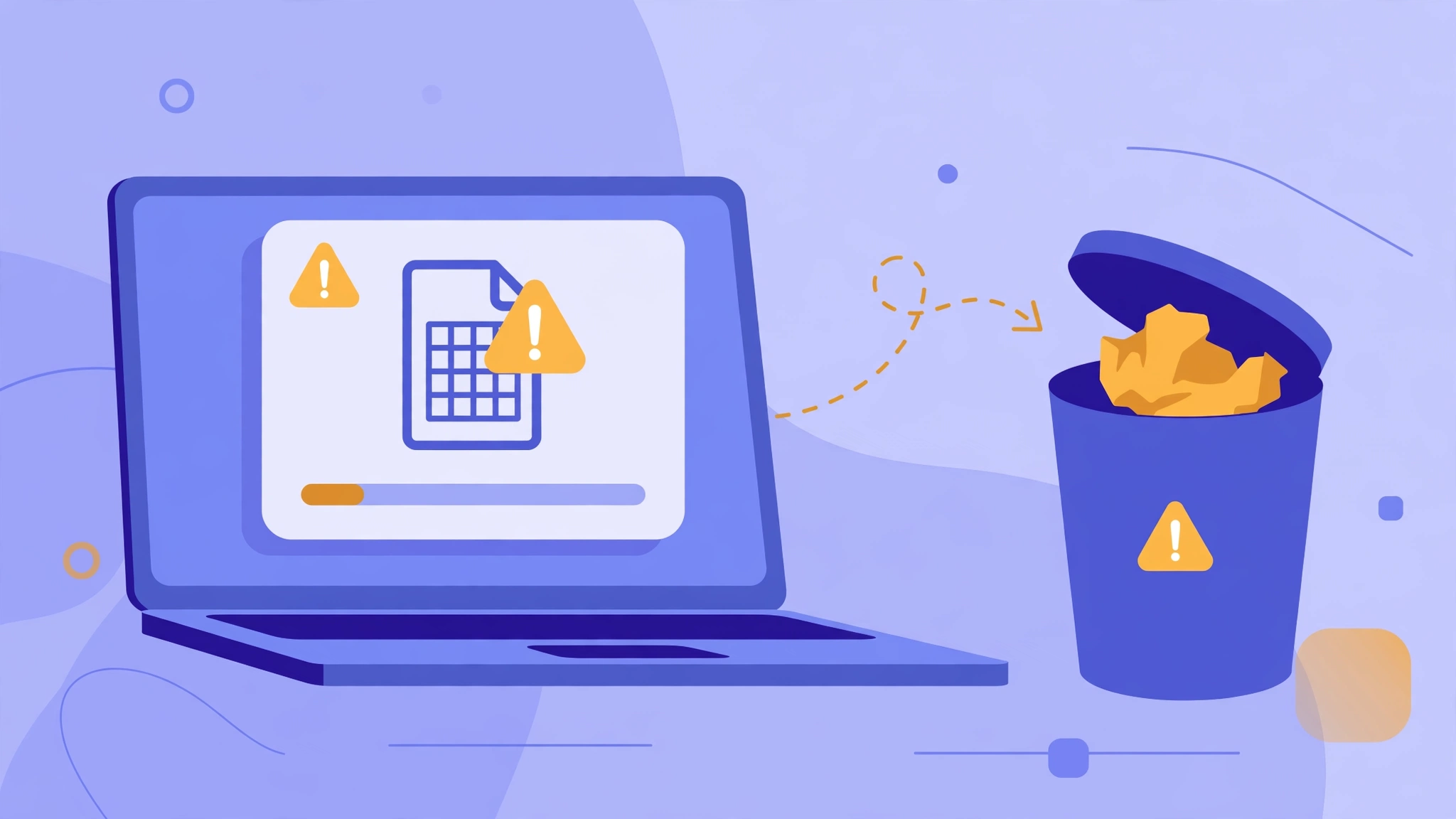
Most beginners already have dozens of passwords saved in Chrome or Edge. Import them in a few clicks instead of retyping them, and follow this safe migration sequence.
Step 1: Export from your browser. In Chrome, go to Settings > Autofill and passwords > Google Password Manager > Settings > Export passwords to get a CSV file. It is plaintext, so anyone who opens it can read every password: never email it, upload it, or leave it in your Downloads folder.
Step 2: Import into your manager. In your manager’s web vault or desktop app, use the import option to upload the CSV file. Your browser-saved passwords now appear as vault entries.
Step 3: Delete the export file immediately. This is the step people skip, and it is the one that matters most. A plaintext password file sitting on your computer is a bigger risk than the password reuse you are fixing.
Step 4: Run a password health check. Run the audit in your manager’s security dashboard, then fix flagged weak, reused, or breached passwords on your most important accounts first: email, banking, and cloud storage.
Step 5: Turn off browser password saving. In your browser settings, disable “offer to save passwords” and the built-in autofill, so new passwords stop drifting into the weaker browser vault.
Step 6: Verify and clean up. Log into your top accounts with the manager to confirm the imports work, and delete duplicates or outdated entries.
Post-import cleanup checklist
- [ ] CSV export file deleted and recycle bin emptied
- [ ] Password health audit run, top five critical accounts fixed
- [ ] Browser password saving and autofill disabled
- [ ] Two-factor authentication enabled on the manager account
- [ ] Master password backup written on paper and stored safely
- [ ] Emergency access or recovery contact set up (if your plan offers it)
Is It Safe to Use a Password Manager?
Two layers protect you. First, AES-256 encryption scrambles your vault before it reaches the company’s servers, and zero-knowledge architecture means the company never holds your master password. Second, past breaches exposed only encrypted data, so attackers could not read individual vaults without cracking each master password separately.
The honest risks are personal, not corporate: a weak or reused master password, or malware on an already-infected device, can defeat any manager. Make it long and unique, protect it with 2FA, and never share it.
What happens if I forget my master password? Because of zero-knowledge encryption, the company cannot reset it for you, so a paper backup in a safe place is essential. Enable biometric unlock so you type the master password less often, and set up emergency access so a trusted contact can help you recover.
How to Use Your Password Manager on Your Phone
First, install the manager’s app from the official app store and sign in with your master password. Next, enable autofill in the system settings: on iPhone, go to Settings > General > Autofill & Passwords and select your manager; on Android, go to Settings > Passwords, passkeys & accounts (the exact name varies by brand) and set your manager as the autofill service. Turn on fingerprint or face unlock inside the app so unlocking takes one second, then open your email or banking app to confirm the manager fills the login. Manager apps are lightweight, but if your device struggles with several background apps at once, our guide on how much RAM do you need explains what your phone actually needs to run smoothly.
Password Manager vs Passkeys: What Is the Difference?
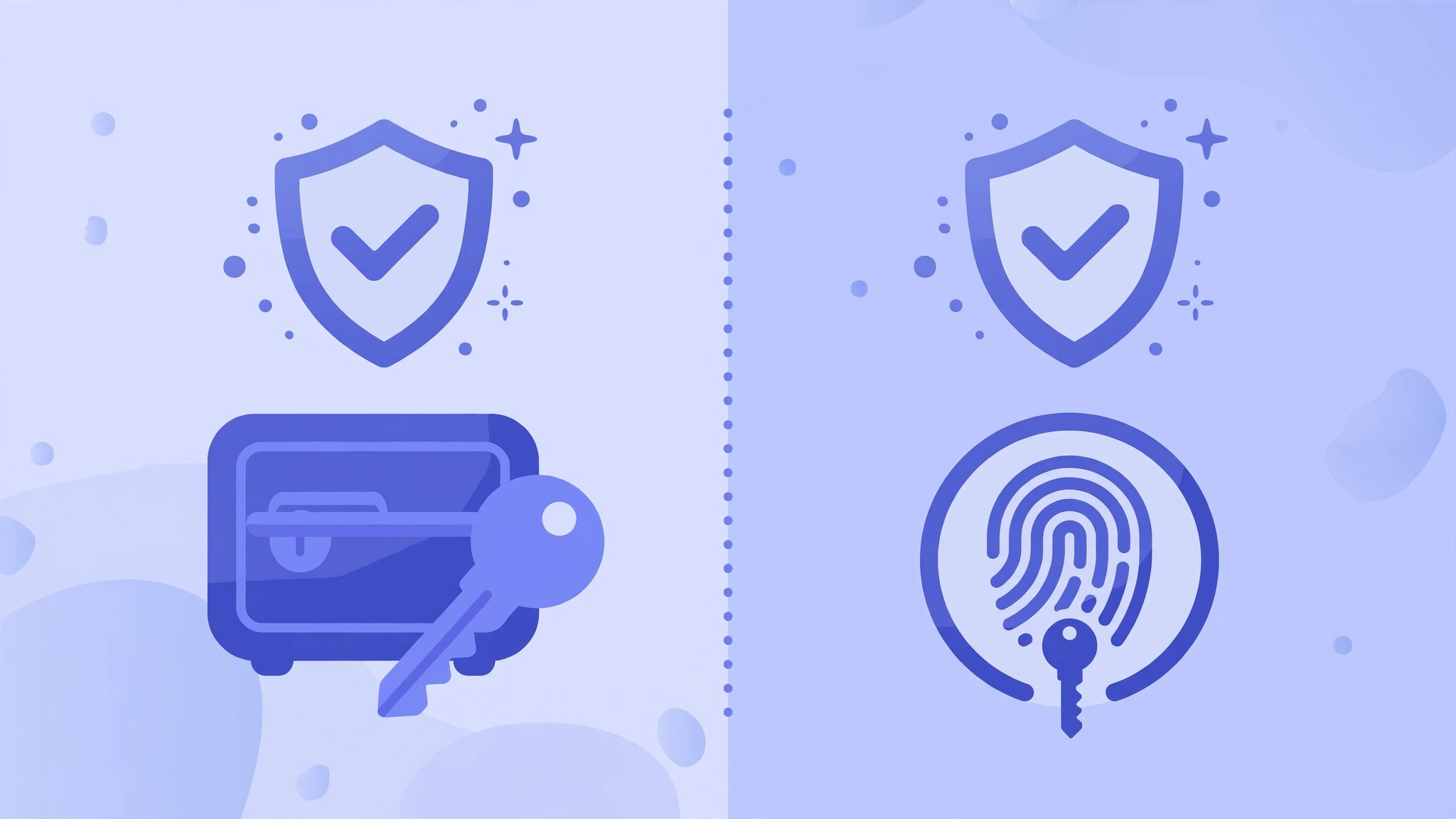
| Password manager | Passkeys | |
|---|---|---|
| What it is | Stores your passwords for every site | Replaces the password with a cryptographic key pair |
| What you do | Unlock with one master password; it fills the rest | Unlock with fingerprint or face; no password typed |
| Phishing resistance | Strong (refuses to fill on fake domains) | Stronger (only works on the real domain by design) |
| Works everywhere? | Yes, every site with a password | Only on sites that support passkeys (growing, but not all) |
| Do you still need both? | Passkeys do not cover every site yet | Managers can store your passkeys too |
For beginners: use a password manager for everything today, and save passkeys inside the same manager as sites adopt them.
Frequently Asked Questions
Is it safe to use a password manager? Yes, it is much safer than the alternatives. Reputable managers encrypt your vault with AES-256 before it leaves your device and use zero-knowledge architecture, so even the company cannot read your passwords. The real risk is a weak master password or malware on your device, both of which good habits prevent.
What happens if I forget my master password? The company cannot reset it, because zero-knowledge encryption means it never held your password. Keep a paper backup in a safe place, use biometric unlock, and set up emergency access if your plan includes it.
What is a password manager in simple terms? It is a secure app that remembers all your passwords for you. You create one strong master password to unlock it, and it generates, stores, and fills in a unique password for every website and app you use.
How do I import passwords from Chrome to a password manager? In Chrome, go to Settings > Autofill and passwords > Google Password Manager > Settings > Export passwords to download a CSV file. In your manager’s web vault or desktop app, use the import option to upload it, then delete the CSV file permanently.
Free password manager vs paid: which should I choose? Start free. Bitwarden and Proton Pass offer free plans with unlimited passwords, a generator, and device sync that cover everything beginners need. Pay later only for family sharing, emergency access, or priority support.
What is a password manager in simple terms? It is a secure app that remembers all your passwords for you. You create one strong master password to unlock it, and it generates, stores, and fills in a unique password for every website and app you use.
Does a password manager work on all my devices? Yes. Managers offer apps and extensions for Windows, Mac, Android, and iPhone, and your encrypted vault syncs between them through the cloud. Set up once, then sign in on each device.
Can a password manager be hacked? Companies have been breached before, but the stolen data was encrypted with each user’s master password, so attackers could not read individual vaults without cracking those passwords separately. A long, unique master password plus two-factor authentication keeps your vault secure even in that scenario.
Conclusion
Setting up a password manager is the highest-impact 15 minutes you can spend on your online security. You create one account, choose one strong master password, install the apps, import your browser passwords, delete the plaintext export, and enable two-factor authentication. From that moment on, you get a unique strong password on every site, automatic filling, and phishing protection.
Start today with a free plan, migrate your most important accounts first, and write your master password backup on paper. Your future self will thank you the first time you log into a site on a new device without typing a thing. More simple software guides live on the CPN Tech homepage.