WiFi 7 Mesh: What It Is and Whether You Need One
WiFi 7 Mesh: What It Is and Whether You Need One
A WiFi 7 mesh system is a home network of two or more wireless nodes working together as one network, using the WiFi 7 (802.11be) standard. One node plugs into your modem and the others spread coverage to every room, with devices roaming between them automatically. WiFi 7 adds Multi-Link Operation, letting devices use several frequency bands at once.
If you have ever watched a video buffer in the bedroom while the router blinks happily in the living room, you already understand the problem mesh solves. A single router cannot push a strong signal through walls, floors, and distance. This guide explains what a WiFi 7 mesh network is, how it works in plain language, what WiFi 7 changes inside a mesh, and the honest truth about whether you should buy one now or wait.
Key Takeaways
- A WiFi 7 mesh system uses multiple nodes to blanket your home in one seamless WiFi network, eliminating dead zones that a single router cannot fix.
- WiFi 7’s Multi-Link Operation lets devices connect across the 2.4, 5, and 6 GHz bands at the same time, cutting latency and keeping connections stable.
- The link between your nodes (called backhaul) decides real performance more than any speed number on the box. Wired backhaul always wins.
- A 2-pack suits most apartments and medium homes; large or multi-story homes usually need 3 nodes, placed high and in the open.
- Mesh is overkill for small apartments, slow internet plans, and homes full of older devices. A good single router costs far less.
In This Article
- What Is a WiFi 7 Mesh System?
- How Does a WiFi 7 Mesh Network Actually Work?
- What Makes WiFi 7 Different Inside a Mesh System?
- Mesh vs Router vs Extender vs Access Point: Which One Fits Your Home?
- What Are the Real Benefits of a WiFi 7 Mesh Network?
- What Are the Downsides and Limitations?
- When Should You NOT Buy a WiFi 7 Mesh System?
- How to Set Up a WiFi 7 Mesh System the Right Way
- How Much Does a WiFi 7 Mesh System Cost?
- What Security Features Should You Check?
- Frequently Asked Questions
What Is a WiFi 7 Mesh System?
A WiFi 7 mesh system is a set of two or more wireless units, called nodes, that join forces to create one large WiFi network across your home. Instead of a single router shouting from one corner, you place nodes in different rooms and they cooperate to cover everything.
The first node, called the gateway, connects directly to your modem with an Ethernet cable. The remaining nodes, called satellites, talk to the gateway to extend the network. To your devices, the whole thing looks like one network with one name and password. You walk from the kitchen to the bedroom and your phone quietly switches to the nearest node without dropping your video call.
The “WiFi 7” part means the nodes use the latest wireless standard, WiFi 7, the marketing name for the 802.11be standard. For the technical background, see our guide to the 802.11be standard.
How Does a WiFi 7 Mesh Network Actually Work?
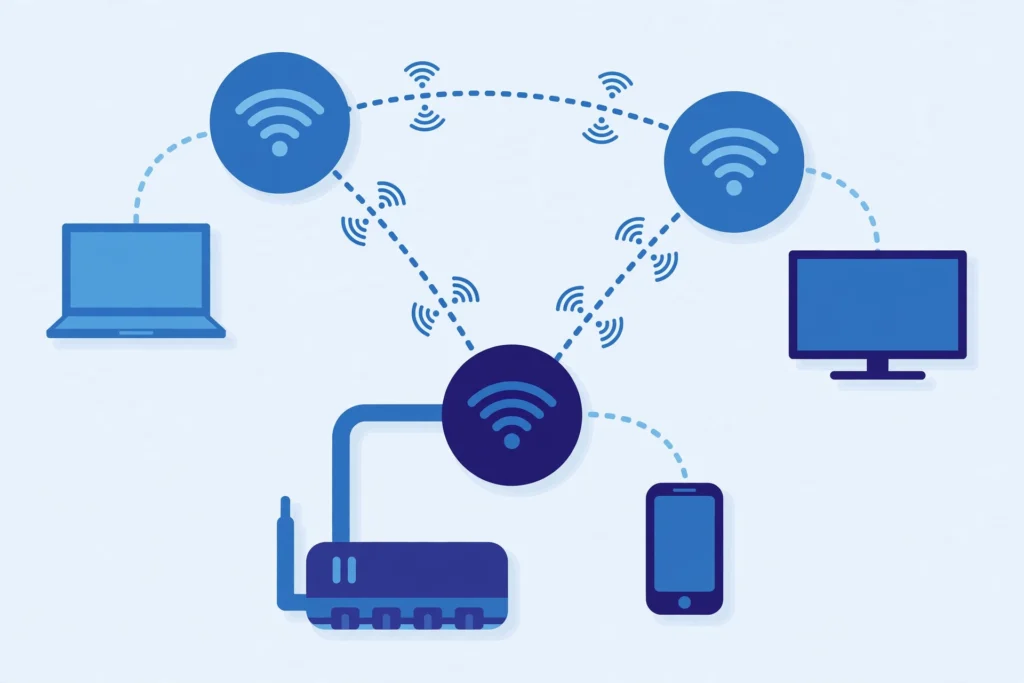
A mesh network works through constant quiet teamwork between its nodes. Four jobs explain why it feels so different from a router plus a range extender.
1. One network, many radios. Every node broadcasts the same network name. Your devices never see “Living Room” and “Bedroom” as separate networks, unlike old range extenders that forced manual switching.
2. Seamless roaming. As you move, the system hands your device to the strongest nearby node, using the 802.11k, 802.11v, and 802.11r standards for fast handoffs. Calls and streams keep going instead of clinging to a weak distant node.
3. Band and client steering. Each node picks the best band (2.4, 5, or 6 GHz) per device and nudges devices toward less crowded nodes. A 4K TV might get 5 GHz while a smart bulb sits on 2.4 GHz.
4. Self-healing paths. If one node drops, the rest reroute traffic around the gap automatically. A range extender has no backup: when it drops, everything on it drops too.
The hidden hero of all this is the backhaul: the private link each satellite uses to talk back to the gateway. Think of it as the service road behind a row of shops: if that road is narrow, the whole row slows down. Backhaul can run over a dedicated wireless band, over your home’s Ethernet wiring, or over MoCA adapters that reuse TV coaxial cable. Wired backhaul is always the fastest, most stable option.
What Makes WiFi 7 Different Inside a Mesh System?

WiFi 7 is not just a faster WiFi 6. Developed as the IEEE 802.11be amendment to the wireless standard, it changes how radios behave, and several headline features solve problems that are specific to mesh networks.
Multi-Link Operation (MLO) is the biggest deal. Older WiFi forces a device to pick one band at a time. MLO lets a WiFi 7 device use the 2.4, 5, and 6 GHz bands simultaneously, so congestion on one band does not stall the connection. In a mesh system, MLO also strengthens the wireless backhaul between nodes, which directly fixes the classic mesh weakness: slow or unstable node-to-node links.
320 MHz channels on the 6 GHz band double the widest channels WiFi 6E offered. Wider channels move more data per second, which matters most for the backhaul link carrying many devices’ traffic at once.
4K-QAM modulation packs more data into each signal, raising throughput by roughly 20 percent compared with WiFi 6 in clean conditions. In real homes the gain is smaller, but it is real on short, clear links.
Preamble puncturing lets a node use the clean parts of a wide channel even when part of it is blocked by interference. Older WiFi would abandon the whole channel; WiFi 7 salvages the usable pieces, which keeps speeds steadier in crowded apartment buildings.
Here is the part competitors rarely spell out: you get meaningful mesh benefits from WiFi 7 even with older devices. Your WiFi 6 phone cannot use MLO, but the nodes can still use MLO and wider channels on the backhaul links between themselves, so every device enjoys a faster, more stable path to the internet. For a generation-by-generation comparison, read our WiFi 7 vs WiFi 6 breakdown.
Mesh vs Router vs Extender vs Access Point: Which One Fits Your Home?
These four options get confused constantly. Here is how they differ and when each wins.
| Option | How it works | Best for | Watch out for |
|---|---|---|---|
| Single router | One powerful unit covers the home | Apartments and small homes under about 1,500 sq ft | Dead zones grow with distance and walls |
| Mesh system | Multiple nodes form one seamless network | Medium to large or multi-story homes with dead zones | Higher cost; needs good backhaul and placement |
| Range extender | Repeats one router’s signal, often as a second network | One single dead spot on a tight budget | Roughly halves bandwidth; no seamless roaming |
| Wired access points | Ceiling or wall units wired back to a router | Large homes with Ethernet wiring; enthusiasts | Needs cabling and more setup know-how |
Choose a single router when your home is small and dead zones are mild. If one powerful router is enough, our WiFi 7 router buying guide covers the specs that matter before you spend.
Choose mesh when you have real dead zones in multiple rooms, a multi-story layout, or thick walls. Mesh is the only option that keeps one network name and hands devices between nodes smoothly.
Choose an extender only as a stopgap for one stubborn corner. Extenders rebroadcast on the same radio, which roughly halves bandwidth for connected devices.
Choose wired access points if your home already has Ethernet in the walls. They beat mesh on raw performance, but they need more planning and usually a separate router.
What Are the Real Benefits of a WiFi 7 Mesh Network?
Whole-home coverage with no dead zones. Nodes in the right spots erase the far-bedroom and basement black holes a single router leaves behind. This is the headline reason people buy mesh.
Consistent speed in every room. With solid backhaul, a good mesh delivers genuinely fast speeds far from the modem, so 4K streams and video calls work upstairs, not just next to the router.
Room for 100 or more devices. Modern homes pile on phones, laptops, TVs, cameras, and smart gadgets. WiFi 7 mesh systems are built for dense device counts, with enough radios and airtime management to keep everything responsive at once.
Lower latency for gaming and calls. MLO routes around congestion, cutting the lag spikes that ruin online games and freeze video meetings, most noticeably in busy households where many devices compete at once.
What Are the Downsides and Limitations?
The price is real. A quality WiFi 7 mesh 3-pack typically costs several times more than a good single router, and premium kits climb higher still. Budget kits exist, but the cheapest ones often cut the 6 GHz band or Ethernet ports that make WiFi 7 worth having.
Your internet plan is still the ceiling. A mesh system cannot deliver speeds your provider does not sell you. On a 300 Mbps plan, a WiFi 7 mesh will feel barely different from a decent WiFi 6 router for internet tasks.
Older devices only get part of the benefit. Backward compatibility means everything connects, but only WiFi 7 devices use MLO and 320 MHz channels. A house full of older gadgets will see better stability and coverage, not a dramatic speed jump.
Some features hide behind subscriptions. Certain brands put advanced parental controls or enhanced security behind a monthly plan. Check what is free before you buy, because the subscription adds up over the years you own the system.
When Should You NOT Buy a WiFi 7 Mesh System?
Your home is small. In an apartment under roughly 1,200 to 1,500 square feet with an open layout, a single good router covers everything. Mesh nodes would sit close enough to interfere with each other more than help.
Your internet plan is slow. Below about 300 Mbps, the bottleneck is your plan, not your WiFi. A faster plan helps more than new hardware.
Your devices are mostly older. If none of your phones, laptops, or TVs support WiFi 7, you are paying for features you cannot use yet. A quality WiFi 6 or WiFi 6E system delivers nearly the same daily experience for much less.
You just bought WiFi 6E. If your current setup works and covers your home, there is no urgency. WiFi 7 mesh prices are still falling.
How to Set Up a WiFi 7 Mesh System the Right Way
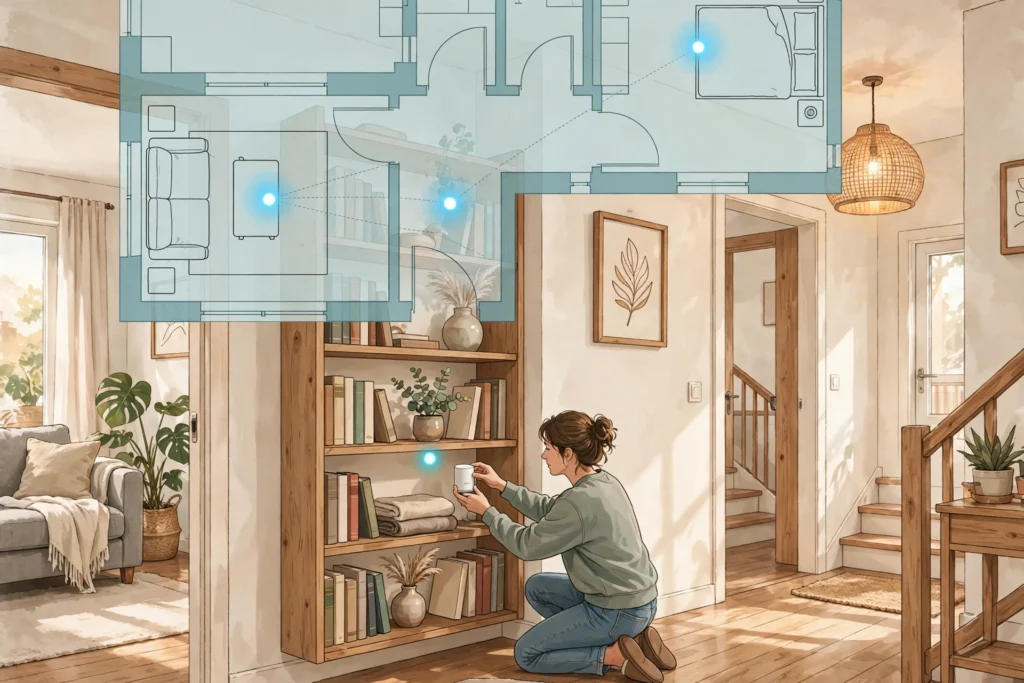
Setup is mostly app-guided and takes under an hour, but placement decides whether the system sings or stumbles.
Step 1: Place the gateway node first. Put the primary node near your modem, in a central, elevated, open spot rather than on the floor behind the TV. Connect it with Ethernet, power it on, and complete the app setup, including the firmware update.
Step 2: Add satellites one at a time. Power on each satellite and let the app adopt it before placing the next. Rushing this step is the most common setup mistake.
Step 3: Follow the halfway rule. Place each satellite roughly halfway between the gateway and the dead zone you want to fix, not inside the dead zone itself.
Step 4: Go high and stay open. Nodes perform best on shelves at chest height or above, in open air. Avoid closed cabinets and media consoles, and keep nodes away from microwaves, thick mirrors, and large metal objects.
Step 5: Mind your walls. One drywall wall between nodes is fine. Brick, concrete, and stone fireplaces are signal killers, so move nodes closer or add a third node to shorten the hop.
Step 6: Wire the backhaul if you can. If your home has Ethernet wall jacks, connect satellites with cables. No Ethernet? MoCA adapters reuse TV coaxial cable for a near-wired backhaul.
How many nodes do you need? One router for apartments under 1,200 sq ft; a 2-pack for 1,200 to 3,000 sq ft or two floors; a 3-pack for 3,000 to 5,000 sq ft or three floors. Start with fewer than you think. You can always add a node later, and too many nodes too close together cause interference.
If a satellite will not connect, move it within a few meters of the gateway, let the app adopt it, then move it to its final spot. If speeds disappoint, test wired to the gateway first to confirm your plan delivers, then test beside each satellite to find the weak hop.
How Much Does a WiFi 7 Mesh System Cost?
Expect roughly $200 to $350 for budget 2-packs, $400 to $700 for mid-range tri-band kits, and $900-plus for premium systems.
The sticker price is not the whole story. Add any paid subscription for security or parental features, plus MoCA adapters or cable runs if you want wired backhaul. Spread over a realistic five-year ownership, a $500 kit costs about $8 per month, which reframes the decision from “expensive gadget” to “small monthly cost for a frustration-free network.” Buy for your home’s size and your internet plan, not for the biggest speed number on the box.
What Security Features Should You Check?
WPA3 encryption should be the default on any WiFi 7 system. It fixes known weaknesses in WPA2 and protects against offline password-guessing attacks. Make sure it is enabled out of the box rather than buried in advanced settings.
Automatic firmware updates matter more than most buyers realize. Vendors patch vulnerabilities through updates, and systems that update themselves overnight protect you without effort.
A separate guest network keeps visitors’ devices isolated from your computers and smart home gear. Look for one-tap guest setup in the app, and check whether parental controls are free or subscription-locked, since that is the most common paywall.
Frequently Asked Questions
Do I need WiFi 7 devices to benefit from a WiFi 7 mesh system?
No, but it helps. Older devices still connect through backward compatibility, and you get better coverage and stability because the nodes use WiFi 7 features like MLO on the backhaul links between themselves. To unlock the full speed and latency gains, though, your devices need WiFi 7 radios too.
How many mesh nodes do I need for my home?
Start with a 2-pack for homes up to about 3,000 square feet or two floors, and a 3-pack for larger or three-story homes. Apartments under 1,200 square feet usually need just one good router. Begin with fewer nodes: you can add another later, while too many nodes close together cause interference.
Can I mix a WiFi 7 mesh system with my older router?
It is not recommended as a mesh. Most brands only form a true mesh with nodes from the same product family, managed by one app. You can sometimes reuse an old router as a wired access point with the same network name, but roaming will not be as smooth. For the seamless experience, use matched nodes.
Is a WiFi 7 mesh system good for gaming?
Yes, it is one of the best wireless options for gaming. Multi-Link Operation cuts latency and routes around interference, reducing the lag spikes that ruin competitive play. For the absolute lowest latency, though, nothing beats a wired Ethernet connection from your console or PC to a node.
Does a mesh system slow down my internet speed?
A well-placed mesh with good backhaul does not slow your internet; it extends fast speeds to rooms a single router cannot reach. A poorly placed mesh with weak wireless backhaul can feel slower, because each wireless hop adds delay and shares airtime. Placement and backhaul matter more than the speed on the box.
How long will a WiFi 7 mesh system stay relevant?
Expect about five years. WiFi 7 devices are still rolling out across phones, laptops, and consoles, so the standard is early in its adoption curve. As long as the vendor keeps shipping firmware updates, a WiFi 7 mesh bought today should serve a typical home well into the early 2030s.
Conclusion
A WiFi 7 mesh system is the right answer when dead zones, device counts, or multi-story layouts overwhelm a single router. Its cooperating nodes create one seamless network, and WiFi 7’s Multi-Link Operation, wider channels, and smarter interference handling make the links between those nodes faster and more reliable than any previous generation.
But it is not for everyone. Small homes, slow internet plans, and houses full of older devices will not feel enough difference to justify the price. Before buying, map your dead zones, check your internet speed, and plan your node placement and backhaul. Get those right and a WiFi 7 mesh delivers exactly what it promises: fast, stable WiFi in every corner of your home. For more beginner-friendly networking guides, visit the CPN Tech homepage.