
Wireless Repeater for WiFi Explained Simply
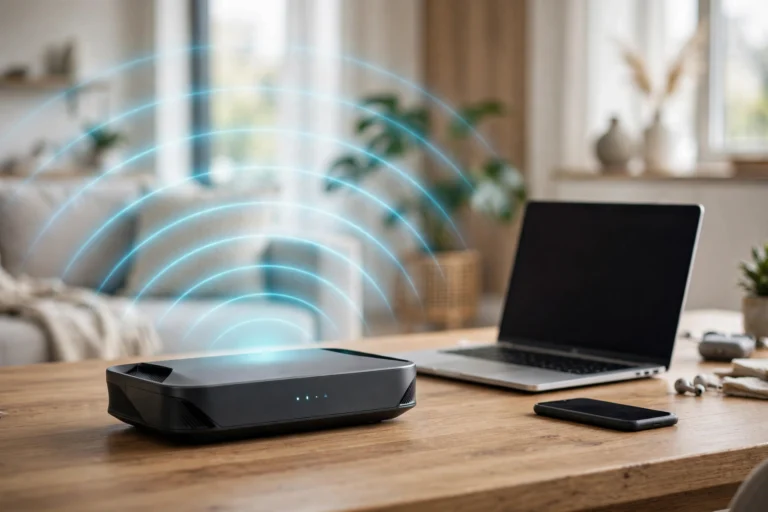
A dead zone at the far end of a house is frustrating. Video calls freeze in the back bedroom, music buffers in the kitchen, and a smart TV in the garage drops its connection at the worst moment. A wireless repeater for WiFi is one of the cheapest ways to fix that single weak spot, and it works without running a cable through walls. A wireless repeater for WiFi is a small device that receives your router signal, then rebroadcasts it from a second location, so devices in a weak area connect to a stronger nearby signal instead of a faint signal from a distant router.
That simple idea comes with a trade off: a repeater does not create new internet speed, and it cannot improve a weak signal it receives. Placed well, it turns an unusable corner into a usable room. Placed badly, it repeats a poor signal. This guide explains how it works, where to place it, and when mesh or a wired access point is better.
Key Takeaways
- A wireless repeater for WiFi receives a router signal and rebroadcasts it to extend coverage into one weak area.
- It does not increase your internet plan speed, and a single radio repeater can cut throughput by about half on the repeated link.
- Placement matters more than price: put the repeater halfway between the router and the dead zone, where it still gets a strong signal.
- Dual band models, an Ethernet port, and a matching WiFi generation help, but a wired access point beats a wireless hop when a cable is possible.
- For several weak rooms, multiple floors, or many moving devices, a mesh system is usually the better long term fix.
Contents
- What Is a Wireless Repeater for WiFi?
- How Does a Wireless Repeater for WiFi Work?
- How to Extend WiFi Range With a Repeater?
- Do WiFi Extenders Work?
- What Is the Best Place to Put a Wireless Repeater?
- How Do You Set Up a Wireless Repeater for WiFi?
- Wireless Repeater vs Extender vs Mesh vs Access Point: Which Is Best?
- What Problems Can a Wireless Repeater Cause, and How Do You Fix Them?
- How Do You Choose the Right Wireless Repeater for WiFi?
- When Should You Skip a Repeater and Upgrade Instead?
- Frequently Asked Questions About Wireless Repeaters for WiFi
- Conclusion
What Is a Wireless Repeater for WiFi?
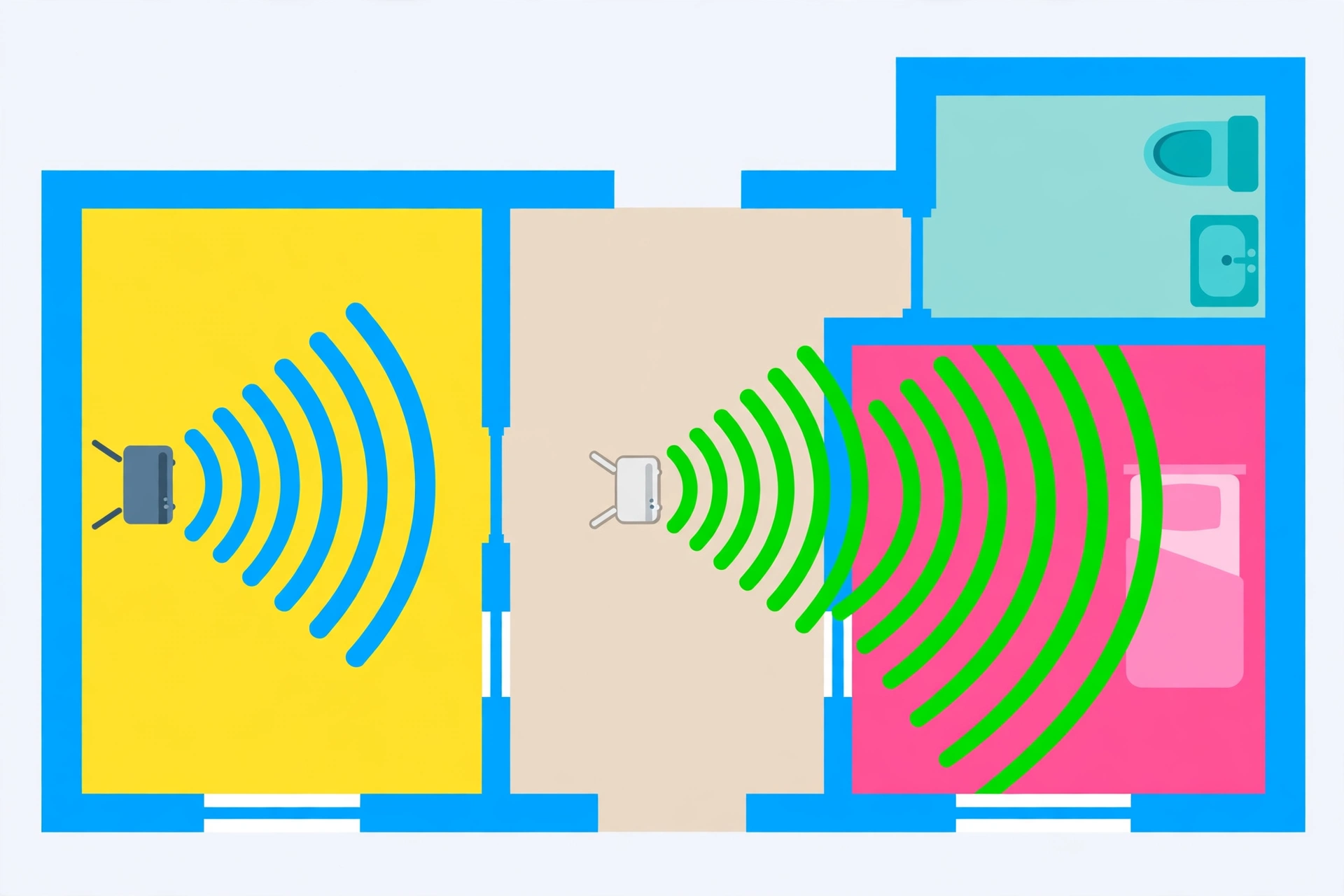
A wireless repeater for WiFi is a networking device that takes an existing wireless signal from a router or access point and rebroadcasts it to create a second coverage area. It is also called a wireless range extender or WiFi extender, and in everyday shopping those names usually describe the same kind of plug in device. The formal definition on Wikipedia describes a wireless repeater as a device that receives a signal and retransmits it to bridge a gap that is too long for a direct connection.
Most home repeaters are small wall plug units with one or two antennas, a WPS button, a signal indicator light, and sometimes an Ethernet port. Some routers can also act as repeaters when their firmware includes a repeater mode, although a dedicated repeater is simpler for most beginners.
How Does a Wireless Repeater for WiFi Work?
A wireless repeater for WiFi works in two steps that happen at the same time. First, it joins your home WiFi network as a client, just like a phone or laptop does. Second, it broadcasts that same network again from its own location, so nearby devices can connect to the repeated signal. Devices in the dead zone then talk to the repeater, and the repeater talks to the router on their behalf.
That extra hop is the key to both the benefit and the cost. The benefit is reach: a device that could barely hear the router can now hear a nearby repeater clearly. The cost is airtime. A single radio repeater must listen and then transmit on the same channel, so every piece of data uses the wireless channel twice. In practice, that can reduce throughput on the repeated link by about half compared with a direct connection to the router, even when the signal bars look full.
How to Extend WiFi Range With a Repeater?
Learning how to extend WiFi range with a repeater starts with finding the real problem. Walk around the house with a phone and note where video stalls, calls drop, or pages load slowly. Check whether the problem is one room, one floor, or the whole house. A repeater is best for one room or one small area. A whole house problem usually points to router placement, an old router, or a need for a mesh system instead.
When you install the repeater, extend range in stages. Place it, connect one device in the weak room, and run a speed test there. Then run the same test next to the router for comparison. A usable result in the weak room, even if it is slower than the router result, is a success. If the result is still unusable, move the repeater closer to the router and test again, rather than buying a second repeater straight away.
Do WiFi Extenders Work?
Do WiFi extenders work? Yes, for the job they are built for: filling one coverage gap in a home where the router signal is strong in most rooms and weak in one area. They work when the repeater itself can still receive a strong, stable signal from the router. They fail when they are placed in the dead zone itself, because a repeater cannot repeat a signal it can barely hear.
Work, in this case, means usable coverage, not full speed. Expect a single radio extender to deliver roughly half the throughput of a direct router connection on the same band, plus a little extra delay from the extra hop. That is usually fine for browsing, email, video calls, and standard video streaming. It is less ideal for competitive online gaming, large file uploads, or 4K streaming on several devices at once in the extended area.
What Is the Best Place to Put a Wireless Repeater?
The best place to put a wireless repeater is halfway between the router and the dead zone, in a spot where it still receives a strong router signal. That halfway rule is repeated by router makers for a good reason. Too close to the router, and the repeater adds little new coverage. Too far away, in the dead zone itself, and it repeats a weak, unstable signal.
Use the repeater signal indicator as a guide. Many models show a light that turns red when the link to the router is too weak, and green or blue when it is good. If your model has an app, check the link quality in the app before you settle on a spot. Aim for a location with a clear path to the router, not behind a refrigerator, inside a closed cabinet, or on the floor behind a sofa.
How Do You Set Up a Wireless Repeater for WiFi?
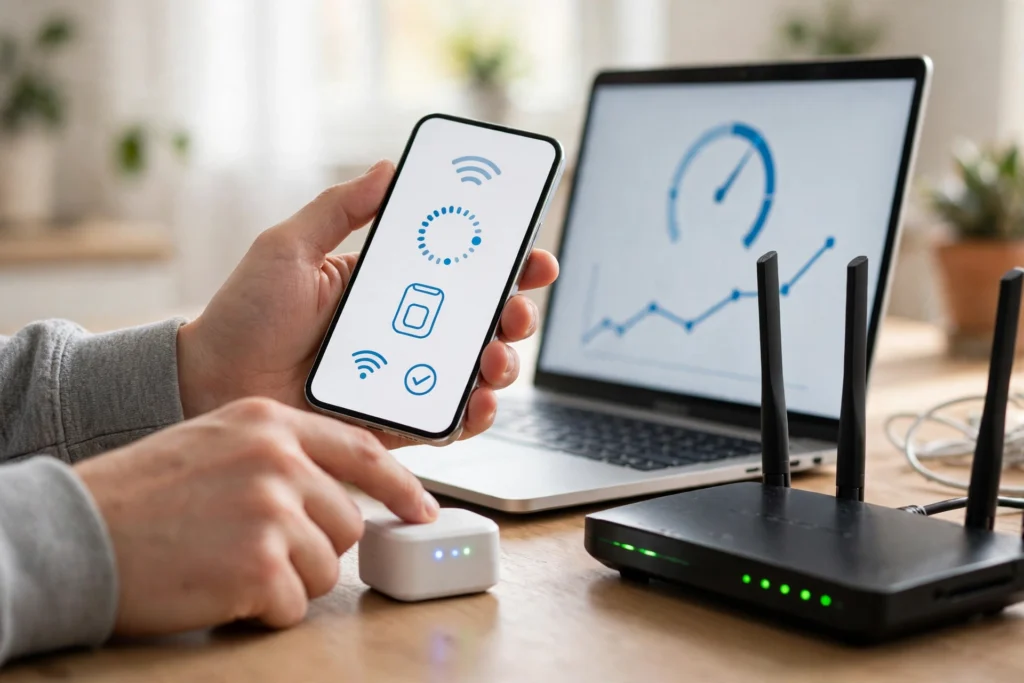
Most modern repeaters offer two setup paths: a WPS button press, or a browser or app setup. WPS is the fastest path. Press the WPS button on the router, then press the WPS button on the repeater within two minutes, and wait for the lights to settle. If WPS is disabled on your router for security, use the browser path instead, which also gives you more control over the network name and password.
For browser setup, plug in the repeater near the router first, then connect a phone or laptop to the repeater temporary network name shown in its manual or on its label. Open a browser, enter the setup address from the manual, select your home WiFi network, enter its password, and choose whether the extended network keeps the same name or uses a new name. A shared name is simpler, while a different name makes it clear which network a device is using during testing.
Wireless Repeater vs Extender vs Mesh vs Access Point: Which Is Best?
Shopping terms cause much of the confusion here, because repeater, extender, and booster are often used for the same device. In strict terms, a repeater repeats a wireless signal, while some extenders can also connect over a cable and act as an access point. In store listings, however, the label matters less than the radio count, the bands, the Ethernet ports, and the operating modes. Compare those specs, not the marketing name.
| Option | How it connects | Best for | Main drawback |
|---|---|---|---|
| Wireless repeater | Wireless hop to the router | One weak room, no cable possible | About half throughput on a single radio link |
| Wired access point | Ethernet cable to the router | Best speed in a weak area | Needs a cable run |
| Mesh system | Multiple nodes, one network | Several rooms, floors, moving devices | Higher cost, replaces the router setup |
| Powerline adapter with WiFi | Home electrical wiring | Rooms where WiFi cannot reach | Speed varies with home wiring |
What Problems Can a Wireless Repeater Cause, and How Do You Fix Them?
The most common repeater problem is slower speed than expected. This is usually the normal cost of a wireless hop, made worse by bad placement. Move the repeater closer to the router, switch devices to the 5 GHz band for the device link where possible, and plug stationary devices such as a smart TV or games console into the repeater Ethernet port. A wired device on the repeater avoids one wireless hop for that device.
Another common problem is a device that stays stuck on a weak router signal instead of switching to the stronger repeater signal. This happens when both networks share a name and the device roams slowly. A temporary fix is to turn WiFi off and on again on the device in the weak room. A lasting fix is to give the extended network a different name during testing, or to move to a mesh system with proper roaming support if the problem keeps returning.
How Do You Choose the Right Wireless Repeater for WiFi?
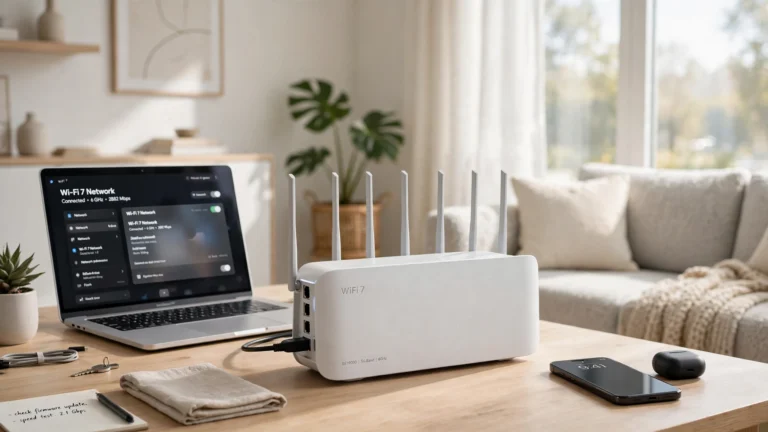
Start by matching the repeater to your router generation. A WiFi 5 repeater on a WiFi 6 or WiFi 7 router will work, but it will not deliver the newer features or speeds. A WiFi 6 repeater is a sensible default for most homes today, while a WiFi 7 repeater only makes sense if your router, devices, and internet plan can use it. For background on newer standards, see the CPN Tech guide on whether WiFi 7 is worth it at https://www.cpntech.com/is-wifi-7-worth-it/.
Next, check the specs that affect real performance. Dual band support is important, because it gives the repeater more ways to manage the router link and the device link. An Ethernet port is valuable for a TV, console, or desktop in the weak room. External antennas can help in larger rooms, although antenna count alone does not guarantee range. A signal indicator light, an app, and a clear setup guide matter more than a flashy speed number on the box, because box speeds are measured in ideal lab conditions.
When Should You Skip a Repeater and Upgrade Instead?
Skip a repeater when the problem is not coverage alone. If speed is slow even next to the router, check your internet plan, test with a wired connection, and consider a router upgrade or a plan change. If the router is several generations old, a new router in a better position may fix the whole house without any extra device. If every room is weak, the house likely needs a mesh system or wired access points, not a single repeater.
A repeater is still a good tool, but it is a targeted tool. Use it for one room, test it honestly, and keep it only if real tasks improve. That simple rule saves money, avoids a pile of half working extenders, and keeps the home network simple to manage. For related basics, the CPN Tech explainers on what an SSID is and what Ethernet is help explain the network names and cable options mentioned in this guide.

Frequently Asked Questions About Wireless Repeaters for WiFi
Does a wireless repeater for WiFi increase internet speed?
No. A wireless repeater for WiFi does not increase your internet plan speed or your router capacity. It moves coverage closer to your devices, which can make a weak area usable, but the repeated link is usually slower than a direct router connection, especially on a single radio model.
How far can a wireless repeater extend WiFi?
Range depends on walls, interference, and the router signal at the repeater location. In an open home, a repeater can add useful coverage to one nearby room or part of a floor. Through thick concrete or brick, the useful gain is much smaller, so placement and a speed test matter more than any box claim.
Can I use two wireless repeaters in one house?
You can, but it is rarely a good idea. Each extra wireless hop adds delay and cuts throughput further, and devices may roam poorly between several extended networks. For two or more weak areas, a mesh system or wired access points usually give a cleaner, more stable result.
Should the repeater use the same WiFi name as the router?
A shared name is simpler for everyday use, because devices see one network. A different name is useful during setup and testing, because it shows clearly whether a device is on the router or the repeater. Either choice works, so pick the shared name for simplicity once testing is done.
Do I need a repeater, a mesh system, or a new router?
Choose a repeater for one weak room on a healthy network. Choose a mesh system for several weak rooms or multiple floors. Choose a new router when speed is slow even beside the router, or when the current router is old and lacks modern WiFi features.
Is a wireless repeater safe to use?
Yes, when it is set up correctly. Use WPA2 or WPA3 encryption, a strong WiFi password, a changed admin password on the repeater, and current firmware. Avoid open extended networks, and do not leave WPS enabled longer than needed for setup if your router allows you to turn it off.
Conclusion
A wireless repeater for WiFi is a simple, low cost fix for a single dead zone, and it works best when it is placed halfway to that zone with a strong link back to the router. It will not raise your internet speed, and a single radio model will cost some throughput, but for browsing, calls, and streaming in one weak room, that trade off is often worth it. Test real tasks after setup, move the repeater if results disappoint, and step up to a wired access point or a mesh system when the problem grows beyond one room. To learn more about home networking basics, visit CPN Tech for simple explainers on routers, WiFi standards, and home network setup.