WiFi Connected but No Internet: 11 Fixes That Work
Your phone shows full WiFi bars, yet nothing loads. Pages time out, videos stall, and apps report no connection. It is one of the most common home network problems, and it usually has a clear cause once you split the problem in the right place.
WiFi connected but no internet means your device has joined local WiFi, but the path from your router to the internet is broken or blocked. The icon looks healthy, while the router cannot reach websites or apps. The break can sit in one device, the router, the modem, DNS settings, or with your provider. This guide finds that break, then fixes it.
Key Takeaways
- WiFi bars show a link to your router, not a link to the internet.
- Test a second device first: one failure points to device settings, every failure points to router, modem, or provider.
- Restart the modem first, then the router, and wait for steady lights.
- Check for an outage on mobile data before changing DNS or router settings.
- Never factory reset a router first: a reset erases WiFi name, password, and provider login.
Table of Contents
- Why Does WiFi Connected but No Internet Happen?
- How Can You Tell Where the Connection Breaks?
- How Do You Restart a Modem and Router Correctly?
- What Fixes WiFi Connected but No Internet on One Device?
- What Fixes WiFi Connected but No Internet on Every Device?
- Why Does Public WiFi Connect but Refuse to Load Pages?
- When Should You Call Your Provider or Replace a Router?
Why Does WiFi Connected but No Internet Happen?
WiFi connected but no internet happens when the local wireless link works but the onward internet link does not. Think of WiFi as the road inside your neighbourhood and the internet as the highway beyond it. Your device connects to a router, the router to a modem, and the modem to your internet service provider (ISP). A fault at any later stage leaves the first stage looking normal.
Common causes are simple: a modem or router needing a restart, a provider outage, or a loose cable between modem and router. On one device, a wrong DNS setting, IP conflict, outdated driver, VPN, proxy, or corrupted saved network can block access. Less common causes include a wrong WAN setting, a suspended account, or a parental control rule. WiFi is based on IEEE 802.11 standards, with background on Wikipedia. WiFi defines the wireless link only, not the internet behind it.
What the signal icon actually proves
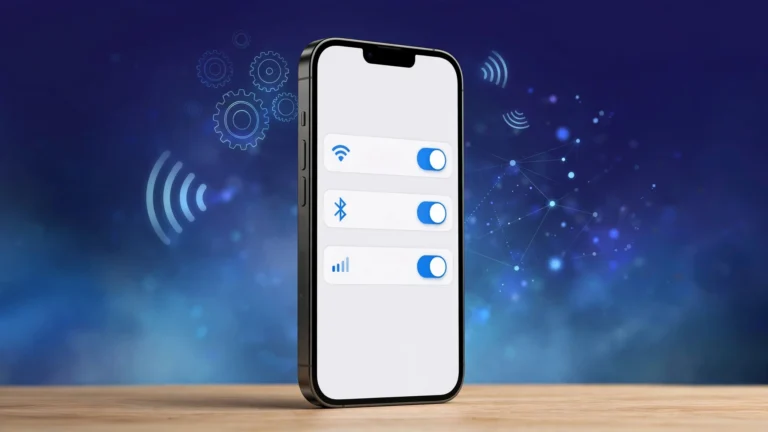
A full icon proves signal strength only, not internet, DNS, or provider access. Some devices show “Connected, no internet” or “No Internet Connection”, while others show full bars with no warning. Test a real page, a second device, and Ethernet when you can. Faults can also appear suddenly after maintenance or updates.
How Can You Tell Where the Connection Breaks?
Internet Troubleshooter
Answer a few questions and get a fix to try. Everything runs in your browser.
How can you tell where the connection breaks? Change one variable at a time, starting with one device or every device. If a second device loads pages on the same WiFi, the fault sits in the first device. If no device loads pages, check modem, router, cables, and provider status. That test prevents most wasted effort.
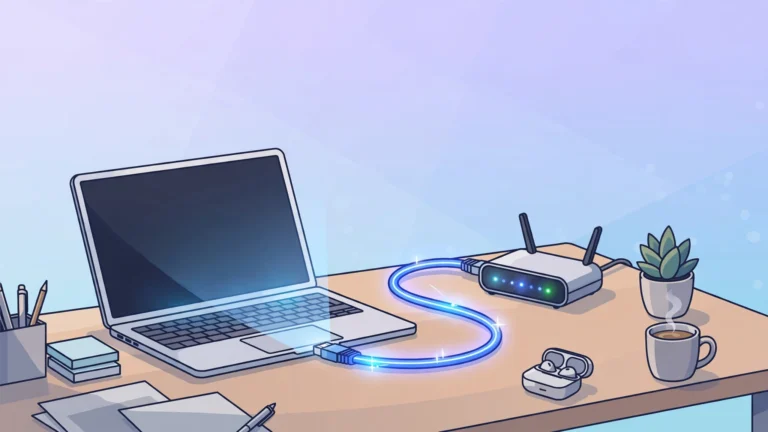
Next, test one app against one website. If websites load but one app fails, the app, cache, or VPN rule is likely at fault. Then test Ethernet: plug a laptop into a LAN port and turn WiFi off on it. If Ethernet works while WiFi does not, the feed works and the fault is wireless. If Ethernet also fails, the fault is at the gateway or provider level.
| What you observe | Likely area | Next step |
|---|---|---|
| Only one device fails | That device, VPN, or saved network | One device fixes below |
| Every device fails | Modem, router, or provider | Every device fixes below |
| One app fails, websites load | That app or VPN rule | Clear cache, test without VPN |
| Public WiFi connects, pages fail | Captive portal sign-in | Complete the sign-in page |
| Names fail, IP addresses work | DNS settings | Return DNS to automatic |
| Ethernet works, WiFi does not | Wireless settings | Test beside the router |
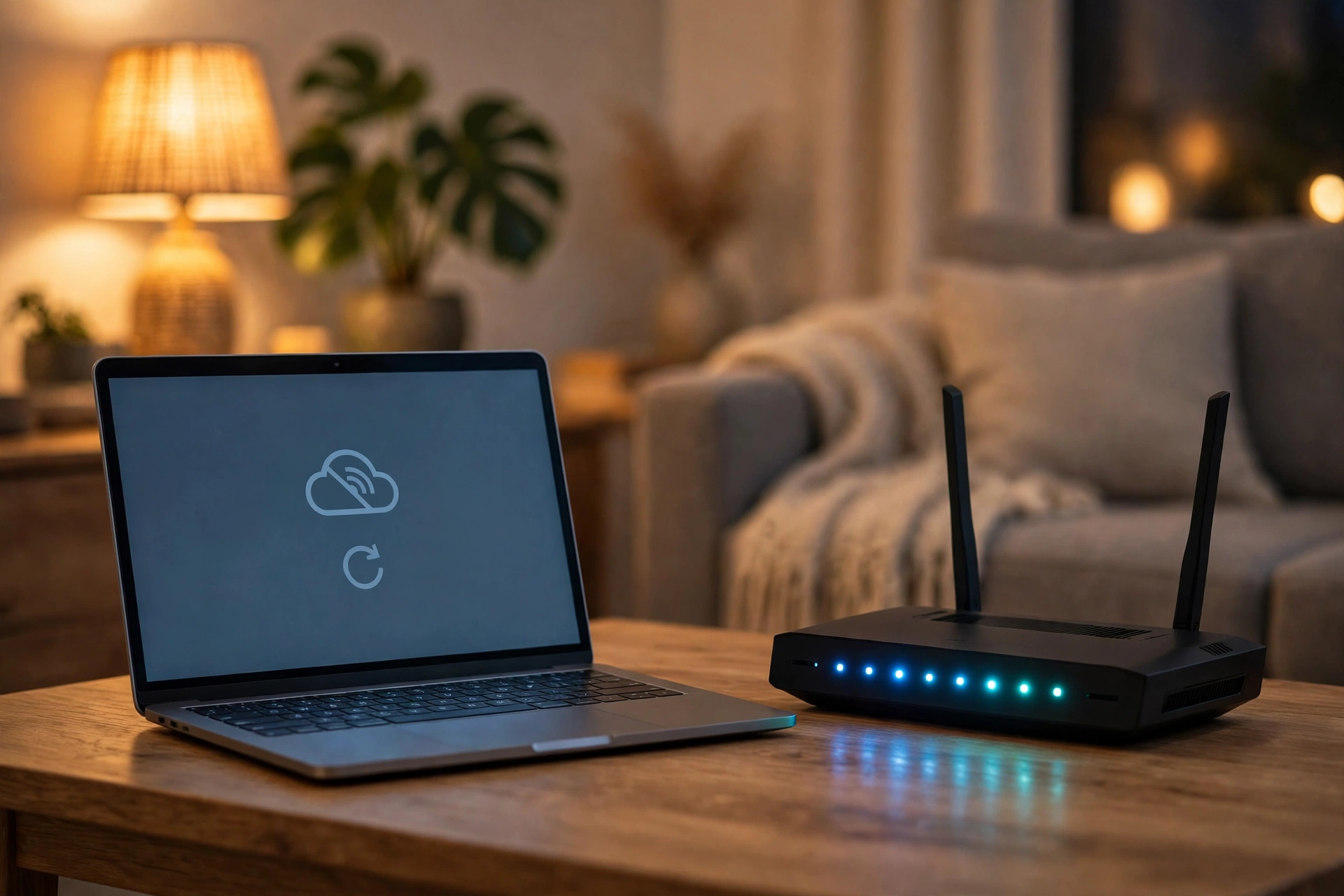
Read the lights before changing settings, using your manual because names differ by model. A steady Internet light usually means the modem has a provider link. A red or dark light usually means the line or provider needs attention. Check for an outage on mobile data first, using your provider app or a tracker such as Downdetector (plain text name, no link). Restarts cannot fix an outage.
How Do You Restart a Modem and Router Correctly?

How do you restart a modem and router correctly? Power them down in order, wait long enough for memory to clear, then power the modem first and the router second. A restart is not a reset. A restart keeps WiFi name, password, and provider settings. A factory reset erases them. Never press a pinhole reset button unless you have provider login details and a recovery plan.
- Unplug modem and router, or the single gateway box if you have one.
- Wait 60 seconds to clear temporary states.
- Plug the modem back in first, and wait for a steady Internet light, usually one to two minutes.
- Plug the router back in, and wait for its lights to settle.
- Test one device, then a second. Stop as soon as it works.
If the modem light never turns steady, the fault is likely the line, modem, or provider. Check cables, confirm the account is active, and contact support. Frequent restarts point to heat, failing hardware, outdated firmware, or a line fault. Do not restart only the router when a separate modem is hung.
What Fixes WiFi Connected but No Internet on One Device?
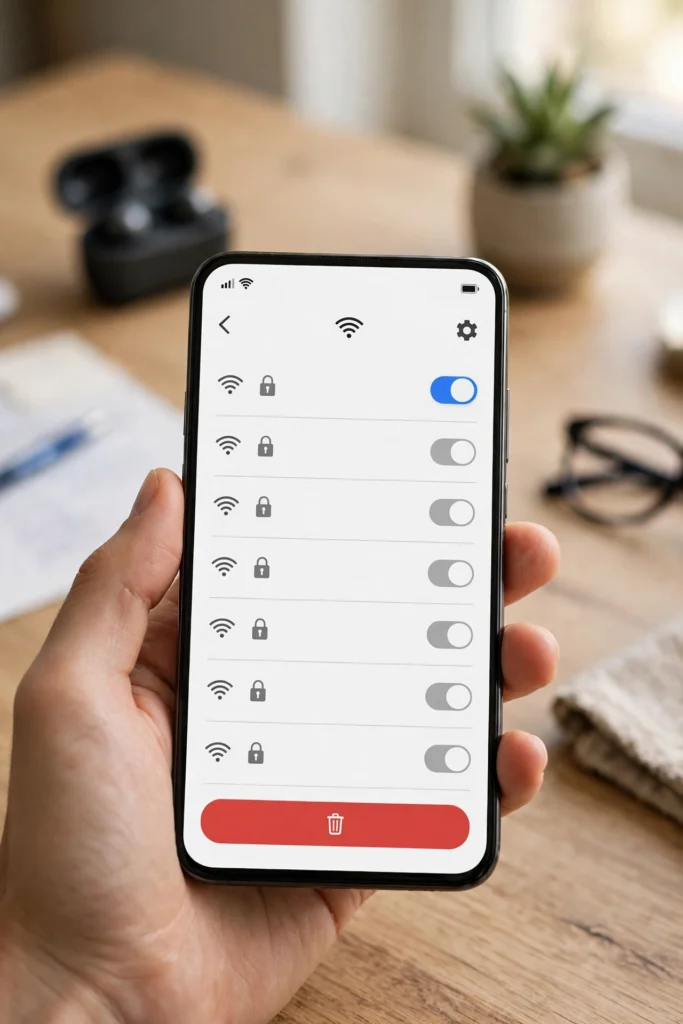
What fixes WiFi connected but no internet on one device? Most one device fixes repair a saved network profile, a VPN or proxy rule, a DNS or IP setting, or a driver problem. Work in order and test after each step. Stop when pages load, so you know which change fixed it.
Restart the device fully, then toggle WiFi off for ten seconds and back on. Next, forget the network and join it again, because a corrupted saved profile can keep a device connected in name only. On Windows, use Settings, Network and Internet, WiFi, Manage known networks, Forget, then reconnect. On Mac, use System Settings, Network, WiFi, Forget This Network, then reconnect. On iPhone, use Settings, WiFi, the information icon, Forget This Network, then reconnect. On Android, use Settings, Network and Internet, WiFi, long press the network, Forget, then reconnect. Test a website before restoring VPN or custom DNS.
Turn off VPN, proxy, and privacy filters for one test, since they can block traffic while WiFi stays connected. On iPhone, check Settings, WiFi, your network, Configure Proxy, and set it to Off unless work or school gave you a proxy. On Windows, check Settings, Network and Internet, Proxy, and turn off manual proxy unless required. If pages load with VPN off, update or change the VPN server. Routers with MAC filtering may also block an unknown private address.
Renew the IP address and flush DNS. An IP conflict happens when two devices receive the same address, and renewing asks the router for a fresh one. On Windows, open Command Prompt as administrator and run ipconfig /release, then ipconfig /renew, then ipconfig /flushdns. On Mac, use System Settings, Network, WiFi, Details, TCP/IP, Renew DHCP Lease. On phones, forgetting and rejoining usually renews the address. On Windows, update drivers in Device Manager, Network adapters, then restart. Use network reset only later, because it clears saved networks, VPN profiles, and custom DNS, and you must re-enter passwords.
What Fixes WiFi Connected but No Internet on Every Device?
What fixes WiFi connected but no internet on every device? Every device fixes focus on the gateway: cables, modem, router WAN settings, DNS, DHCP, access rules, and provider service. Change one setting, test, and note the result.
Check cables first. Confirm the modem to router cable sits firmly in the router WAN or Internet port, not a LAN port. Check the modem cable: coax for cable, telephone line for DSL, or fibre to an ONT. Reseat each cable firmly, and replace a damaged cable before buying equipment. A loose WAN cable is a classic cause of WiFi on, internet off.
Check router Internet or WAN status in its app or admin page, usually at 192.168.1.1 or 192.168.0.1. Check for a WAN IP address and a connected, disconnected, or authentication failed report. Cable and fibre users usually need DHCP or Dynamic IP, while many DSL users need PPPoE with provider credentials. If PPPoE details are wrong, the router broadcasts WiFi but never reaches the internet. Correct them, save, and restart once.
Fix DNS only when evidence points to DNS. If a public IP loads but names do not, DNS is a strong suspect. On Windows, compare ping to 1.1.1.1 with nslookup for example.com. If the IP responds but name lookup fails, return the device to automatic DNS first, then test a public DNS on one device only, such as Google DNS at 8.8.8.8. Do not change router DNS for the household until that test works. If both tests fail, DNS is not the cause.
Check DHCP, access rules, firmware, and billing. Confirm DHCP is on and its range covers your devices, for example 192.168.1.100 to 192.168.1.200, and check for duplicates. Parental controls, schedules, MAC filtering, and guest rules can block a device while WiFi stays visible, so test with the suspect rule off, then restore a corrected rule. Apply firmware updates when idle, and if a second router was just added, confirm its WAN cable and access point mode. A suspended account can also look exactly like a router fault.
Why Does Public WiFi Connect but Refuse to Load Pages?
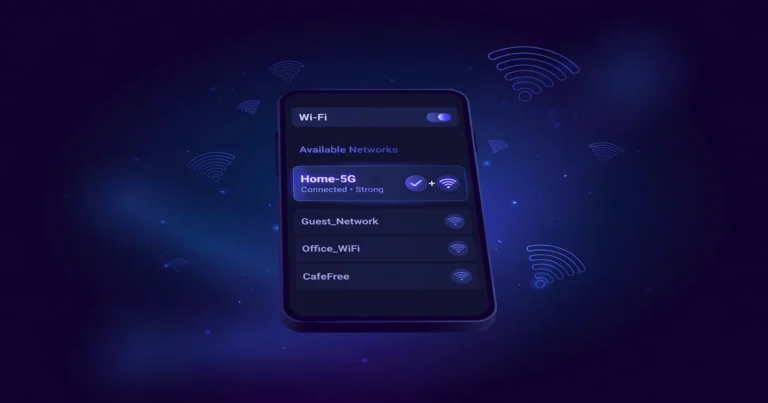
Why does public WiFi connect but refuse to load pages? Public WiFi often connects you to a local network first, then requires a captive portal sign-in before internet access begins. Hotels, airports, cafes, campuses, and guest networks use this pattern. You join WiFi, then you must accept terms, enter a room number, enter a code, or sign in before pages load.
Open a browser and visit a simple website, then look for a sign-in notification. If no page appears, forget the network and join it again, and temporarily disconnect a VPN that may block the portal. Do not send banking or work credentials to a portal unless you have confirmed who operates it. Work networks may block VPNs or require a proxy step, so check their instructions. A home guest time limit can also stop internet after an hour.
When Should You Call Your Provider or Replace a Router?
When should you call your provider or replace a router? Call your provider when every device stays offline after a correct modem first restart, especially when Ethernet also fails or the modem light never turns steady. Give start time, model, light status, restart result, and outage status. Ask support to check the line, account, modem, and area incidents. Do not post your IP address or account number publicly.
Consider replacement only when several signs point to hardware: the fault returns regularly, multiple devices lose internet together, restarts fix it only briefly, and the router is more than four or five years old. Before buying, test Ethernet direct to the modem and beside the router. A WiFi 6 or WiFi 7 router can help a busy household, and readers can compare that upgrade in our guide to what devices support WiFi 7. For range problems, our guide to wireless repeater for WiFi explains the choice. For the wired side, our guide to what is Ethernet explains links that settle whether WiFi or the feed is at fault.
What not to do
Do not factory reset first, install random repair apps, disable security permanently, or replace the router before a wired test. For a broader view, start at the CPN Tech homepage, then follow the related guides linked here for Ethernet, repeaters, and WiFi 7 devices.
Frequently Asked Questions
Why is my WiFi connected but there is no internet?
Your device has joined local WiFi, but the router lacks a working path to the internet. Common causes are a restart need, an ISP outage, a loose WAN cable, wrong DNS, or an IP conflict. Test a second device first to separate device and gateway faults.
How do I fix WiFi connected but no internet on my phone?
Restart your phone, toggle WiFi off and on, then forget the network and rejoin it with the correct password. Test without a VPN for one check, and confirm proxy is off unless your network requires one. If other devices work on the same WiFi, the fault is in your phone settings, not the router.
Why does WiFi work on one device but not another?
One device can hold a corrupted profile, VPN rule, proxy setting, DNS error, IP conflict, or outdated driver, while other devices work normally. Forget and rejoin on that device, test without VPN, renew its IP address, and update drivers before resetting network settings.
What does connected without internet mean on Android and iPhone?
It means the phone joined WiFi but cannot reach the internet through the router. Android often shows “Connected, no internet” while iPhone shows “No Internet Connection”. Both point to the same split: local WiFi works, the onward path is broken.
Can DNS cause WiFi connected but no internet?
Yes, when website names fail while numeric IP addresses still respond. Return DNS to automatic on one device first, then test a public DNS only if that still fails. If both IP and name tests fail, DNS is not the cause, so check modem, cables, and provider status.
Should I factory reset my router to fix no internet?
No, factory reset is a last resort, not a first step. It erases WiFi name, password, provider login, parental controls, and port rules. Record WAN status first, try a modem first restart, and reset only with provider credentials and a setup plan ready.
Conclusion
WiFi connected but no internet is confusing because the signal looks healthy while the internet path is broken. Start with a simple split: one device or every device, one app or every app, WiFi or Ethernet. That split points to device, router, modem, DNS, or provider faults. Restart modem first, then router, check outages early, and change one setting at a time. Use the test order above next time, and you will usually find the broken link before spending money on new equipment.